
Danone reportedly paid about €1B for Huel. Huel sells a meal shake.
Its Shopify store does 3 things really well. None of them need a rebuild. It is all about how you show what you already sell.
Here are the 3 tricks, why they work, and how to copy them on your own Shopify store this week.
What they do well
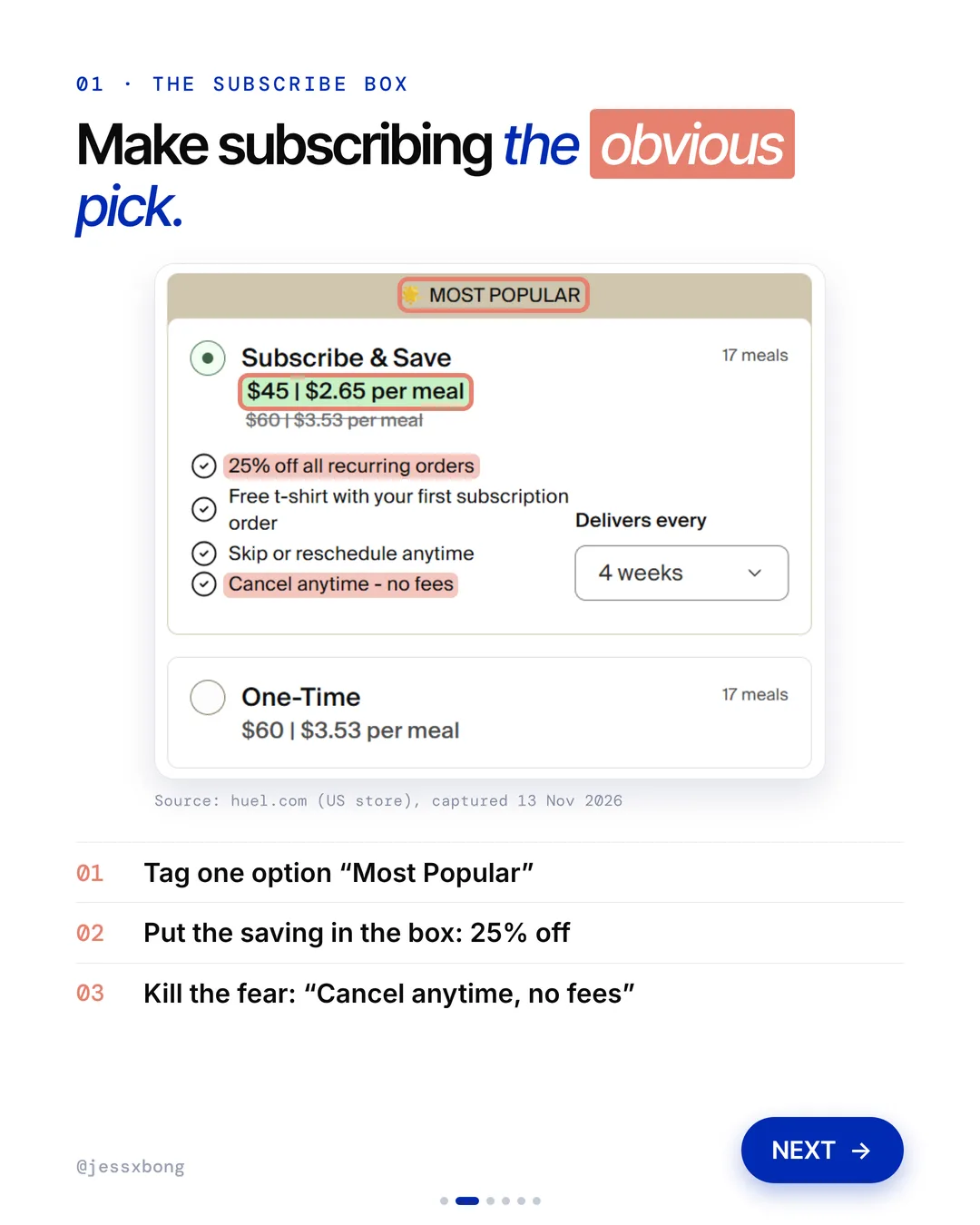
- 01Makes subscribing the obvious pickTagged "Most Popular", with the saving in the box.
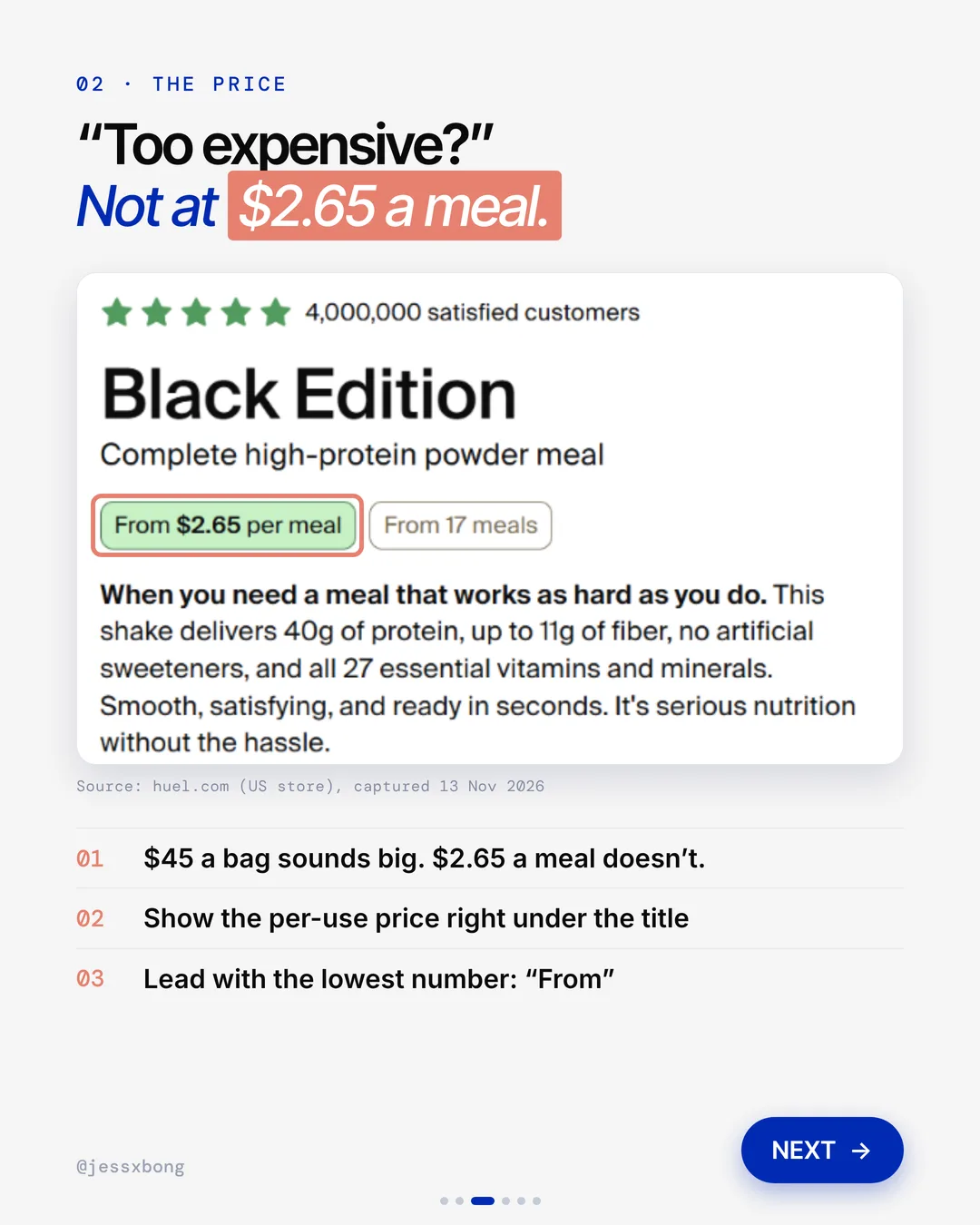
- 02Shows the price per meal"From $2.65 per meal", not "$45 a bag".
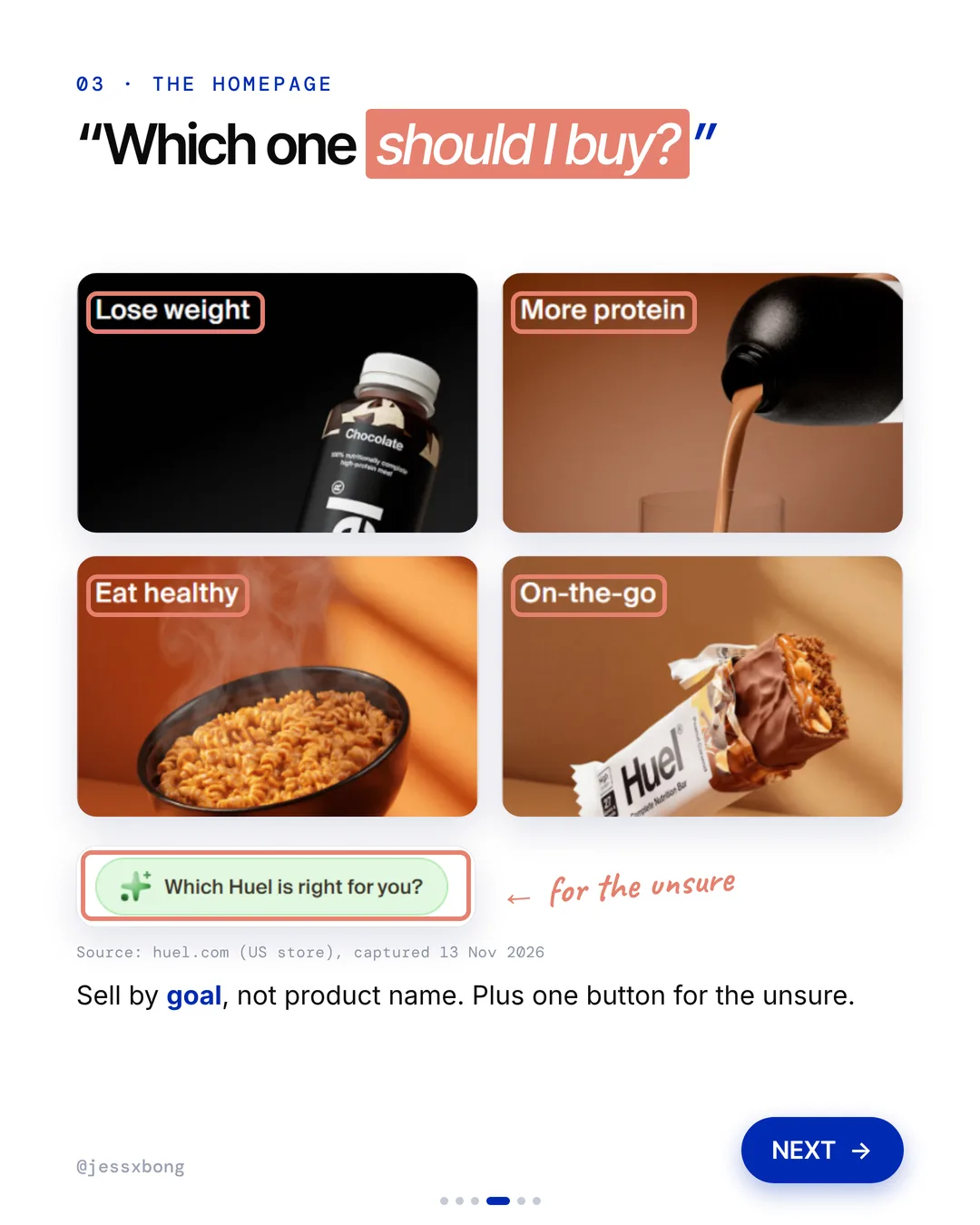
- 03Lets shoppers pick by goalGoal tiles, plus one button for the unsure.
01 · Huel
Makes subscribing the obvious pick
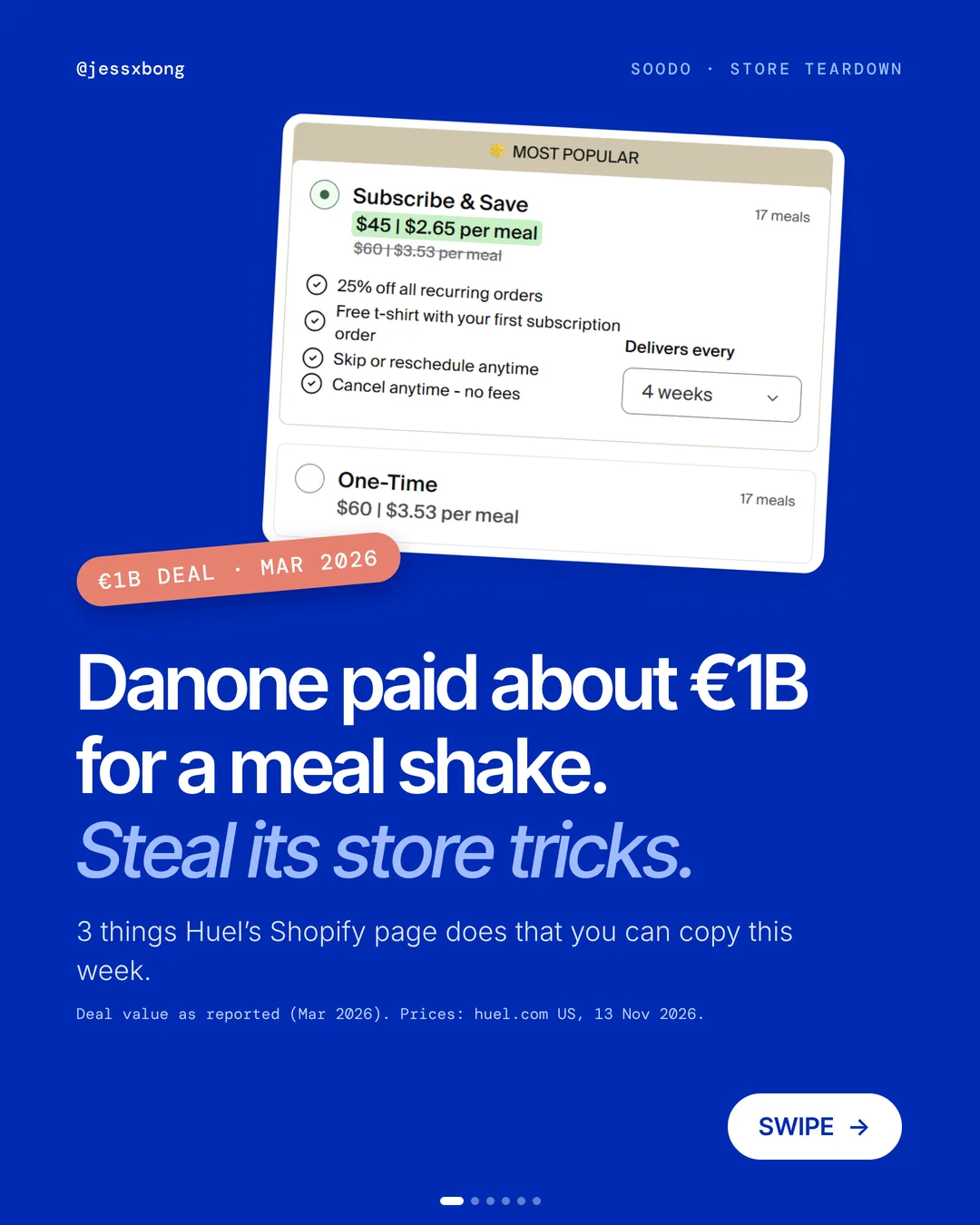
On Huel's product page, Subscribe & Save is picked for you. It is tagged "Most Popular". The saving sits right in the box: $45 instead of $60, and 25% off all recurring orders. It also says "Cancel anytime, no fees".
The subscribe box does more than show a saving. It lists four short promises: 25% off all recurring orders, a free t-shirt with your first subscription order, skip or reschedule anytime, and cancel anytime with no fees. Shoppers also pick how often it comes: every 2, 4, 6 or 8 weeks.
Each line answers a worry before the shopper has it. "What if I have too much?" Skip it. "What if I want out?" Cancel. A good tip is to write down the 3 worries your own shoppers have, then answer each one in a few words inside the box.
Why it works
"What if I get stuck with it?" "Cancel anytime, no fees" takes that fear away. And the saving is right there, so the choice is easy.
More people subscribe, so they keep buying from you. You don't have to win them back every month.
Your turn
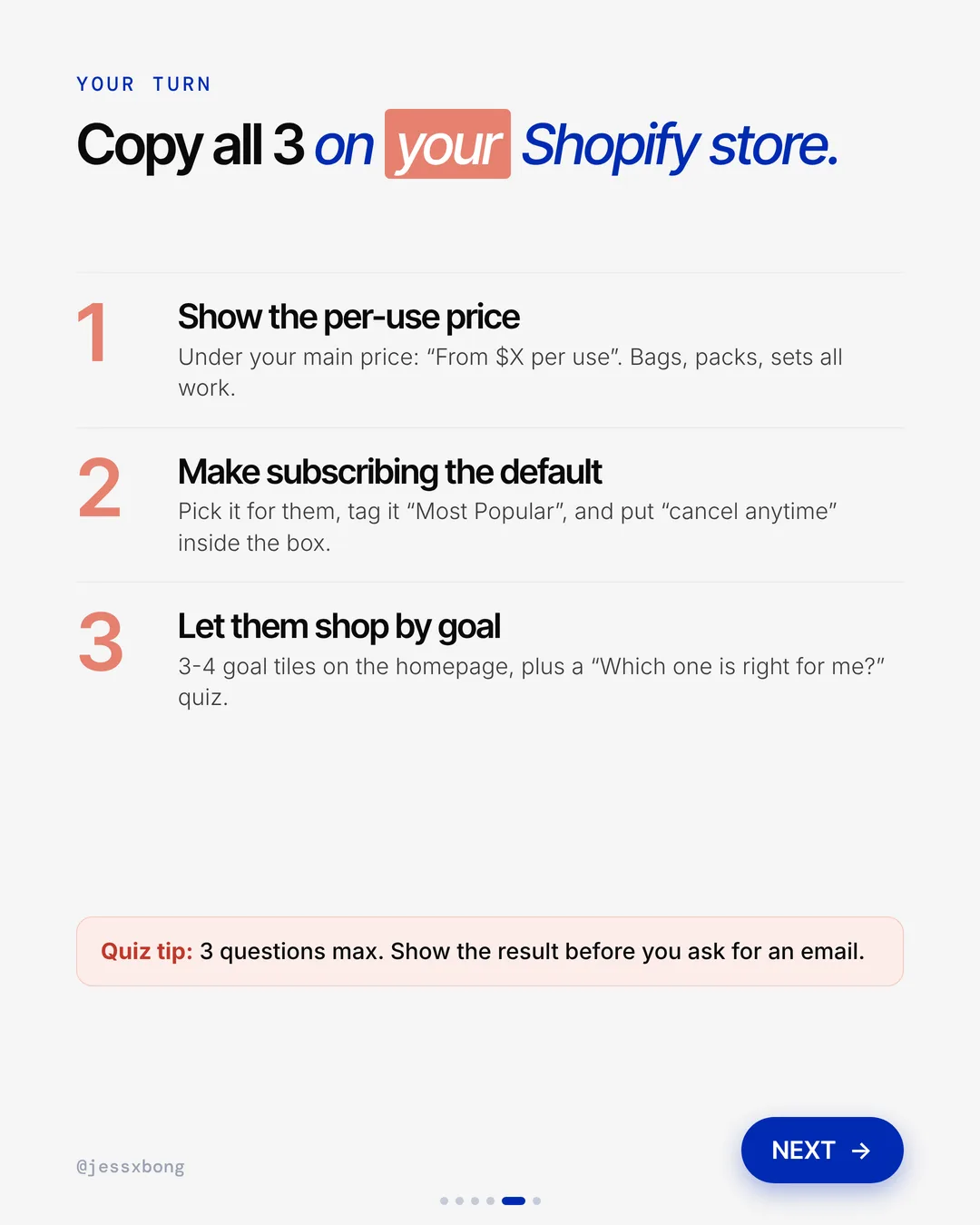
- Pick the subscribe option for them
- Tag it "Most Popular"
- Put "cancel anytime" inside the box
How to do it on Shopify
- Add a subscription app from the Shopify App Store, so shoppers can subscribe.
- Set the subscribe option to be picked by default.
- Tag it "Most Popular" and put the saving inside the box, like 25% off.
- Add "Cancel anytime, no fees" inside the box too. Only say it if it is true.
Mistakes to avoid
- Hiding the cancel rules in the small print, so shoppers feel trapped and do not sign up.
- Offering a saving so small that the subscribe box is not worth the click.
- Giving only one delivery gap, so shoppers who use it slower or faster say no.
How to tell it is working. Check your subscription app's report for new and active subscriptions each week. In Analytics, also watch your returning customer rate over the next few months.
Free checklist
Get the free Shopify Optimization Checklist
The same checklist people get on Instagram when they comment SHOP. Go through your homepage, product pages, checkout and more, one tick at a time. No developer needed.
02 · Huel
Shows the price per meal
Huel shows the price of one meal, not the whole bag. Under the title of Black Edition it says "From $2.65 per meal" and "From 17 meals". Same product, but the number feels much smaller.
Huel shows the price per meal on both options, not just one. Subscribe & Save says $45, or $2.65 per meal. One-Time says $60, or $3.53 per meal. Side by side, the subscribe saving is easy to see.
Using the same unit everywhere is the trick. If one option says "per meal" and the other says "per bag", shoppers have to do maths, and many will not. Pick one unit that makes sense to your shopper, like per cup, per wash or per day, and use it every time.
Why it works
"Too expensive?" $45 a bag sounds big. $2.65 a meal doesn't.
A small number makes it easier to say yes. You change nothing about the product, only how you show the price.
Your turn
- Bags
- Packs
- Sets
How to do it on Shopify
- Work out the price of one use. Take the price and divide it by the number of uses.
- In the theme editor, open your product page.
- Right under the title or main price, add a line: "From $X per use".
- Lead with the lowest number, and start it with "From".
Mistakes to avoid
- Working out the per-use price wrong, or forgetting to update it when the price changes.
- Mixing units, like per cup on one size and per gram on another.
- Making the per-use line so small and pale that nobody sees it.
How to tell it is working. In Analytics, compare the conversion rate for that product before and after you add the line. Also check its add to cart rate.
03 · Huel
Lets shoppers pick by goal
Huel's homepage sells by goal, not product name. There are four tiles: Lose weight, More protein, Eat healthy and On-the-go. For anyone still unsure, there is one button: "Which Huel is right for you?"
Each of Huel's goal tiles opens its own collection. Lose weight goes to a weight loss collection, More protein to protein and fitness, Eat healthy to complete nutrition, and On-the-go to eat on the go. The same four goals also sit in the menu under Shop by Goal.
For the unsure, a line asks "Not sure which product is right for you?" and links to a page called "Which Huel is right for me?". A good tip: one product can sit in more than one goal collection. That way, nobody has to guess which tile is the right door.
Why it works
"Which one should I buy?" Shoppers know their goal, not your product names. A tile for their goal answers the question for them.
Fewer people get lost and leave. The unsure ones get a button that helps them pick.
Your turn
- 3 or 4 goal tiles on the homepage
- A "Which one is right for me?" quiz for the unsure
How to do it on Shopify
- Pick 3 or 4 goals your shoppers have.
- In the theme editor, add one tile per goal to your homepage. Link each tile to the right products.
- Add one button for the unsure: "Which one is right for me?" Link it to a short quiz.
- Quiz tip: 3 questions max. Show the result before you ask for an email.
Mistakes to avoid
- Naming tiles after your products instead of what the shopper wants to do.
- Adding too many tiles, so the choice is hard again.
- Linking a tile to a collection that is mostly sold out.
How to tell it is working. In Analytics, check how many sessions reach each goal collection. If more shoppers reach a collection and your store conversion rate goes up, the tiles are working.
Do this this week
- Work out the price per use of your best seller and add it under the product title.
- Install a subscription app, like Shopify Subscriptions, and set up a subscribe option with a real saving.
- Make the subscribe option the one that is picked first, and add "Cancel anytime" if it is true.
- Make one collection for each of your 3 or 4 main shopper goals.
- Add goal tiles to your homepage that link to those collections.
None of this needs a rebuild. It is how you show what you already sell.
Questions
What does Huel's Shopify store do well?
Three things. It makes subscribing the obvious pick with a "Most Popular" tag and "Cancel anytime, no fees", it shows the price per meal, like "From $2.65 per meal", and it lets shoppers pick by goal on the homepage. (Seen on huel.com on 13 Nov 2026.)
How do I show a price per use on Shopify?
Work out the price of one use, then add a line under the title or main price on your product page, like "From $X per use". It works for bags, packs and sets.
Can I make subscribing the default on Shopify?
Yes. Add a subscription app, set the subscribe option to be picked by default and tag it "Most Popular". Put the saving and "cancel anytime" inside the box.
Does Huel use Shopify?
Yes. Huel's store runs on Shopify, with a custom-built front end on top. (Checked in huel.com's page source on 16 Nov 2026.)
Is there a free subscription app for Shopify?
Yes. Shopify Subscriptions is a free app made by Shopify. It lets you add a subscribe and save option to your product pages.