


How to Migrate Your Domain to Shopify: A Singapore Guide
You can bring an existing domain to Shopify in two ways: connect it (you keep your registrar and point the DNS records at Shopify) or transfer it (Shopify becomes your registrar). If your domain ends in .sg, connecting is the only option, because .sg domains cannot be transferred to Shopify. Connecting is also quicker and safer for most Singapore SMEs.
The technical part takes under an hour. What catches owners out is the order of work: pointing the domain before your redirects and email records are ready can take your shop offline or wipe out your search traffic. This guide covers the decision, the steps and the checks that matter.
TL;DR
- Connect if your domain is a .sg (mandatory), uses business email, or sits with a registrar you like. Transfer only if you want billing, renewals and DNS all inside Shopify.
- Connecting usually takes effect within 2 to 48 hours. A transfer can take up to 20 days.
- If you are leaving WooCommerce, Magento or another platform, set up 301 redirects before you change DNS, not after.
- Shopify does not host email. Check your MX records before and after any change, or your business email can stop working.
- Launch the domain last, once the store is tested on its free myshopify.com address.
Table of Contents
- Connect or transfer: which one do you need?
- Why .sg and some other extensions are connect-only
- Before you touch DNS: the pre-launch checklist
- How to connect your domain to Shopify
- How to transfer a .com or other eligible domain
- Protect your email
- Redirects: how not to lose your search traffic
- Our perspective: treat the domain as the final switch
- What to check in the first 48 hours after launch
- Common problems and fixes
- Need a hand with the switch?
- FAQ
- Sources
Connect or transfer: which one do you need?
Both options let customers reach your store on your own domain. The difference is who manages the domain afterwards. Shopify’s own guidance is that you should transfer only if you want to manage billing, renewals and DNS directly in your Shopify admin. If you rely on third-party services or specialised email hosting, or use a country-specific extension that cannot be transferred, connecting is the more flexible route.
| Question | Connect | Transfer |
|---|---|---|
| Who is the registrar? | Your current provider | Shopify |
| Who handles renewals and billing? | Your current provider | Shopify |
| Typical time | 2 to 48 hours | Up to 20 days |
| Works for .sg? | Yes | No |
| Risk to existing email | Low, records stay where they are | Higher, you must re-add MX records by hand |
| Best for | Most SMEs, custom email setups, multiple subdomains | Owners who want one dashboard for everything |
For most Singapore brands, connecting wins. You keep control of your email setup and DNS records, and you avoid the waiting period of a registrar transfer. If you later decide you want everything in Shopify, you can still transfer a .com, as long as the extension is eligible.
Why .sg and some other extensions are connect-only
Shopify lists a number of country-code extensions that cannot be moved to its registrar, including .sg, .co.uk, .de and .jp. For these you use the connect method, and your existing provider stays responsible for the registration. Any local-presence rules attached to the .sg domain stay with that provider as well.
If you own both a .sg and a .com, you can connect one and, if you wish, transfer the other. Pick one as your primary domain in Shopify and let the other redirect to it, so customers and search engines see one canonical address.
Two more situations also force you to connect:
- Recently registered domains. Shopify’s research notes say domains registered within the last 60 days cannot be transferred. You can still connect them.
- Domains you cannot unlock. A transfer needs the domain unlocked and an authorisation code. If you cannot get either from your provider, connect instead.
Before you touch DNS: the pre-launch checklist
A domain change is the last step of a migration, not the first. Work through this list while your old store is still live.
- Find out where your domain is registered and who controls DNS. Many owners discover that a former web developer registered it. Get the login, or have the domain moved into your own account first.
- Export your current DNS records. Screenshot or copy every A, CNAME, MX and TXT record. This is your safety net.
- Identify what else depends on the domain. Business email, email marketing authentication records, payment verification, Google Search Console and any subdomains such as a blog or a help centre.
- Finish and test the store on its myshopify.com address. Check checkout, payment methods, shipping rates and mobile layouts. Our Shopify store creation checklist covers what to test.
- Build your redirect map. More on this below, because it decides whether you keep your traffic.
- Pick a quiet window. Avoid campaign launches, payday sales and double-date events. Lower the TTL on your DNS records a day ahead if your provider allows it.
How to connect your domain to Shopify
There are two routes inside Shopify admin. Where your provider supports automatic connection, Shopify guides you through signing in and approving the change. Where it does not, you connect manually.
Step 1: Add the domain in Shopify
In your Shopify admin go to Settings > Domains and choose Connect existing domain. Enter your domain exactly, for example yourbrand.com.sg, and follow the prompts.
Step 2: Update the DNS records at your registrar
If you connect manually, Shopify’s manual connection guide says to do the following at your domain provider:
- Point the A record (host @) to the Shopify IPv4 address 23.227.38.65.
- Delete any other A records on the root domain.
- Point the CNAME record named www to shops.myshopify.com, keeping the full stop at the end if your provider requires it.
You can have only one A record and one www CNAME. If your old WooCommerce host left its own records in place, they need to go. Check the guide for the current addresses before you enter anything, as Shopify can update them.
If your provider runs a CDN or proxy in front of the domain, turn it off for the root domain and www while you connect. A proxy sitting between visitors and Shopify is a common reason for certificate or redirect errors.
Step 3: Verify and wait
Back in Settings > Domains, click Verify connection. DNS changes usually show within 2 to 48 hours, though Singapore owners often see them sooner. While Shopify provisions your SSL certificate, the site may briefly show a security warning. Leave it alone for a few hours before troubleshooting.
Step 4: Set the primary domain
Choose whether visitors land on yourbrand.com.sg or www.yourbrand.com.sg, and make that the primary domain. Shopify redirects the other version to it automatically. Then visit both versions in a private browser window to confirm.
How to transfer a .com or other eligible domain
If you want everything in Shopify and your extension is eligible, the process runs as follows:
- At your current registrar, unlock the domain and request the authorisation (transfer) code.
- In Shopify, go to Settings > Domains > Transfer domain, enter the domain and the code, and pay.
- Approve any confirmation email sent to the domain’s admin contact.
- Do not re-lock the domain while the transfer is in progress. It will fail.
- Re-add any custom DNS records, especially MX records, in Shopify once the transfer completes.
According to Shopify, transfers take up to 20 days, and under ICANN rules a transfer includes a one-year renewal, which extends your expiry date by 12 months. Shopify’s domain price guide puts registering a domain through Shopify at roughly 14 to 16 USD a year, depending on the extension. Check the live price in your admin before you commit.
A tip for any transfer: if your site is live, connect the domain first so customers keep reaching you, and transfer afterwards. That way a stuck transfer never takes you offline.
Protect your email
This is the mistake that hurts most quickly. Shopify does not host email. If your team uses addresses like orders@yourbrand.com.sg, the mailboxes live with a separate email provider, and the MX records that route mail live in your DNS.
- When connecting, you only change the A and www CNAME records. Leave MX and TXT records untouched.
- When transferring, the custom records are not copied automatically. Shopify’s help page says you must re-add them in the Shopify admin, or email stops working once the transfer completes.
Send a test email to and from your business address on the day of the change. Also check any TXT records used for email authentication, since your newsletters and order notifications rely on them to reach inboxes.
Redirects: how not to lose your search traffic
If you are coming from WooCommerce, Magento, Wix or another platform, your product and collection URLs will change. Shopify uses paths such as /products/ and /collections/, so an old address like /product/blue-tote will not simply carry over. Shopify’s migration guide tells you to set up URL redirects so old links point to the right new pages and you avoid broken links and lost SEO value.
The order matters. Build and import your 301 redirects in Shopify before the domain goes live, then spot-check them the moment DNS points across. If you point first and redirect later, every indexed URL returns a 404 in the gap, and customers arriving from Google or old email campaigns land on error pages.
A workable redirect routine:
- Crawl your old site and export every URL that matters: products, collections, blog posts, policy pages.
- Match each old URL to its new Shopify equivalent. Where a product no longer exists, send it to the closest collection, not the homepage.
- Import the list through Content > Menus > URL redirects in the Shopify admin.
- Test 20 to 30 of your highest-traffic URLs by hand after launch.
- Submit your new sitemap in Google Search Console and watch the coverage report for the following weeks.
For large catalogues, our guide on Shopify 301 redirects and CSV imports explains the file format and the common errors. If you want to see how the mapping logic works on a larger scale, this site migration SEO checklist walks through URL mapping before launch. Magento owners can also read our notes on protecting SEO after a Magento migration.
Our perspective: treat the domain as the final switch
We build and migrate Shopify stores for SME brands, and the domain step is rarely where a project goes wrong. The damage happens earlier, when a store is rushed live to meet a date, redirects are half done and email is nobody’s job.
Our approach is simple. The store is built and tested on its myshopify.com address. The redirect map and DNS records are documented before anything changes. Then the domain is switched in a planned window, with a rollback plan: the original records are saved, so if something looks wrong you can put them back within minutes.
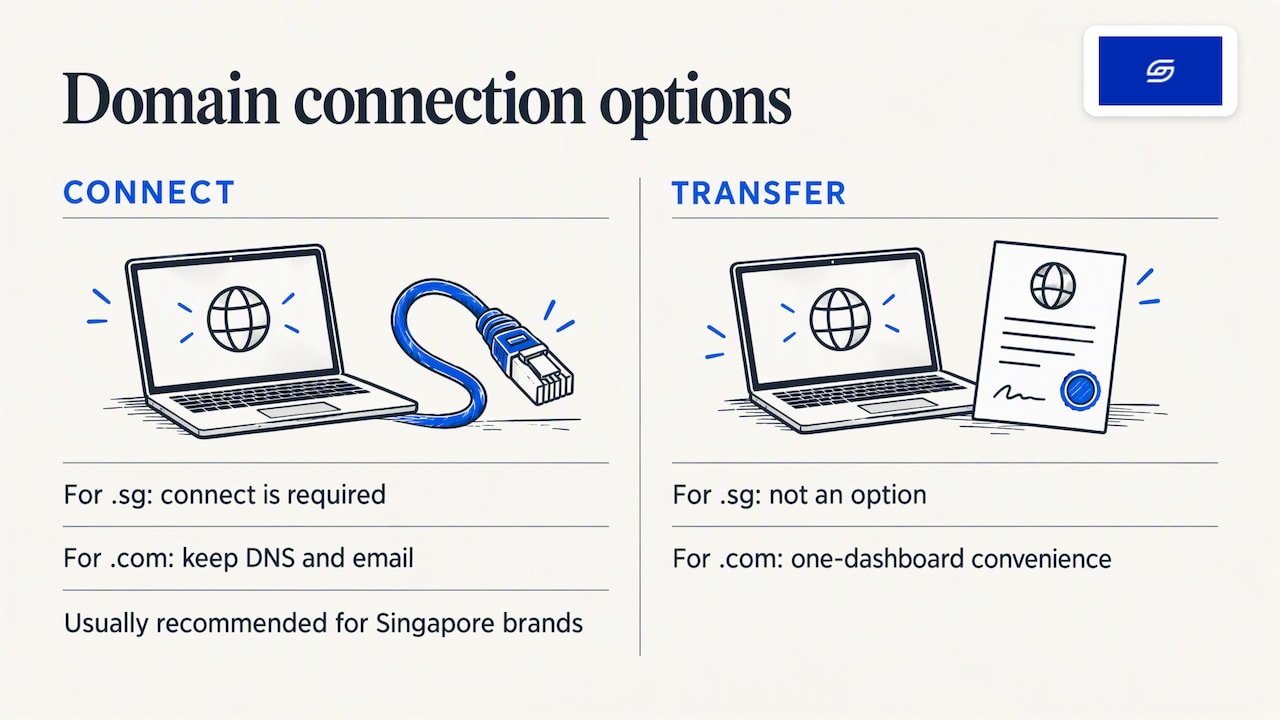
For Singapore brands, we nearly always recommend connecting rather than transferring. A .sg domain leaves you no choice anyway, and for .com domains the flexibility of keeping DNS and email where they are outweighs the convenience of one dashboard. The cost of a domain is small. The cost of an afternoon without orders or email is not.
One more habit: we ask who owns the registrar account on day one. A surprising number of domains turn out to sit under a former freelancer’s login, and sorting that out takes longer than the DNS work itself.
— Soodo
What to check in the first 48 hours after launch
Do these checks as soon as the verification turns green:
- Open the homepage, a product page, a collection page and the cart on both mobile and desktop.
- Confirm that http:// and the non-primary version redirect to your primary domain, and that the padlock shows.
- Place a real test order and confirm that the confirmation email arrives.
- Send and receive a business email.
- Test old URLs from your redirect list and Google results.
- Update the store address in Google Search Console, Google Business Profile, social bios, marketplace listings and email footers.
- Check that analytics and ad pixels fire on the new domain. Our guide to measuring conversions explains what to verify.
Expect some ranking movement for a few weeks even in a clean migration. Large, sustained drops almost always trace back to missing redirects or blocked crawling, which you can fix.
Common problems and fixes
| Symptom | Likely cause | Fix |
|---|---|---|
| Domain will not verify | Extra A records or a leftover CNAME still present | Remove other A records, leave only the Shopify address |
| SSL warning lingers | Certificate still provisioning, or a proxy is in the way | Wait a few hours, switch off any proxy or CDN on the domain |
| Site shows the old store | DNS cache or low-priority old records | Wait for propagation, test on mobile data, clear the cache |
| Business email stopped | MX records removed or not re-added | Restore the records from your saved export |
| Traffic dropped sharply | Missing 301 redirects | Import redirects and resubmit your sitemap |
| Transfer failed | Domain re-locked, wrong code or eligibility | Unlock, request a new code, or connect instead |
Need a hand with the switch?
If the domain move is part of a bigger platform change, we handle it as part of the project: product and customer data, redirects, DNS and a tested launch. Our platform migration service starts from 4,000 SGD, one-off. If you are starting from scratch, new Shopify website development starts from 4,500 SGD, and existing Shopify store optimisation starts from 1,000 SGD. You can also read our guide on moving from WooCommerce to Shopify in Singapore for costs and steps, or message us on WhatsApp through our site to talk through your setup.
FAQ
Can I transfer a .sg domain to Shopify?
No. Shopify’s help page lists .sg among the extensions that cannot be transferred to its registrar. You keep the domain with your current provider and connect it by updating the DNS records, which gives the same result for your customers.
How long does it take to point a domain to Shopify?
Connecting a domain usually takes between 2 and 48 hours to take effect, according to Shopify. A full registrar transfer can take up to 20 days. Because connecting is faster, it is also the safer choice if your store is already taking orders.
Will I lose my business email if I move my domain?
Not if you connect it and leave your MX records alone. With a transfer, custom DNS records are not copied across, so you need to re-add your MX records in Shopify. Either way, send a test email straight after the change.
Do I need to buy a domain from Shopify?
No. You can use a domain you already own, or the free myshopify.com address while you build. Buying through Shopify is convenient, but it is optional, and the price depends on the extension, so check the amount in your admin.
When should I switch the domain during a migration?
Last. Finish the store, test checkout, load your redirects, check your email records and only then point the domain. That order keeps your old site live until the new one is ready.
Sources
- Shopify Help Center: Transferring a third-party domain to Shopify
- Shopify Help Center: Connecting vs. transferring your domain to Shopify
- Shopify Help Center: Connect your third-party domain to Shopify manually
- Shopify Help Center: Migrate to Shopify
- Shopify: Domain name price guide (2026)
- Site migration SEO checklist
Recommended

Jessica Bong
Jessica Bong is the founder of Soodo, a Singapore Shopify agency that builds, revamps and migrates Shopify stores, with every store set up to be found in AI search (GEO). She has spent over 10 years in ecommerce and runs her own Shopify brand, Patch&Bagel, where every Soodo technique is tested first. Jessica is also a WSQ-certified Shopify trainer at Equinet Academy.