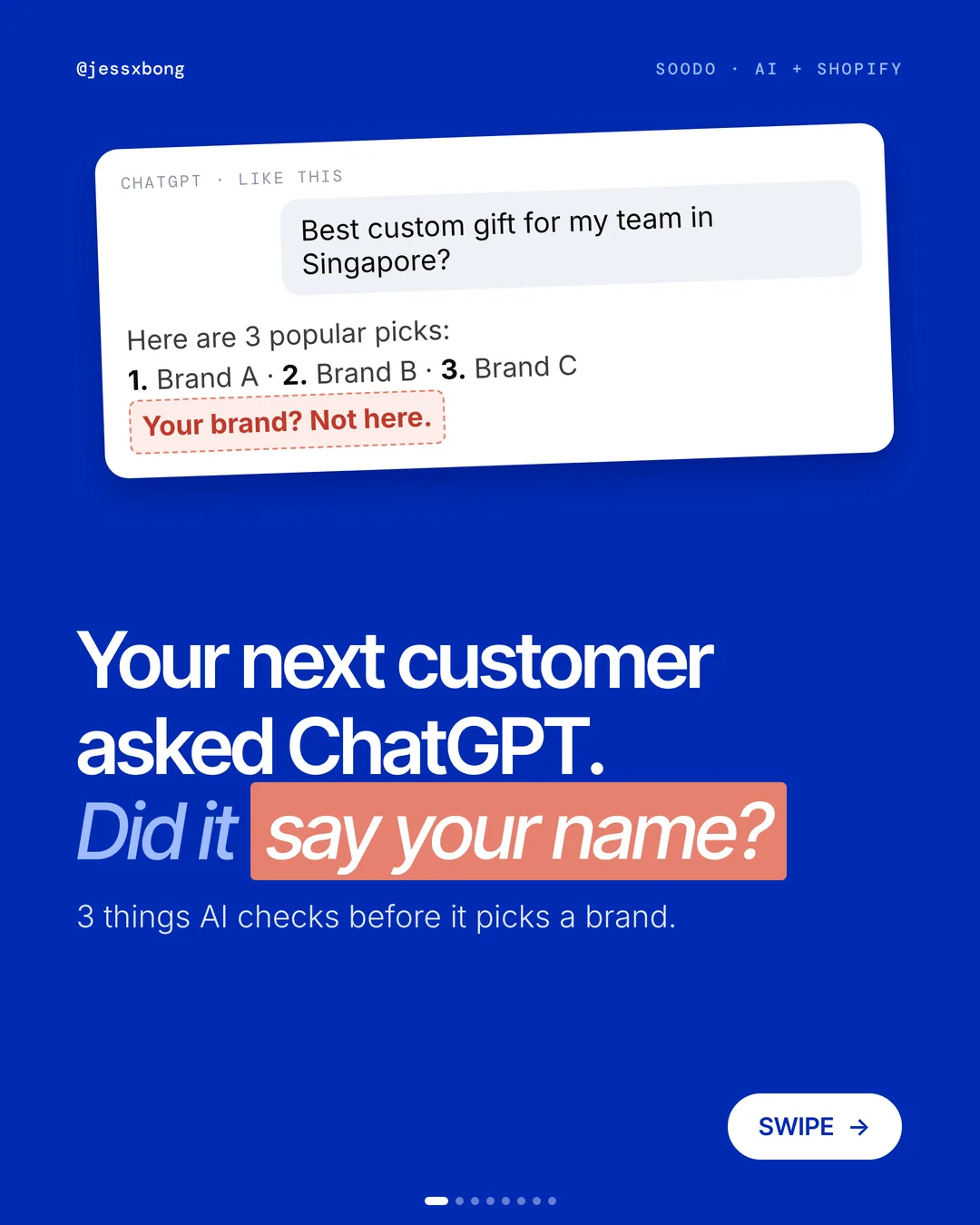

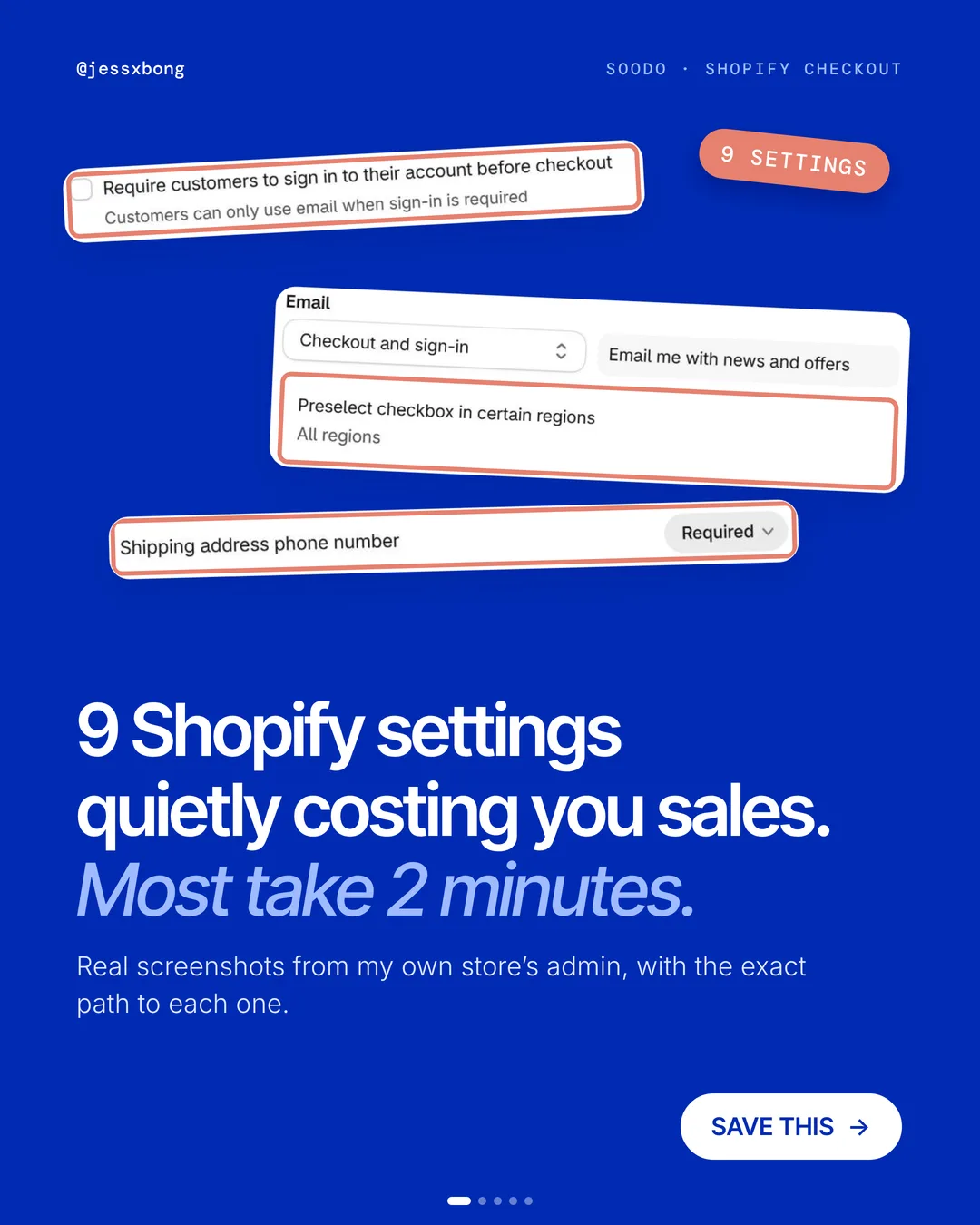
Your checkout can lose sales and you never see it. There is no error and no complaint. A shopper just gives up.
These are the 9 settings I check on every Shopify build. The screenshots come from my own store's admin, Patch&Bagel.
Most take 2 minutes. Each one comes with the exact path in your Shopify admin. The last two matter most.
The 9 settings
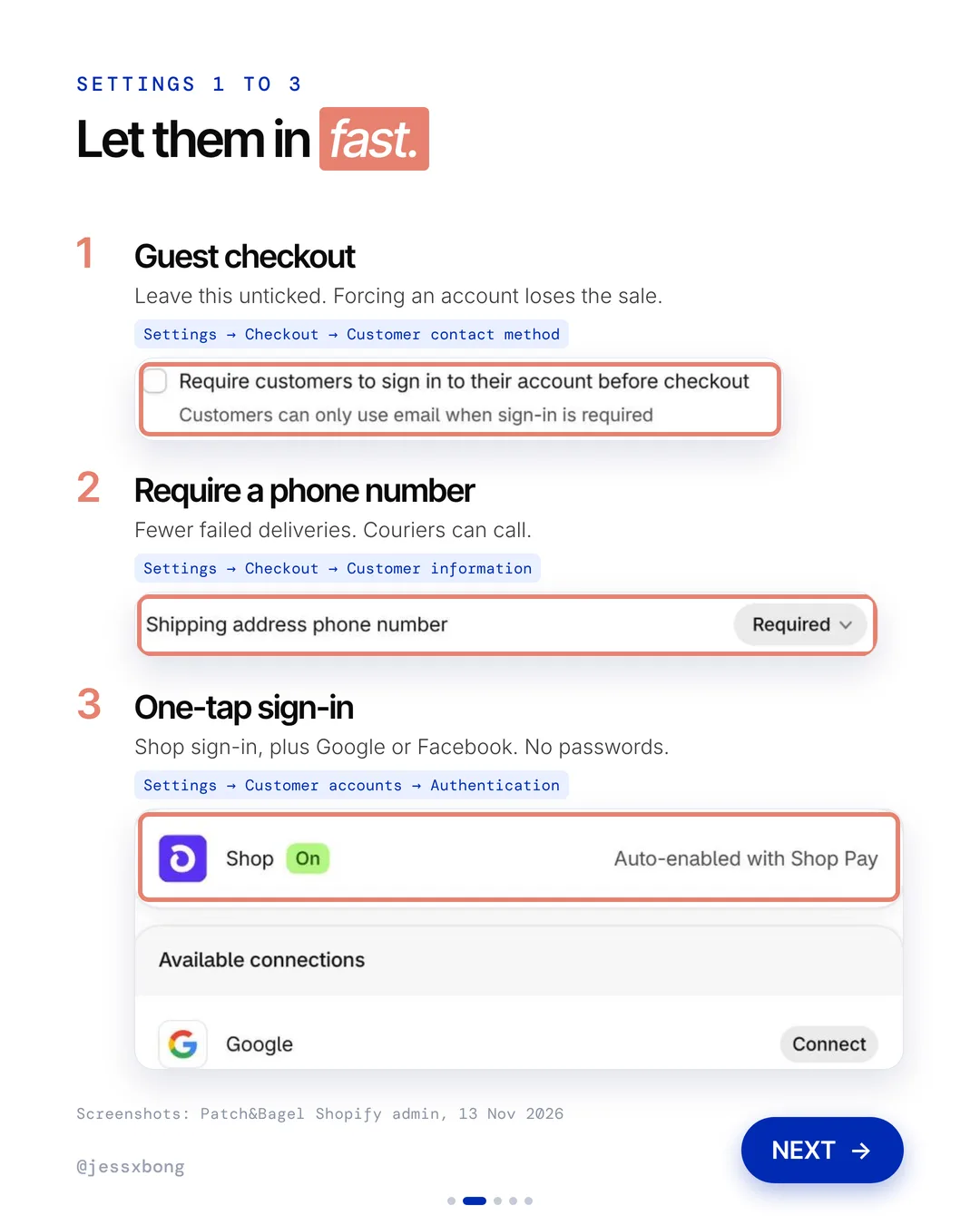
- 01Guest checkoutDon't force shoppers to make an account.
- 02Require a phone numberFewer failed deliveries. Couriers can call.
- 03One-tap sign-inShop sign-in, plus Google or Facebook. No passwords.
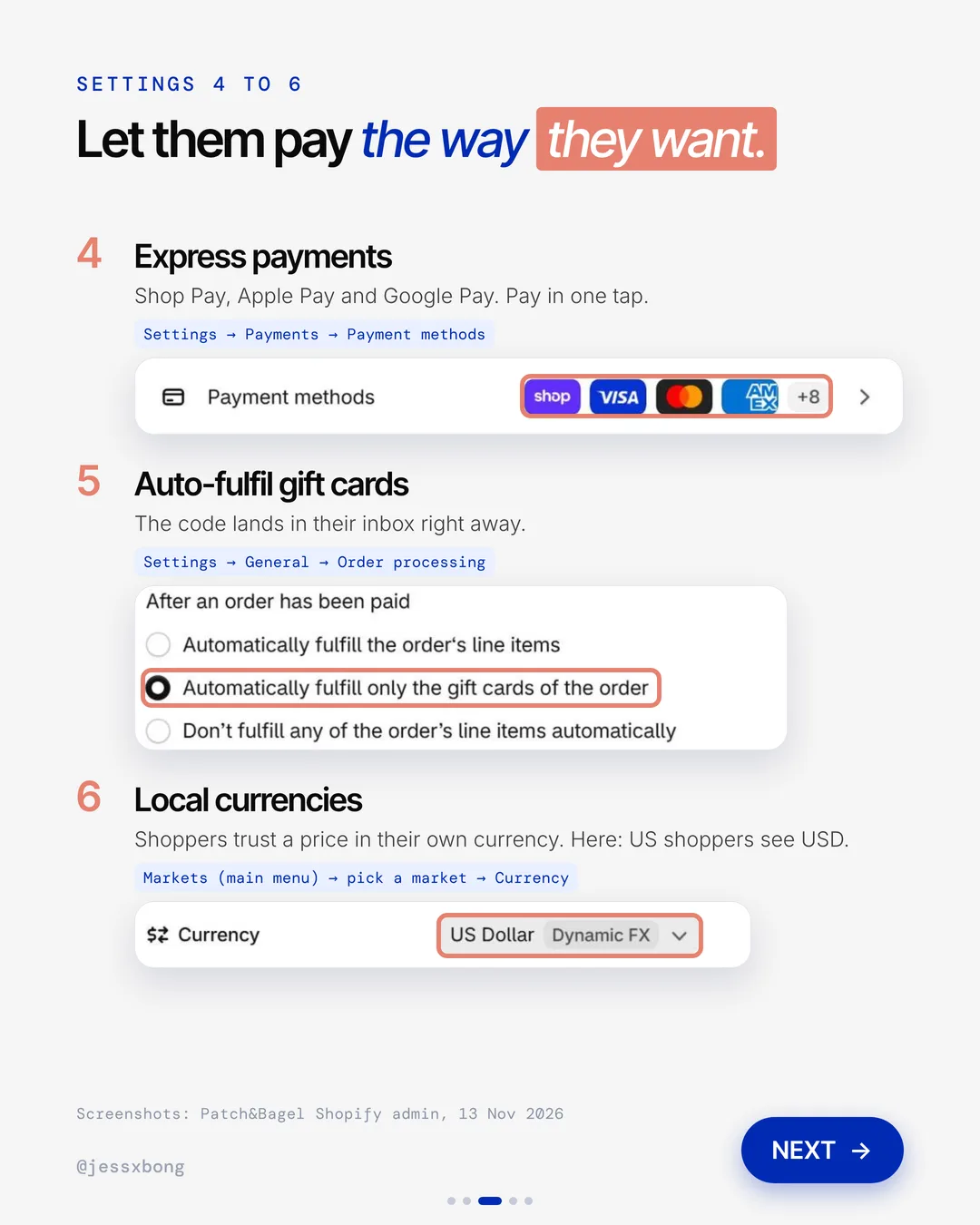
- 04Express paymentsShop Pay, Apple Pay and Google Pay. Pay in one tap.
- 05Auto-fulfil gift cardsThe code lands in their inbox right away.
- 06Local currenciesShoppers trust a price in their own currency.
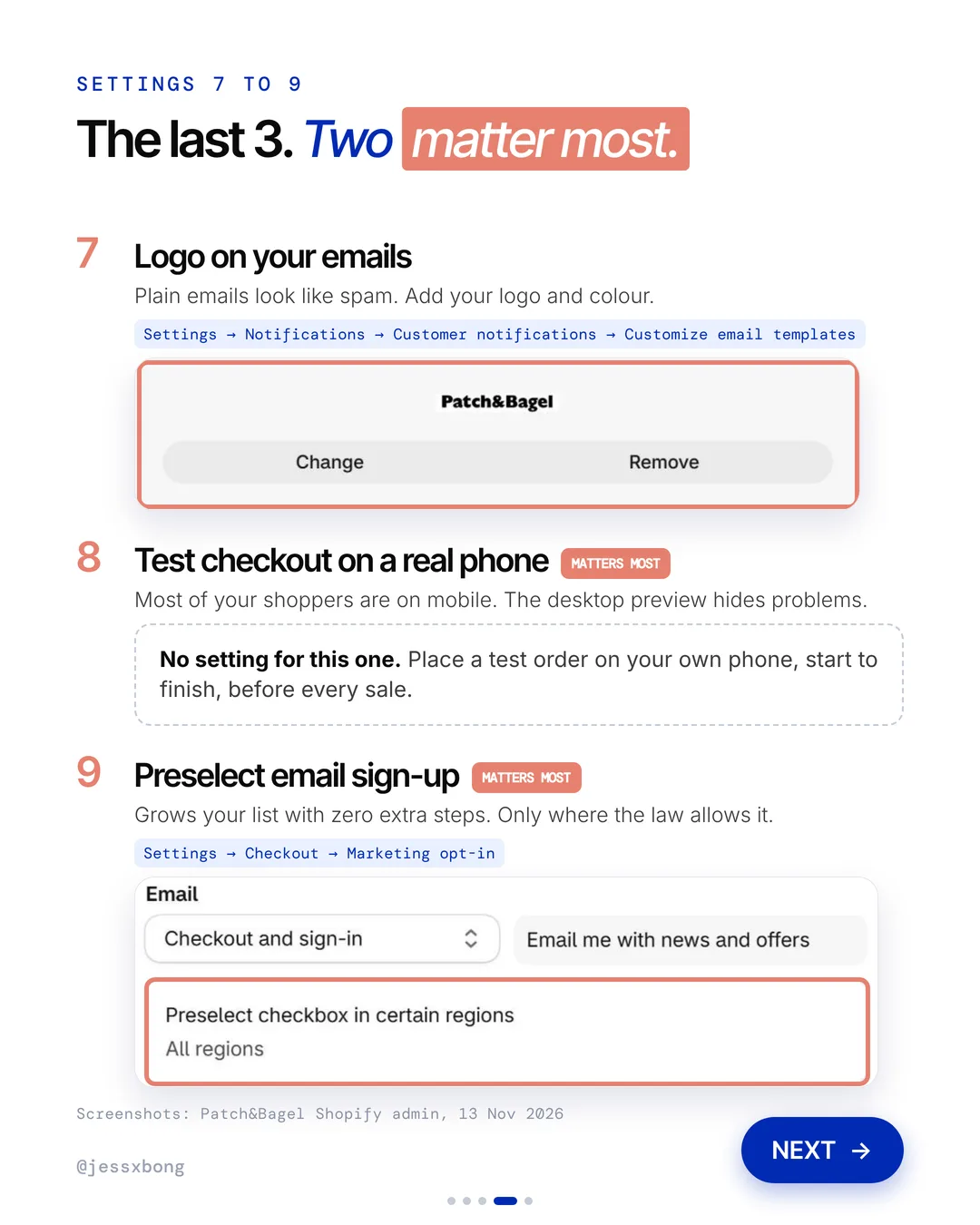
- 07Logo on your emailsPlain emails look like spam. Add your logo and colour.
- 08Test checkout on a real phoneMatters most. The desktop preview hides problems.
- 09Preselect email sign-upMatters most. Grows your list with zero extra steps.
01 · 9 checkout settings
Guest checkout
Shopify has a box that makes customers sign in before checkout. Leave it unticked. Forcing an account loses the sale.
The sign-in box sits in the Customer contact method section of your checkout settings. Shopify's guide adds one more catch. When sign-in is required, express buttons like Apple Pay are hidden in the cart.
So one ticked box can cost you twice. Shoppers hit a sign-in wall, and they lose their fastest way to pay. Leave it off, and invite people to make an account after their order.
Why it works
"I just want to pay. Why do I need a password?" Many shoppers leave right there.
More people finish their order. You can still ask them to make an account after they pay.
Your turn
- Check this box today, even if you think it's off.
- Look at your checkout as a first-time buyer.
How to do it on Shopify
- Go to Settings, then Checkout, then Customer contact method.
- Find Require customers to sign in to their account before checkout.
- Make sure the box is unticked.
- Save.
Mistakes to avoid
- Ticking the sign-in box to grow accounts, then wondering why sales dropped.
- Never checking the box after a theme or app change.
- Forgetting that express buttons vanish from the cart while sign-in is required.
How to tell it is working. In Analytics, check your conversion rate and how many sessions reach checkout. If more people finish their order after you untick the box, it is working.
02 · 9 checkout settings
Require a phone number
Set the shipping address phone number to Required. Then the courier can call the shopper if there is a problem.
Shopify does not let you require both an email and a phone number as the contact method. The way to get both is this setting. Set Shipping address phone number to Required.
This only covers the shipping address. It does not change the billing address. Tip: add a short note on your shipping page so shoppers know why you ask.
Why it works
"Where's my parcel?" A quick call from the courier saves a lost delivery.
Fewer failed deliveries means fewer refunds and fewer upset emails.
Your turn
- Any store that ships physical products
- Big or fragile items that need a call before delivery
How to do it on Shopify
- Go to Settings, then Checkout, then Customer information.
- Find Shipping address phone number.
- Change it to Required.
- Save.
Mistakes to avoid
- Making the phone number required but never passing it to your courier.
- Using the number for marketing without asking first.
- Setting it to Optional and hoping shoppers fill it in.
How to tell it is working. Count your failed deliveries and returned parcels each month. If that number goes down, the phone number is doing its job.
03 · 9 checkout settings
One-tap sign-in
Let shoppers sign in with one tap. Shop sign-in is auto-enabled with Shop Pay. You can also connect Google or Facebook.
By default, Shopify customer accounts already skip passwords. Shoppers type their email and get a 6-digit code. Social sign-in adds Google, Facebook, Apple or Shop on top of that.
You can turn on more than one at the same time. Shopify's guide says the only customer data that syncs from social sign-in is the email address.
Why it works
"I forgot my password again." With one tap, there is nothing to remember.
Returning shoppers get in fast and get to checkout sooner.
Your turn
- Turn on Shop
- Connect Google
- Connect Facebook
How to do it on Shopify
- Go to Settings, then Customer accounts, then Authentication.
- Check that Shop shows On.
- Under Available connections, click Connect next to Google or Facebook.
- Save.
Mistakes to avoid
- Connecting Google or Facebook, then never testing the sign-in yourself.
- Still asking shoppers to make a password somewhere else on the store.
- Hiding the account link so returning shoppers cannot find it.
How to tell it is working. Check your returning customer rate in Analytics. If it goes up after you add one-tap sign-in, returning shoppers are getting back in more easily.
04 · 9 checkout settings
Express payments
Turn on Shop Pay, Apple Pay and Google Pay. Shoppers can pay in one tap, without typing in card details.
Express buttons show at the top of checkout, in an Express Checkout section. Shopify sorts them so the fastest option for that shopper comes first.
Some express buttons can also show on your product pages. Then shoppers can skip the cart and go straight to paying. Tip: check the buttons on both a phone and a laptop.
Why it works
"I don't want to find my card." One tap and the order is done.
Less typing means fewer people give up at the payment step.
Your turn
- Shop Pay
- Apple Pay
- Google Pay
How to do it on Shopify
- Go to Settings, then Payments, then Payment methods.
- Turn on Shop Pay.
- Turn on Apple Pay and Google Pay.
- Place a test order to see the buttons show up.
Mistakes to avoid
- Turning on Shop Pay but never checking that Apple Pay and Google Pay show up.
- Requiring sign-in before checkout, which hides express buttons in the cart.
- Adding so many buttons that the page looks messy on a phone.
How to tell it is working. Open the payments finance report and filter by payment method. You can see how many sales come through Shop Pay, Apple Pay and Google Pay.
Free checklist
Get the free Shopify Optimization Checklist
The same checklist people get on Instagram when they comment SHOP. Go through your homepage, product pages, checkout and more, one tick at a time. No developer needed.
05 · 9 checkout settings
Auto-fulfil gift cards
Tell Shopify to fulfil gift cards on their own once an order is paid. The gift card code goes to the shopper's inbox straight away.
A gift card code is only made once the order is fulfilled. So if you fulfil by hand, the shopper waits for you. This setting fulfils only the gift cards, straight after payment.
Shopify warns against fulfilling every order on its own if you pack and ship products yourself. All new orders would be marked as fulfilled. That is why you pick the gift-cards-only option.
Why it works
"It's a last-minute gift. I need the code now." They get it in seconds.
You don't have to send gift cards by hand. Other products still wait for you.
Your turn
- Any store that sells gift cards
- Stores that get last-minute gift buyers
How to do it on Shopify
- Go to Settings, then General, then Order processing.
- Under After an order has been paid, pick Automatically fulfill only the gift cards of the order.
- Save.
Mistakes to avoid
- Picking Automatically fulfill the order's line items, which marks every order as fulfilled.
- Never buying a test gift card to see the email arrive.
- Leaving the gift card email plain, with no logo or brand colour.
How to tell it is working. Buy a gift card on your own store and time how fast the email lands. Then check that your gift card orders no longer sit as unfulfilled in Orders.
06 · 9 checkout settings
Local currencies
Show each market its own currency. For example, US shoppers see prices in USD.
By default, Shopify changes your prices using the current exchange rate. You can also set the rate yourself, and round prices so they look neat.
Shoppers also need a country selector to pick their country. Without it, they may not see their own currency. Shopify's guide says all local pricing features need Shopify Payments.
Why it works
"How much is that in my money?" When the price is already in their currency, they don't need to work it out.
Shoppers from other countries trust the price and are more likely to buy.
Your turn
- US shoppers see USD
- Set a currency for each market you sell to
How to do it on Shopify
- Go to Markets in the main menu.
- Pick a market.
- Open Currency and choose the local one, like US Dollar.
- Save, then repeat for each market.
Mistakes to avoid
- Turning on a currency but forgetting the country selector.
- Leaving prices with messy decimals instead of rounding them.
- Never checking the price at checkout as a shopper from that country.
How to tell it is working. In Analytics, look at sales by country, and the conversion rate for each market. If more overseas shoppers finish their order, it is working.
07 · 9 checkout settings
Logo on your emails
Add your logo and brand colour to the emails Shopify sends, like order confirmations.
You add the logo and the accent colour once. Shopify then uses them on all your email templates at the same time.
To edit the words or the subject line of an email, you first need to confirm your sender email address. Tip: send yourself a test email and read it on your phone.
Why it works
"Is this email real?" A logo they know tells them it is from you.
Your emails look like your brand. Fewer people think they are spam.
Your turn
- Your logo
- Your brand colour
How to do it on Shopify
- Go to Settings, then Notifications, then Customer notifications.
- Click Customize email templates.
- Upload your logo and pick your colour.
- Save.
Mistakes to avoid
- Uploading a logo that is too big or blurry.
- Picking a colour that makes the text hard to read.
- Never sending a test email to see how it really looks.
How to tell it is working. Place a test order and open the confirmation email on your phone. Also watch your inbox for fewer "Is this real?" or "Where's my order?" emails.
08 · 9 checkout settings
Test checkout on a real phone
There is no setting for this one. Place a test order on your own phone, start to finish, before every sale. Most of your shoppers are on mobile.
Shopify gives you two ways to test. You can use Shopify Payments test mode or the test payment gateway. You are not charged for these test orders.
While test mode is on, real customers cannot place real orders. So test at a quiet time and switch it off right after. You can also place a real order with your own card, then cancel and refund it, but your payment provider may charge a fee.
Why it works
"This button doesn't work on my phone." If it breaks on mobile, they leave.
You find problems before your shoppers do, not during your big sale.
Your turn
- Before every sale
- After any change to your store
How to do it on Shopify
- Pick up your own phone.
- Open your store and add a product to the cart.
- Go all the way through checkout, start to finish.
- Fix anything that looks wrong, then test again.
Mistakes to avoid
- Testing only on a laptop, when most shoppers buy on a phone.
- Leaving test mode on, so real customers cannot pay.
- Skipping the test after changing apps, shipping or discounts.
How to tell it is working. Every test should end with an order confirmation email in your inbox. Test orders do not show in your reports, so they will not mess up your numbers.
09 · 9 checkout settings
Preselect email sign-up
Preselect the email sign-up checkbox at checkout. Your email list grows with zero extra steps. Only do this where the law allows it.
Even when the box is preselected, shoppers can untick it. Consent is saved when they move on through checkout with the box still ticked.
You can let Shopify pick the regions for you with Regions recommended by Shopify. It follows the local rules for each shopper's country. Shopify says this is not legal advice, so check the rules where you sell.
Why it works
"Sure, send me news and offers." The box is already ticked, so they don't have to do anything.
Your email list grows on every order. You can bring those shoppers back later.
Your turn
- Check the rules where your shoppers live first.
- Only preselect where the law allows it.
How to do it on Shopify
- Go to Settings, then Checkout, then Marketing opt-in.
- Under Email, find Preselect checkbox in certain regions.
- Choose the regions where the law allows it.
- Save.
Mistakes to avoid
- Preselecting the box in every region without checking the law.
- Growing the list but never sending a single email.
- Leaving the default text next to the box when it does not match what you send.
How to tell it is working. In Customers, open the Email subscribers segment and note the number. Check it again in a month to see how fast your list grows.
Do this this week
- Place a test order on your own phone, start to finish.
- Open Settings, then Checkout, and make sure sign-in before checkout is unticked.
- Turn on Shop Pay, Apple Pay and Google Pay in Payments.
- Set the gift card option so codes go out as soon as an order is paid.
- Add your logo and brand colour to your customer emails.
Save this list, then tick them off before your next sale.
Questions
Which Shopify checkout settings should I check first?
Start with the two that matter most. Test your checkout on a real phone, and preselect the email sign-up where the law allows it. Then work through the other 7. Most take 2 minutes.
Can shoppers check out on Shopify without an account?
Yes. Go to Settings, then Checkout, then Customer contact method. Leave the box to require sign-in before checkout unticked. Forcing an account loses the sale.
How do I turn on Shop Pay, Apple Pay and Google Pay on Shopify?
Go to Settings, then Payments, then Payment methods. Turn on the ones you want. Shoppers can then pay in one tap.
Why don't Apple Pay or Google Pay buttons show in my Shopify cart?
Check if you require customers to sign in before checkout. When that box is ticked, Shopify hides express buttons like Apple Pay in the cart. Untick it in Settings, then Checkout.
How do I place a test order on Shopify?
Use Shopify Payments test mode or the test payment gateway. You are not charged. Real customers cannot pay while test mode is on, so switch it off when you are done.