

Stop Inflated Conversions: Set TikTok Pixel Right on Shopify
For most stores, install the official TikTok sales-channel app from the Shopify App Store, connect your TikTok Business account, and let it handle Pixel setup automatically. Only reach for a third-party app or a custom pixel through Google Tag Manager if you need multi-pixel support on Shopify, server-side Events API tracking, or control the official app doesn’t give you. Whichever route you pick, the job isn’t finished until you’ve tested every event with Shopify Pixel Helper and TikTok Test Events, and checked your consent settings aren’t quietly blocking data.
TL;DR:
- The official TikTok sales-channel app is sufficient for most Shopify stores, as it installs pixels automatically without requiring code edits.
- Running multiple ad platforms with TikTok typically justifies using third-party apps or custom pixels for better multi-platform and server-side tracking support.
- Testing pixel firing with Shopify Pixel Helper and TikTok Test Events is essential to ensure accurate data collection and troubleshoot common issues like missing parameters or duplicate events.
- Privacy settings and consent management significantly impact pixel effectiveness; misaligned cookie banners can silently block data despite correct installation.
- Regular audits using tools like Soodo help identify overlooked issues, ensuring TikTok ad data remains reliable and optimized over time.
Table of Contents
- How to choose between the official app, third-party apps, and custom pixels
- How do you set up the TikTok Pixel on Shopify?
- How do you test and debug a TikTok Pixel on Shopify?
- Which Shopify privacy settings can block your TikTok Pixel?
- What does a professional TikTok Pixel audit actually check?
- What the pixel debate misses
- Get your TikTok Pixel audited and fixed properly
- Where to check the official documentation
- Sources
- FAQ
How to choose between the official app, third-party apps, and custom pixels
The official TikTok sales-channel app is the right starting point for the vast majority of Shopify merchants. It connects your store to TikTok Business and Ads Manager, and Shopify handles pixel installation and event mapping automatically once you complete onboarding. There’s no code to touch, and Shopify’s App pixels documentation confirms this runs through the sandboxed Shopify Web Pixels API, which is the supported and secure method for web tracking.
Third-party pixel apps earn their keep when you’re running multiple ad platforms at once or need server-side tracking. Many implement TikTok’s Events API alongside the standard browser pixel, which matters because pairing server-side and web pixels together improves how many customer events actually reach TikTok, particularly with iOS privacy restrictions and ad blockers thinning out browser-only data.
A custom pixel through Google Tag Manager sits at the far end of the spectrum: maximum flexibility, but you’re responsible for correctly subscribing to Shopify’s customer events and mapping every parameter yourself.
| Official TikTok app | Third-party pixel apps | Custom pixel / GTM | |
|---|---|---|---|
| Installation complexity | Low, guided onboarding | Moderate, app-specific setup | High, manual configuration |
| Server-side / Events API | Limited | Often included | Possible, but you build it |
| Multi-pixel support | One TikTok pixel | Usually yes | Yes, fully custom |
| Cost | Free to install | Typically subscription-based | Free tool, but needs developer time |
| Ease of testing / debugging | Straightforward with Pixel Helper | Varies by app | Requires manual verification |
A few things worth weighing before you commit to a route:
- If you only advertise on TikTok and nowhere else, the official app removes almost all the setup risk.
- Running Meta, Google, and TikTok pixels together usually justifies a third-party app or a GTM container.
- Server-side tracking is worth the extra effort once ad spend is significant enough that missed conversions cost real money.
- Custom pixels make sense mainly when your developer team already manages tracking through GTM for other platforms.
How do you set up the TikTok Pixel on Shopify?
Getting the pixel firing correctly depends on which path you’ve chosen. Here’s how each one actually plays out in the Shopify admin.
Installing the TikTok sales channel (the recommended default):
- In your Shopify admin, go to Sales channels and click the plus icon to add a new channel.
- Search for and add TikTok.
- Connect your TikTok Business account and Ads Manager when prompted.
- Follow the onboarding flow, TikTok will ask you to confirm your ad account, pixel, and catalogue settings.
- Shopify automatically installs the pixel and maps standard events (ViewContent, AddToCart, InitiateCheckout, Purchase) without you writing any code.
Adding a custom pixel manually:
- Go to Settings > Customer events in your Shopify admin.
- Select Add custom pixel, name it, and paste your tracking JavaScript into the code window.
- Save and connect the pixel, then subscribe to the specific customer events you want tracked.
- Remove any old pixel snippets from theme files first, Shopify’s custom pixel guidance is explicit that leftover code causes double counting.
Using Google Tag Manager as a custom pixel:
- Install your GTM container through the custom pixel option in Customer events.
- Subscribe to Shopify events using
analytics.publishand map them to your TikTok tags inside GTM. - Follow Shopify’s GTM tutorial closely, event names and parameters need to match exactly or TikTok will receive incomplete data.
Pro Tip: Before you touch any custom code, check whether your theme already fires a manual TikTok snippet from a previous setup. Installing a second pixel on top of an old one is the single most common cause of inflated conversion numbers we see in Shopify audits.
How do you test and debug a TikTok Pixel on Shopify?
Never assume a pixel is working just because the install finished without errors. Two tools do the real verification work: Shopify Pixel Helper, which shows events firing in real time as you browse your own store, and TikTok Test Events inside Ads Manager, which confirms TikTok actually received what your store sent.
Run through a full purchase journey (view a product, add to cart, start checkout, complete an order) while watching both tools simultaneously. An effective check pairs browser-side confirmation with server-side logs: the same purchase should appear in both your Shopify orders and TikTok’s Events Manager, and a mismatch usually points to a dropped event rather than a lost sale.
Common problems to check for:
- Missing value parameters on AddToCart or ViewContent events, TikTok can’t optimise for ROAS without currency and value data attached.
- Duplicate events, usually caused by manual pixel code left in
theme.liquidor in Additional Scripts under checkout settings alongside the app-installed pixel. - No AddToCart firing at all, often a theme conflict where a custom “add to cart” button bypasses Shopify’s standard event triggers.
If a fix doesn’t resolve within an hour of troubleshooting, reinstalling the app on a fresh Dawn theme copy usually isolates whether the problem is app-side or theme-side.
Which Shopify privacy settings can block your TikTok Pixel?
Even a correctly installed pixel can fail silently if your consent settings don’t line up with it. Shopify’s Customer Privacy controls determine whether marketing and analytics pixels are allowed to fire at all, and if your cookie banner doesn’t sync consent choices to Shopify through the Customer Privacy API, the pixel may stay dormant even after a visitor accepts cookies.
Worth checking before you assume a tracking gap is a technical bug:
- Confirm your Permission and Data sale settings under Customer privacy allow marketing and analytics pixels where it’s lawful to do so.
- Verify your cookie consent banner actually calls the Customer Privacy API rather than just displaying a banner with no backend connection.
- Document how consent settings differ by region, requirements under UK, EU, and other frameworks aren’t identical.
Pro Tip: Test your consent flow in an incognito window from a fresh session. If the pixel fires before you’ve clicked “accept” on the cookie banner, your consent sync isn’t wired up correctly, regardless of what your privacy policy says.
Specific legal thresholds vary by jurisdiction, so treat this as a starting checklist rather than legal advice, and loop in counsel for anything region-specific.
What does a professional TikTok Pixel audit actually check?
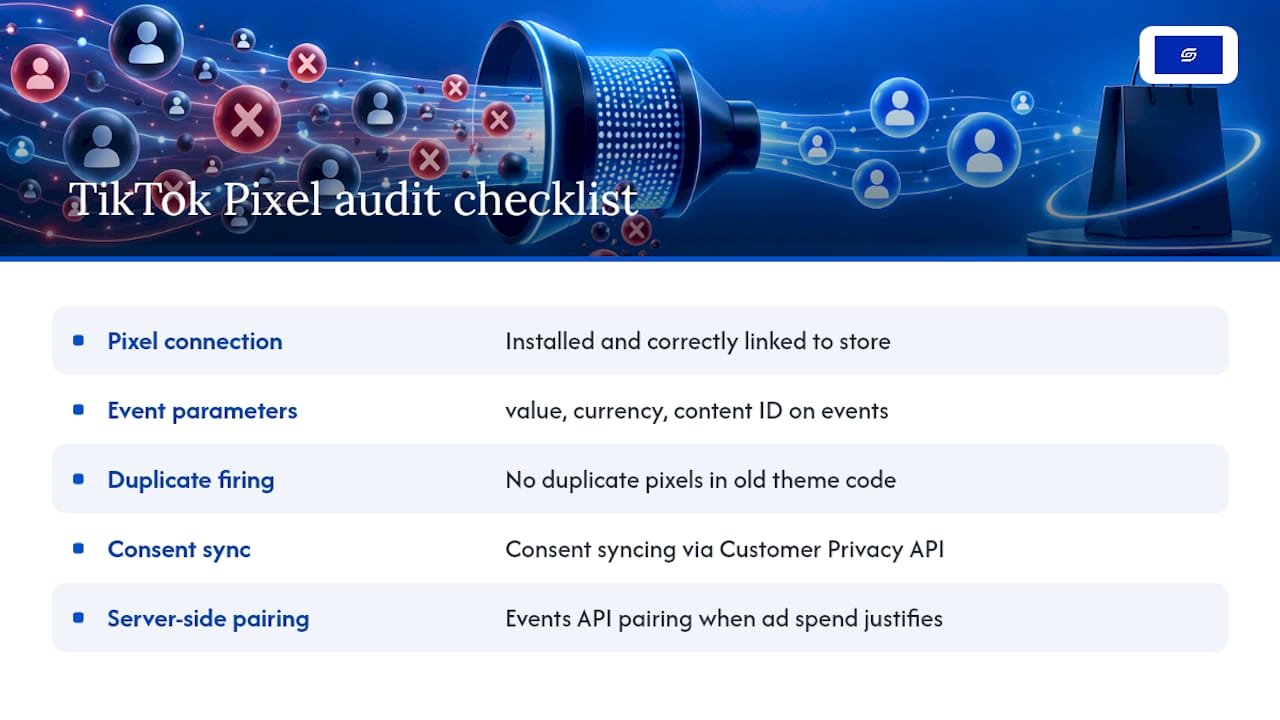
A proper audit isn’t a five-minute glance at the Shopify admin. It works through a defined checklist: pixel present and correctly connected, all required parameters (value, currency, content ID) populating on every event, no duplicate pixels firing from old theme code, consent sync working as expected, and server-side pairing configured where ad spend justifies it.
The fixes that come out of that checklist are usually small but consequential: patching a theme’s add-to-cart button so it fires the right event, correcting event-to-parameter mapping, wiring up the Customer Privacy API properly, or pairing a server-side Events API connection with the existing web pixel and validating both sides in Ads Manager.
Pixel and tracking issues turn up more often than most merchants expect, usually inherited from a previous developer or a rushed migration. Teams with practical experience in building and optimising stores tend to spot the theme conflicts and mapping errors that a generic app-support ticket won’t catch.
What the pixel debate misses
Most guides treat TikTok Pixel setup as a one-time task: install, confirm it fires, move on. That’s the wrong mental model. A pixel is a live data feed, and theme updates, app installs, and consent banner changes can quietly break it months after your original setup worked perfectly.
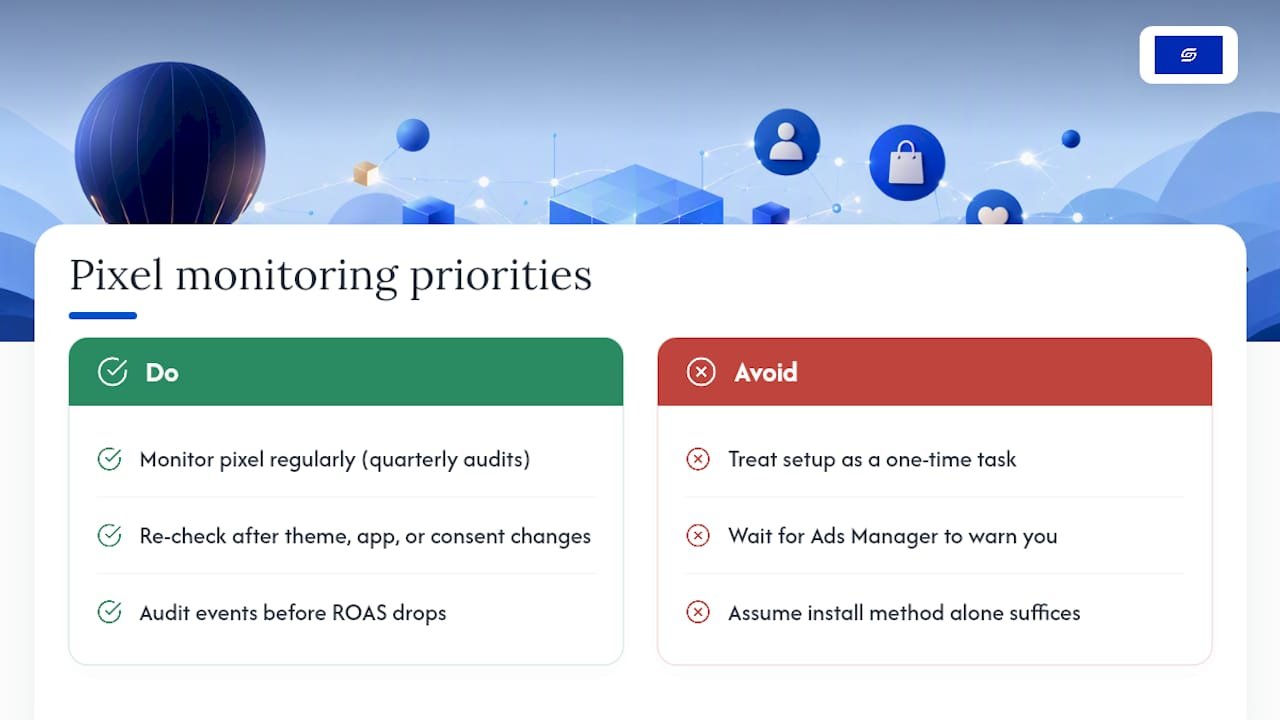
The conventional advice also overstates how much the choice between “official app” versus “custom pixel” matters on its own. What actually determines whether your TikTok ad spend is well measured is whether someone checks the pixel regularly, not which installation method they used on day one. A perfectly configured GTM setup that nobody revisits after a theme change is worse than a simple app install that gets audited quarterly.
If there’s one priority worth acting on immediately, it’s this: don’t wait for TikTok Ads Manager to show declining performance before you check whether your events are actually complete. By the time ROAS drops, you’ve usually been under-reporting conversions for weeks, and TikTok’s own optimisation has been working with bad data the entire time.
— Soodo
Get your TikTok Pixel audited and fixed properly
Soodo is the alternative to guessing whether your TikTok tracking actually works. Instead of installing an app and hoping the events fire correctly, Soodo runs a proper audit against the checklist above, comparing browser-side pixel data with server-side logs to catch the gaps most store owners never see.
Our existing Shopify store optimisation service covers exactly this kind of work: scoping the audit, patching theme conflicts, correcting event mapping, syncing consent properly, and validating the fix inside TikTok’s Ads Manager before we call it done. If your store is heading into a full rebuild or migration anyway, pixel mapping gets built into the project from the start as part of our new Shopify website development service. For teams that just want to understand their own setup better, we also run 1-1 training and consults covering tracking and analytics.
If your TikTok ad data has felt unreliable for a while, get in touch and we’ll scope a pixel audit as the first step.
Where to check the official documentation
- Shopify Help Center: Setting up TikTok Shop for sales-channel setup and country eligibility
- Shopify Help Center: App pixels for how the Web Pixels API and testing work
- Shopify Help Center: Manage your custom pixels and the GTM custom pixel tutorial for manual setups
Sources
- Shopify Help Center | Setting up TikTok Shop
- Shopify Help Center | App pixels
- Shopify Help Center | Manage your custom pixels
FAQ
How do I add a TikTok Pixel to Shopify?
Go to Sales channels in your Shopify admin, add the TikTok channel, and connect your TikTok Business account. Shopify installs the pixel automatically and maps standard events during onboarding, no code required.
Can Shopify integrate with TikTok?
Yes, Shopify integrates with TikTok through the official sales-channel app, which connects your store to TikTok Business, Ads Manager, and, where your country is eligible, TikTok Shop for product syncing. Ads and Pixel tracking work independently of TikTok Shop eligibility.
How do I set up a TikTok Pixel manually?
If you’re not using the sales-channel app, add a custom pixel under Settings > Customer events, paste your tracking code, and subscribe to the events you need. Remove any existing pixel code from your theme first to avoid duplicate tracking, as Shopify’s custom pixel guide recommends.
Is it better to sell on TikTok or Shopify?
They serve different purposes rather than competing directly. TikTok Shop handles in-app discovery and purchasing where it’s available, while Shopify remains your main store and checkout, with TikTok Pixel tracking the ad-driven traffic that lands there.
What does Soodo charge for a Shopify tracking audit?
Soodo’s existing Shopify store optimisation service, which covers pixel audits and fixes, starts from 1,600 SGD as a one-off project. Exact scope and pricing depend on what the audit finds.
Recommended

Jessica Bong
Jessica Bong is the founder of Soodo, a Singapore Shopify agency that builds, revamps and migrates Shopify stores, with every store set up to be found in AI search (GEO). She has spent over 10 years in ecommerce and runs her own Shopify brand, Patch&Bagel, where every Soodo technique is tested first. Jessica is also a WSQ-certified Shopify trainer at Equinet Academy.