

Preorder on Shopify: Setup, Apps and Singapore Rules
You can take pre-orders on Shopify, but you set them up in two parts: a pre-order purchase option in your admin, and a pre-order app that shows customers the button, the ship date and the payment terms. Shopify’s own help pages say you need an app to display pre-order information, so the app is not optional. Below is how the setup works, how to pick an app by workflow rather than by star rating, and the policy details Singapore stores should settle before the first order comes in.
TL;DR
- Shopify supports pre-orders (full payment, deposit or pay later), but you need a pre-order app to show the pre-order button and delivery details to shoppers.
- Pre-orders require Shopify Payments or PayPal Express. Shop Pay, Apple Pay and Google Pay are not supported for them.
- Choose your app by how you fulfil orders (simple button, deposits, fulfilment holds), not by popularity. Switching apps in the middle of a launch is painful.
- Put a clear ship date, a cancellation rule and a refund rule on every pre-order product page before you go live.
Table of Contents
- What a Shopify pre-order actually is
- What Shopify requires before you start
- How to choose a pre-order app
- Setting up a pre-order on Shopify, step by step
- Pre-order rules and policies for Singapore stores
- Common pre-order mistakes
- Our view: start simple, but not too simple
- When to bring in a Shopify expert
- FAQ
- Sources
What a Shopify pre-order actually is
A pre-order is a sale of something that is not yet in stock or not yet released. Shopify lets you sell products before they are ready to ship and use the orders to forecast demand for a new product or build excitement around a launch.
You can collect payment in three ways:
- Full payment at checkout. Simplest, and best for short waits.
- A deposit now, balance later. Useful for higher-priced or made-to-order items.
- Pay later. The customer is charged when the order is ready to ship.
One distinction is worth making early. A pre-order is a future-dated delivery request for a real product. A pre-sale is a marketing campaign built to create hype before a launch. Shopify’s own guide points out that the strongest setups treat the two as separate offer types, so the shipping estimates customers receive match the real state of your inventory rather than a generic label.
If you sell a product you do not yet have, you are making a promise. Everything below is about keeping that promise cheaply and visibly.
What Shopify requires before you start
These platform rules shape every setup, so check them first.
- Payments. Shopify Payments or PayPal Express is mandatory for pre-orders. Accelerated checkouts such as Shop Pay, Apple Pay and Google Pay are not supported on pre-order items. If a large share of your Singapore customers pay with Apple Pay, expect them to use the standard card route for these products.
- A pre-order app. To display pre-order information on the storefront you must use an app, as Shopify’s setup page explains.
- A reasonable ship date. Shopify’s documentation says you must have a reasonable basis for the estimated ship date. If you give no specific date, you need a reasonable belief that the product will ship within 30 days. If shipping is delayed, you must provide a revised date and offer cancellation and refund rights.
- Local law. Merchants must follow the rules where they trade. For Singapore stores, that is covered further down.
If you are not sure your current plan suits this, our Shopify plan picker for Singapore walks through the decision.
How to choose a pre-order app
There is no single best app. The right one depends on how you run the back end. A workflow-based comparison of Shopify pre-order apps makes the point that these tools are a demand-capture layer: they do not replace clear stock communication, and the brands that do well use them to validate demand and manage cash flow, not just to hide a “Sold out” label.
In practice, apps fall into four types.
| App type | Best for | Watch out for |
|---|---|---|
| Simple button swap | One or two products, full payment, short waits | Limited logic if you later add deposits or mixed carts |
| Deposit and balance apps | Higher-priced, made-to-order or limited-run goods | Remaining-payment emails and failed charges need a clear process |
| Pre-order plus back-in-stock alerts | Stores that want one tool for out-of-stock and coming-soon items | Fewer controls for complex fulfilment |
| Fulfilment-hold and split-payment apps | Stores with a warehouse, 3PL or ERP, or many staged launches | More setup time, usually a higher monthly cost |
Many of the well-reviewed options offer a free plan or trial, so you can test your own theme before paying. Shopify also lists a few recommended pre-order apps for Singapore merchants with features such as deposits, customer portals and notify-me forms.
Five questions to ask before you install
- Do I take deposits, or full payment? Deposit logic is where cheaper apps run out of road.
- Can pre-order items share a cart with ready-to-ship items? If not, how does the app handle a customer who wants both?
- Can I hold fulfilment? If a warehouse partner ships your orders, a fulfilment hold stops them being picked before stock lands.
- Does it work with my theme and page builder? Test the product page, collection page, quick buy and search results.
- What emails does the customer get? Order confirmation, delay notices and balance reminders should all carry the right ship date.
Experts also warn that fulfilment complexity is the most common trap. Brands that start with a bare button often discover later that they need to keep pre-order items out of carts with in-stock items, or trigger charges at set lead times. Starting with a tool that can grow into that logic is usually smarter than swapping apps during a high-traffic launch.
If you also sell in person and need tidy stock records across channels, it is worth reading this comparison of Shopify POS and another retail system for serial tracking. It is written for repair shops, but the stock-control questions carry over to any store that mixes online and counter sales. For a broader view of what apps are worth paying for, see our Shopify apps ROI guide for Singapore stores.
Setting up a pre-order on Shopify, step by step
The exact screens depend on the app, but the flow is the same in nearly every store.
1. Confirm your payment setup
Check that Shopify Payments or PayPal Express is active. Without one of them, pre-order purchase options will not work.
2. Install the app and enable it in your theme
Install the app from the Shopify App Store and switch on its theme app embed in the theme editor. This step is the one people skip. Many themes need the embed turned on, or the add-to-cart buttons tagged by hand, before the app can replace the button everywhere. PreProduct’s documentation describes the manual fallback: tagging your native buttons so the app can change them. If you skip it, a product may be pre-orderable on its own page but broken in quick buy or search results, which confuses customers.
3. Let inventory drive the button
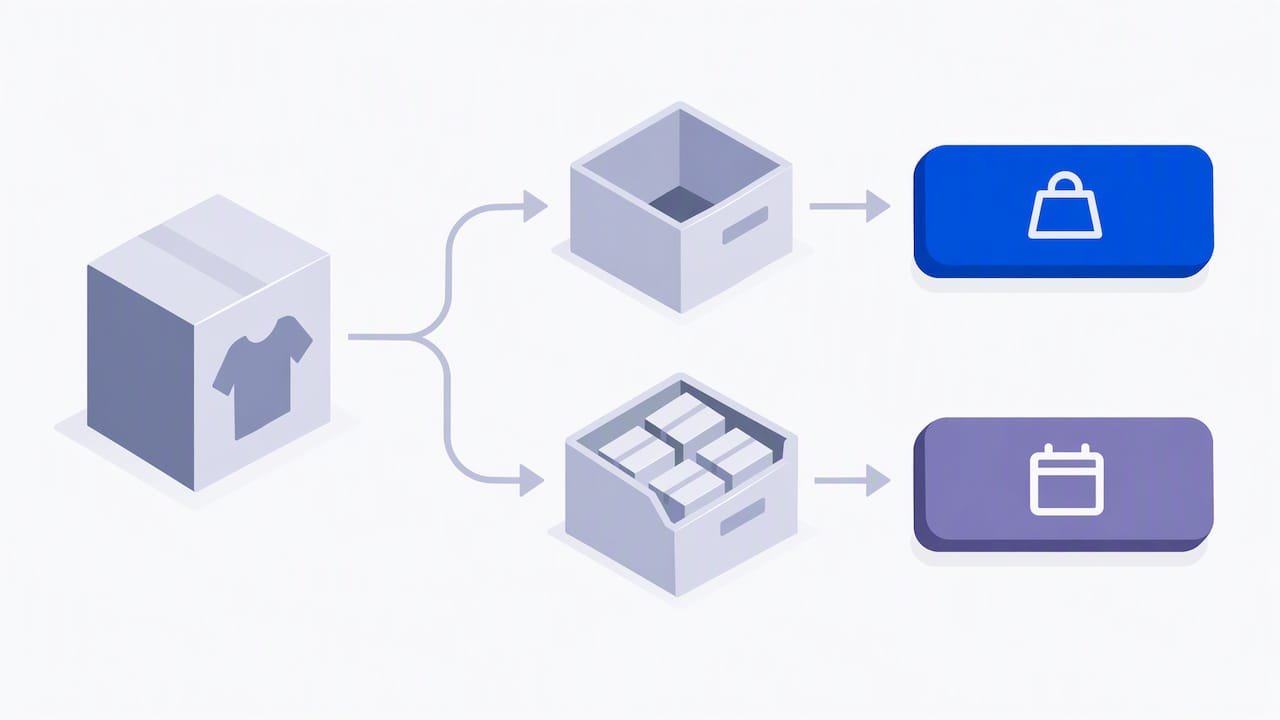
On the product, turn on Shopify’s “Continue selling when out of stock” setting. Paired with a pre-order app, this lets the app manage the button automatically based on inventory: the button reads “Pre-order” at zero stock and returns to “Add to cart” once stock is above zero. No one has to remember to flip it by hand.
4. Create the pre-order offer
In the app, choose the products or variants, then set:
- the payment type (full, deposit or pay later)
- the estimated ship date, or a lead time such as “ships in 3 to 4 weeks”
- the button text and the message under it
- any discount or limited quantity
Keep the date honest. Build in a buffer for supplier and freight delays, since your credibility depends on beating the date, not just meeting it.
5. Write the policy text
Add a short block on the product page, not just in the footer: when it ships, whether the customer can cancel before shipping, and how refunds work. Link it to your returns page. Our guide to a Shopify return policy for Singapore stores covers wording that heads off chargebacks.
6. Test as a customer
Place a real test order on mobile. Check the button on the product page, collection page and search results. Confirm the cart shows the pre-order label, the confirmation email has the right date, and the order tags correctly in your admin.
7. Plan fulfilment
Decide who releases the orders and when. If you ship yourself, a saved order filter for pre-order items is enough. If a logistics partner picks and packs, use an app that keeps pre-order lines unfulfilled until you release them, so nothing leaves early and no split shipment goes out by mistake.
Pre-order rules and policies for Singapore stores
Singapore has no automatic legal right to a refund for a simple change of mind, but businesses are still bound by the Lemon Law for defective goods and need to show their return and refund policies clearly. That guide also notes that Singapore’s voluntary e-commerce standard, TR 76, stresses transparency and clear information before purchase. This is general information, not legal advice. If you take large deposits or sell high-value goods, check your terms with a lawyer.
For pre-orders, the practical standard is higher than the minimum. Large Singapore marketplaces set the benchmark shoppers expect: on Shopee’s cancellation rules, for example, seller approval is required for cancellations once the seller has arranged shipment. Your shoppers will compare you with that experience, so state your own position in plain words.
A good pre-order policy answers these points on the product page:
- Ship date or window, and what happens if it slips
- Whether the customer can cancel, and until when
- How deposits are treated if they cancel, and if you cancel
- What happens to mixed orders: do in-stock items ship now or wait?
- Delivery area and cost, including local delivery if you offer it. See our local delivery test for protecting margin.
Shopify’s own rule backs this up: if the date moves, give a revised one and offer a refund route.
Common pre-order mistakes
Treating the app as inventory management. It captures demand. It does not tell your supplier when to ship.
Vague dates. “Coming soon” invites emails and disputes. A window such as “ships by mid-November” does not.
Forgetting the product page experience. A pre-order button should sit with the same trust signals as any other buy button: reviews, delivery information and a clear policy. Our notes on product page optimisation apply directly.
Launching with no test. Checking only the desktop product page misses the mobile cart and search-result buttons.
Ignoring paid traffic. If you plan to push a pre-order launch with ads, run through the steps before launching paid ads on Shopify first. Sending traffic to a broken button is an expensive way to learn.
Our view: start simple, but not too simple
We build and optimise Shopify stores for Singapore and Southeast Asian brands, and pre-orders come up often. A founder has a limited batch, a seasonal launch or a supplier delay, and wants to keep selling.
Our advice is consistent. Pick the lightest tool that covers your payment model and your fulfilment route for the next twelve months, not just this week. If you will only ever take full payment on a handful of products, a simple app is fine. If you expect deposits, staged shipments or a warehouse partner, choose a tool with that logic from day one, because moving mid-launch breaks emails, tags and customer trust.
We also treat a pre-order page as a conversion page, not a technical switch. The button text, the ship date, the policy and the mobile layout decide whether a visitor commits money for something they cannot yet hold. That is conversion work, and it is where owner-led, hands-on attention pays off over a stack of default settings.
— Soodo
When to bring in a Shopify expert
Most small pre-order setups can be done in an afternoon. Get help when the theme needs custom code to show the button everywhere, when you are combining pre-orders with a migration or a redesign, or when the pre-order flow needs to connect to a logistics partner.
We offer fixed-price projects. Existing Shopify store optimisation starts from S$1,000, which fits adding and testing a pre-order flow on a live store. A new Shopify website build starts from S$4,500 and can include pre-order logic from the start, and platform migration starts from S$4,000. If you are moving from another platform, our WooCommerce to Shopify migration page explains how we protect your data and search rankings. You can reach us through soodo.co, and we support clients directly on WhatsApp.
FAQ
Does Shopify have a built-in pre-order button?
Not a complete one. Shopify lets you set up pre-order purchase options, but to display pre-order information to shoppers you must use a pre-order app. The app swaps the add-to-cart button, shows the ship date and handles deposit or pay-later logic.
Can customers use Apple Pay or Shop Pay on a pre-order?
No. Shopify’s documentation says Shop Pay, Apple Pay and Google Pay are unsupported for pre-orders, and that you must use Shopify Payments or PayPal Express. Customers pay through the standard checkout instead.
What is the difference between a pre-order and a pre-sale?
A pre-order is a purchase for a real product with an estimated delivery date. A pre-sale is a marketing campaign that builds interest before launch. Treat them as separate offers so your shipping messages stay accurate.
How long can I make customers wait?
Shopify says that if you give no specific date, you need a reasonable belief that the item will ship within 30 days. If you do give a date, you need a reasonable basis for it, and you must provide a revised date and cancellation and refund rights if it slips.
Do I need a pre-order app if I just turn on “continue selling when out of stock”?
That setting lets people buy at zero stock, but it does not tell them the item is a pre-order. Customers then see a normal “Add to cart” with no delivery warning, which leads to complaints. Use it together with an app so the button and messaging change automatically.
Sources
- Shopify Help Center: Setting up pre-orders
- Shopify Help Center: Pre-orders
- Shopify: Preorders, definition and how to boost sales
- Shopify Singapore: Pre-orders and recommended apps
- Shopify pre-order apps compared by workflow
- Using native store buttons for pre-orders
- Best Shopify pre-order apps: picks by use case
- Set up pre-order offers
- E-commerce legal requirements in Singapore: a 2026 guide
- Shopee Help Centre: Can I cancel my order?
Recommended

Jessica Bong
Jessica Bong is the founder of Soodo, a Singapore Shopify agency that builds, revamps and migrates Shopify stores, with every store set up to be found in AI search (GEO). She has spent over 10 years in ecommerce and runs her own Shopify brand, Patch&Bagel, where every Soodo technique is tested first. Jessica is also a WSQ-certified Shopify trainer at Equinet Academy.