
Stop Shopify payout mismatches in Xero: use the right sync and mapping
Most Shopify stores get the best balance of simplicity and accuracy from the native Shopify integration by Xero, which is free for Xero subscribers and handles daily summaries or per-sale detail. Larger or multi-currency stores, or anyone needing invoice-level cost of goods sold, should look at A2X or Synder instead. The decision that matters most isn’t which app you pick. It’s whether you choose daily summary or per-sale syncing, because that choice shapes every reconciliation you’ll do afterwards.
TL;DR:
- The native Shopify integration by Xero is suitable for small-to-medium stores with straightforward sales, providing free daily summaries or per-sale syncing and automatic fee and tax handling.
- Larger or multi-currency stores needing detailed COGS tracking should consider paid tools like A2X or Synder, especially for precise order-level COGS and handling multiple sales channels.
- Proper chart of account setup, especially a dedicated Shopify clearing account and correct account mapping, is crucial for accurate reconciliation regardless of the chosen integration method.
- Discrepancies often stem from mismatched sync modes, incorrect postings to the bank feed, or unverified payout matches; addressing these requires careful review before seeking professional help.
- Complex setups involving multi-currency, POS, or migration scenarios typically benefit from expert assistance to ensure accurate accounting and clean reconciliation.
Table of Contents
- Which Xero Shopify integration should you choose?
- How do the main Xero Shopify connectors compare?
- How do you set up the Xero Shopify integration?
- Chart of accounts mapping: getting the postings right
- Fixing common Xero Shopify reconciliation problems
- When does the integration need agency help, not just an app?
- Get your Shopify and Xero sync built and verified properly
- Sources
- FAQ
Which Xero Shopify integration should you choose?
The right connector depends less on brand loyalty and more on how your store actually sells. Here’s how the main options stack up against real merchant needs.
The native Shopify integration by Xero suits most small-to-medium merchants. It’s included free with any Xero subscription, syncs daily summaries or per-sale transactions, and handles fees, refunds and taxes automatically as part of that sync. If you run one store, sell mostly online, and want something you can set up in an afternoon without touching a second piece of software, start here.
A2X earns its reputation with accountants for a reason: it builds settlement-based journals that mirror exactly how Shopify pays you out, and it handles cost of goods sold tracking in a way the native app doesn’t attempt. If your bookkeeper insists on seeing COGS by order, A2X is worth the extra subscription cost.
Synder works well for sellers running Shopify alongside other sales channels, since it isn’t built exclusively around one platform. It supports both per-order and summary modes and includes duplicate-order protection, which matters if you’ve ever had a sync double up a refund.
Amaka shows up frequently in Xero’s own partner documentation as a managed onboarding option. If you’d rather have someone configure the connection and mapping for you rather than clicking through settings yourself, Amaka’s partner-assisted approach removes that friction.
Beyond these four, the Shopify App Store lists smaller specialist syncs built around inventory and order-line detail rather than full accounting automation. These suit stores that need granular stock movement data in Xero more than they need polished financial reporting.
How do the main Xero Shopify connectors compare?
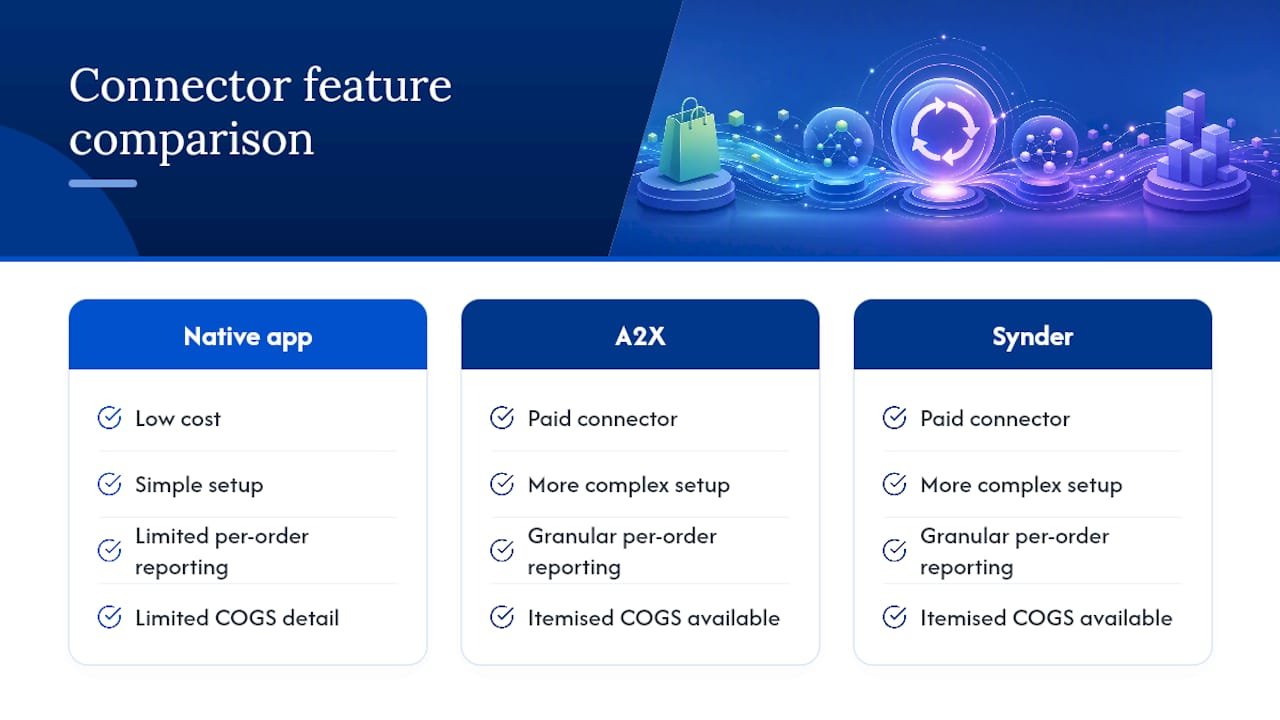
The native app wins on cost and simplicity every time, but it trades away some of the granular per-order reporting that accountant-favoured tools like A2X build their entire product around. If your sales volume is modest and your reporting needs are straightforward, that trade barely registers. Once you’re running thousands of orders a month with mixed currencies or need itemised COGS, the paid connectors start earning their subscription fee.
Pro Tip: Don’t choose based on price alone. A £20 a month connector that saves your bookkeeper three hours of manual matching every month pays for itself many times over.
How do you set up the Xero Shopify integration?
Before touching either platform, confirm three things: you have admin access to both your Xero organisation and Shopify store, you’ve decided between daily summary and per-sale syncing, and you’ve exported a recent sales CSV as a backup in case anything needs cross-checking later.
For the native Xero app, the process follows a standard app-store onboarding sequence:
- Install the Shopify app from the Xero App Store and authorise the connection between your Shopify admin and Xero organisation.
- Choose your sync mode. Daily summary posts one consolidated entry per day; per-sale posts individual transactions.
- Select or create a clearing account and confirm the bank account that receives your Shopify payouts.
- Run the initial sync, which can pull up to 90 days of historical Shopify data into Xero automatically.
- Review the first batch of imported transactions against your Shopify payout report before letting the sync run unattended.
If you’re using a connector instead, the sequence differs slightly. A2X builds settlement-based journals rather than raw transaction feeds, so expect an extra mapping step for cost of goods sold accounts. Synder asks you to choose per-order or summary mode much like the native app, but adds duplicate-detection settings worth reviewing during setup. Amaka typically involves a guided onboarding call or managed configuration, so budget a short lead time rather than expecting instant activation.
Whichever route you take, test the first full payout end-to-end. Match gross sales, subtract fees and refunds, and confirm the net deposit in Xero matches what actually landed in your bank account. Skipping this step is how small mapping errors turn into a quarter’s worth of reconciliation headaches.

Chart of accounts mapping: getting the postings right
A clean sync depends far more on account mapping than on which connector you’ve chosen. Set up a dedicated Shopify clearing account first. Gross sales post there before the net payout arrives, and you reconcile that clearing account against Shopify’s own payout reports rather than trying to match individual order dates against bank deposits.
Beyond the clearing account, create these accounts if they don’t already exist:
- Shopify sales (income) for gross product revenue.
- Shipping income (income), kept separate from product sales for cleaner reporting.
- Merchant fees (expense) to capture Shopify Payments or gateway charges.
- Refunds (contra-income), so returns don’t distort your top-line sales figure.
- Gift card liability (liability), since gift card sales aren’t earned revenue until redeemed.
- Tax liability (liability) for sales tax collected on orders.
- Cost of goods sold (expense), particularly important if you’ve chosen A2X for its COGS handling.
Daily summary mode posts these as consolidated daily totals, while per-sale mode itemises each transaction against the same accounts, which is why per-order connectors suit COGS-heavy businesses better. After your first sync, check that gross sales minus fees and refunds equals your net payout in the clearing account. If those numbers don’t tie out, the mapping needs adjusting before you trust anything downstream.
Fixing common Xero Shopify reconciliation problems
Most reconciliation issues trace back to one of three symptoms: payout totals that don’t match your bank deposit, duplicated orders inflating sales figures, or missing fees and taxes that leave your clearing account with a stubborn balance.
Work through these checks in order:
- Confirm which sync mode is active. A mid-month switch from summary to per-sale (or back) is a common, overlooked cause of mismatched totals.
- Check that transactions are posting to the clearing account rather than directly to your bank feed.
- Pick one payout and manually match it against its corresponding Xero journal or invoice entry, line by line.
- Re-run or re-import the specific problem day rather than the whole sync, which avoids creating fresh duplicates.
Pro Tip: When a discrepancy won’t resolve itself, gather the Shopify payout report, the Xero journal entries for that date, and a screenshot of your sync settings before contacting your accountant or the app’s support team. Half-diagnosed problems take three times as long to fix.
If discrepancies persist after these checks, or if you’re dealing with mixed currencies and jurisdiction-specific tax rules, that’s usually the point where professional review pays for itself. Note too that sales tax filing isn’t always fully automated across every jurisdiction, so some regions still require a separate export from Shopify.
When does the integration need agency help, not just an app?
Complexity is the signal to watch. Multi-currency stores, mixed POS and online sales, a platform migration, or bespoke tax setups all raise the odds that a DIY sync produces subtly wrong numbers rather than obviously broken ones. Soodo has consulted on over 100 Shopify stores, and the pattern repeats: the integration itself usually works fine. The account mapping underneath it doesn’t.
An engagement typically covers mapping review, a manual reconciliation of your first live payout, and short training so your team can run the sync confidently afterwards, rather than an open-ended support contract.
Get your Shopify and Xero sync built and verified properly
A founder-led approach to Shopify integration work ensures the person mapping your chart of accounts has real operator experience, having run stores that depend on accurate accounting setup rather than just installing the app once. That matters most when your setup involves the messier cases this article has covered: multi-currency sales, POS alongside online orders, or a migration where historical data needs to reconcile cleanly from day one.

Rather than leaving you to troubleshoot mismatched payouts alone, Soodo’s Existing Shopify Store Optimization service, priced from S$1,600, includes integration and reconciliation reviews as part of a broader technical clean-up. If you’re planning a full replatform rather than a fix, the platform migration service starting from S$4,000 folds accounting setup into the wider build. Get in touch to scope which route fits your store.
Sources
- Shopify — Xero App Store (AU)
- The ultimate guide to Shopify Xero integration — Wise
- XERO Order & Inventory Sync — Shopify App Store
- Integrate Shopify with Xero accounting software — Xero
FAQ
What accounting software is best for Shopify?
Xero is one of the most widely used options because its native Shopify integration is free for subscribers and syncs daily summaries or per-sale transactions automatically, including fees, refunds and taxes.
What ERP works best with Shopify?
For most small and mid-sized merchants, a dedicated accounting platform like Xero paired with a Shopify connector covers reconciliation needs without the overhead of a full ERP system; larger operations with complex inventory or multi-entity structures may eventually need to layer in dedicated ERP software alongside Xero.
How can I reconcile my Shopify payments in Xero?
Set up a Shopify clearing account to hold gross sales until the net payout lands, then match each payout against the clearing account balance rather than individual order dates, checking that gross sales minus fees and refunds equals the deposited amount.
Which CRM works best with Shopify?
This depends more on your sales process than your accounting setup, but many stores pair Shopify with CRM tools that integrate separately from Xero. If your priority is accounting and reconciliation, focus on getting the Xero sync right first before adding a CRM layer.
Does the native Xero Shopify integration cost anything?
No, the native app is included free for all Xero subscribers regardless of plan, with no separate subscription fee for the integration itself.
Recommended

Jessica Bong
Jessica Bong is the founder of Soodo, a Singapore Shopify agency that builds, revamps and migrates Shopify stores, with every store set up to be found in AI search (GEO). She has spent over 10 years in ecommerce and runs her own Shopify brand, Patch&Bagel, where every Soodo technique is tested first. Jessica is also a WSQ-certified Shopify trainer at Equinet Academy.