
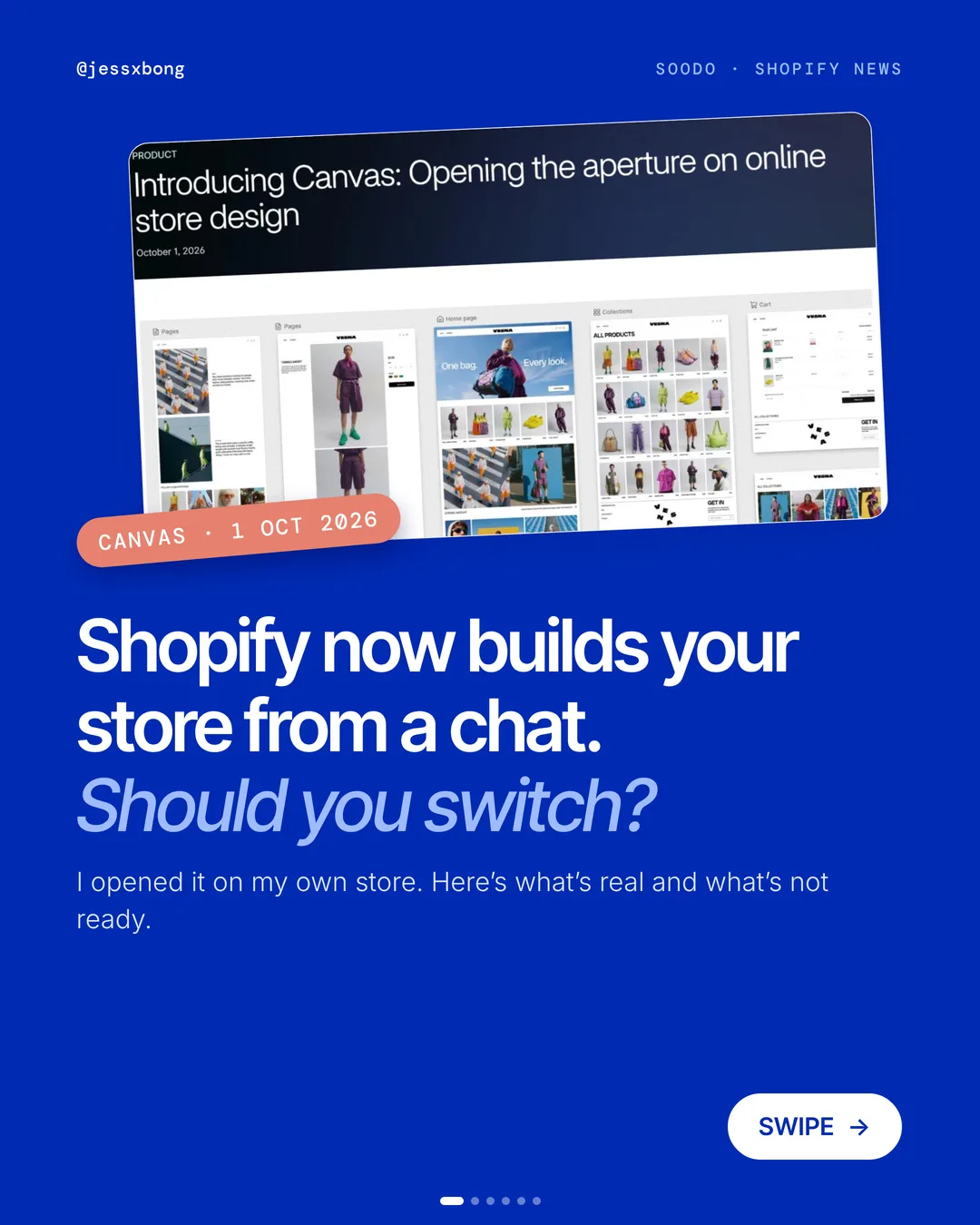

Shopify has a new tool called Canvas. You tell Sidekick, Shopify's AI agent, what you want. It edits your theme live while you watch.
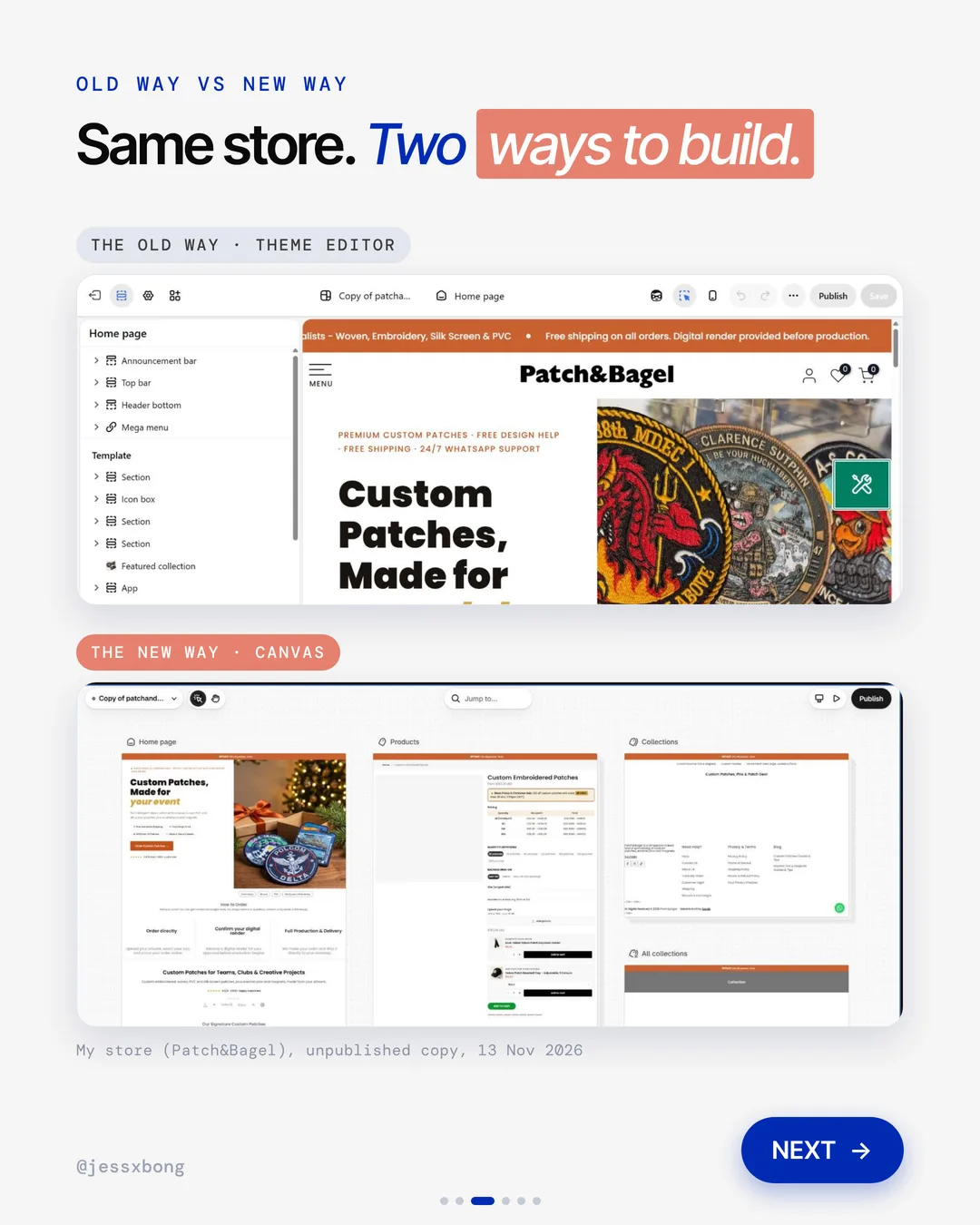
I opened it on my own store. It shows every page on one board, it edits your actual theme code, and it worked on my custom theme.
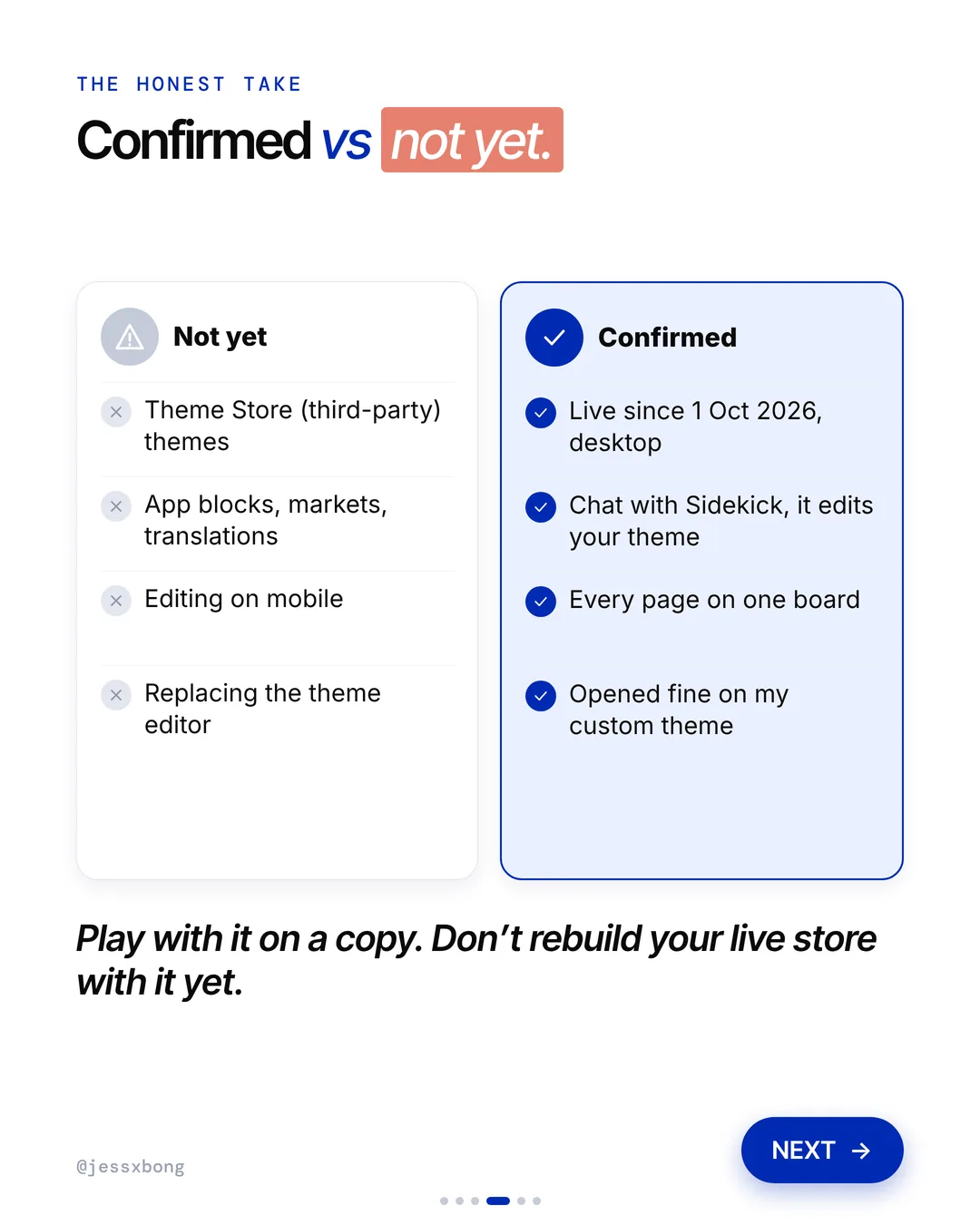
But it is not ready for everything. There are no Theme Store themes yet, no app blocks, markets or translations, and it is desktop only. Even Shopify says it is not replacing the theme editor yet. So here is how to try it safely.
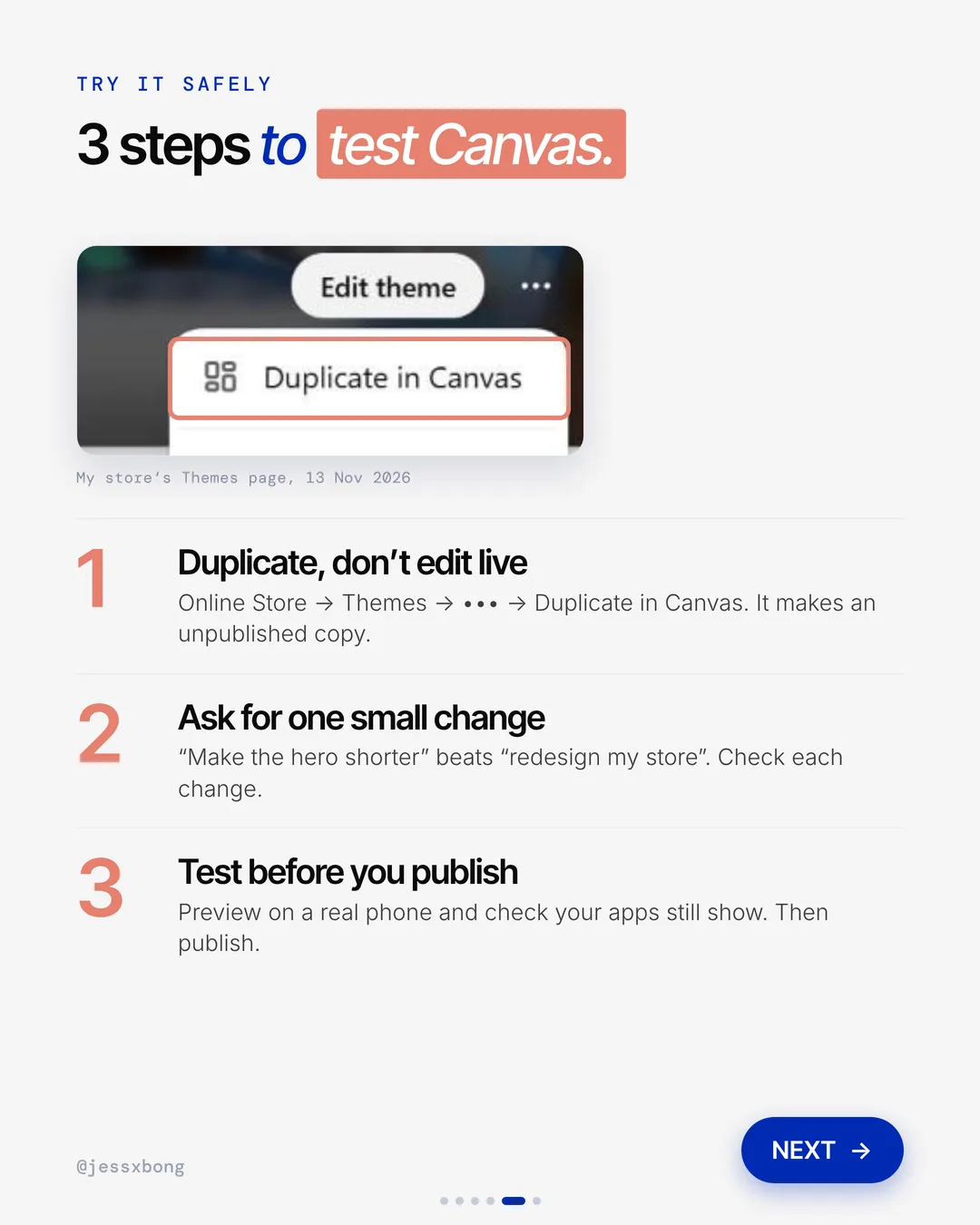
3 steps to test Canvas safely
- 01Duplicate, don't edit liveMake an unpublished copy first.
- 02Ask for one small change"Make the hero shorter" beats "redesign my store".
- 03Test before you publishPreview on a real phone and check your apps still show.
01 · Shopify Canvas
Duplicate, don't edit live
Don't open Canvas on your live store. Go to your Themes page and pick Duplicate in Canvas. It makes an unpublished copy you can play with.
When you pick Duplicate in Canvas, the copy opens in Canvas and your original theme stays in your theme library. The two are separate. Changes to one are not added to the other.
There is one more thing to know. A theme you edit in Canvas only opens in Canvas, not in the theme editor. It also does not get theme updates. So keep your original theme safe and test on the copy.
Why it works
"Why does the shop look broken today?" If you test on a copy, shoppers never see your mistakes.
Your live store keeps selling while you try the new tool.
Your turn
- Play with it on a copy.
- Don't rebuild your live store with it yet.
How to do it on Shopify
- Go to Online Store, then Themes.
- Click the three dots next to Edit theme.
- Pick Duplicate in Canvas.
- Work in the unpublished copy it makes.
Mistakes to avoid
- Opening Canvas on your live theme instead of a copy.
- Making fixes on the original theme after you duplicate, then publishing the copy without them.
- Forgetting that a Canvas theme no longer gets theme updates.
How to tell it is working. Your live store should look and sell the same while you test. Check your conversion rate in Analytics stays steady during the test.
Free checklist
Get the free Shopify Optimization Checklist
The same checklist people get on Instagram when they comment SHOP. Go through your homepage, product pages, checkout and more, one tick at a time. No developer needed.
02 · Shopify Canvas
Ask for one small change
Chat with Sidekick and ask for one small change at a time. Then check each change before you ask for the next one.
You can click a block first, then ask Sidekick to change just that block. That keeps the change small and easy to check.
Canvas saves every change on its own, so there is no save button. If a change goes wrong, open the theme menu and use Version history to go back to an earlier version.
Why it works
"This looks the same, just better." Small changes keep the store feeling familiar.
You can see what each change did. If one goes wrong, it is easy to spot.
Your turn
- Make the hero shorter
- One small change at a time
How to do it on Shopify
- Open your copy in Canvas.
- Type one small change, like "Make the hero shorter".
- Watch Sidekick edit the theme.
- Check the change before you ask for the next one.
Mistakes to avoid
- Asking for a full redesign in one message.
- Asking for the next change before checking the last one.
- Not knowing about Version history, so a bad change feels stuck.
How to tell it is working. Keep a short list of each change you asked for and whether it worked. If most changes need no fixing, your requests are the right size.
03 · Shopify Canvas
Test before you publish
Canvas is desktop only, and app blocks are not supported yet. So preview your copy on a real phone and check your apps still show. Then publish.
In Canvas, you cannot add or change app blocks or app embeds. A copy keeps the app settings from the original theme, but you cannot change or remove them in Canvas.
Shopify's tip: duplicate your theme the normal way first. In that copy, remove any app blocks you do not want. Then pick Duplicate in Canvas on that copy. Canvas also lets you switch the preview to Mobile, but still check on a real phone.
Why it works
"Where did the reviews go?" If an app goes missing, shoppers notice.
You catch broken apps and phone problems before your shoppers do.
Your turn
- Preview on a real phone
- Check your apps still show
How to do it on Shopify
- Preview your copy on your own phone.
- Check every app on your store still shows.
- Fix anything that is missing.
- Then publish.
Mistakes to avoid
- Publishing straight from the desktop preview without opening it on a phone.
- Assuming reviews, upsells and other apps will just carry over.
- Publishing the wrong copy, the one without your latest changes.
How to tell it is working. After you publish, check your conversion rate and mobile sessions in Analytics. If they hold steady or go up, the new theme is safe.
Do this this week
- Check that your theme is made by Shopify or is a custom theme.
- Pick Duplicate in Canvas on your Themes page.
- Ask Sidekick for one small change, like a shorter hero.
- Open Version history so you know how to undo a change.
- Preview the copy on a real phone and check your apps still show.
Play with Canvas on a copy. Don't rebuild your live store with it yet.
Questions
What is Shopify Canvas?
Canvas is a new design surface where you build with Sidekick, Shopify's AI agent. You type what you want and it edits your theme live. Shopify announced it on 1 Oct 2026. It works on desktop, and it is still in early access, so not every store has it yet.
Does Shopify Canvas replace the theme editor?
Not yet. Shopify says Canvas is not replacing the existing editor yet. It does not support Theme Store themes, app blocks, markets, translations or editing on mobile yet.
How do I try Shopify Canvas safely?
Go to Online Store, then Themes, then the three dots, then Duplicate in Canvas. It makes an unpublished copy. Ask for one small change at a time, and test on a real phone before you publish.
Which themes work with Shopify Canvas?
Themes made by Shopify and custom themes. Third-party themes are not supported. Staff also need the Edit code permission for themes to open it.
Can I go back to the theme editor after using Canvas?
Not for the copy you edited. A theme you edit in Canvas only opens in Canvas. Your original theme stays in your library, and you can still edit it in the theme editor.