

Shopify Speed Optimisation for Singapore Stores: Faster Pages, More Sales
Short answer: A Shopify store gets faster by removing what slows it down: unused apps, oversized images, too many scripts and a heavy theme. Measure with real-user data first, then fix the largest problems on mobile. Soodo speeds up stores as part of a Shopify revamp from SGD 3,000, and builds new stores lean from SGD 8,500.
If you want faster Shopify speed optimisation results, start by checking your field data, not a lab score. Then fix your LCP hero image and strip out unused apps first. Aim for Core Web Vitals thresholds of LCP at 2.5 seconds or less, INP at 200 milliseconds or less, and CLS below 0.1. These two moves alone tend to deliver the biggest, fastest wins before you touch anything else.
TL;DR:
- Removing unused apps and fixing the hero image to render server-side can significantly improve speed within the first week.
- Prioritizing real user monitoring data helps identify whether server delays or client-side issues cause slowdowns, rather than relying solely on lab tools.
- Addressing third-party scripts, consolidating tags, and optimizing images with proper formats and sizing are high-impact actions for immediate speed gains.
- Faster load times on mobile require tighter image payloads, fewer mobile-specific scripts, and careful font and button sizing to reduce CLS and improve user experience.
- Monitoring performance changes with real user data and tying improvements to conversion metrics maximizes return on speed optimization efforts.
Table of Contents
- Quick checklist: high-impact, day-one fixes
- Diagnose first: field data before lab tools
- Apps, third-party scripts and tag management: audit and remediate
- Images and media: exact steps to fix LCP and avoid CLS
- Theme, Liquid and TTFB: diagnosing render-time costs and safe refactors
- JavaScript and CSS: reduce main-thread work and prevent render blocking
- Prioritised action plan: one-week, one-month and longer-term workstreams
- Monitoring, regression control and measuring business impact
- How we work: our founder-led approach to speed and conversion optimisation
- Mobile-specific speed optimisation techniques
- Practitioner notes: common trade-offs and mistakes to avoid
- If you need help: our optimisation and rebuild services
- FAQ
- Sources
Quick checklist: high-impact, day-one fixes
Before you dive into theme code or server settings, work through the fixes that move the needle fastest. These are the changes we’d tackle first on any store we’re asked to optimise.
- Remove apps you no longer use, then check the theme files for leftover script snippets the uninstall left behind.
- Make sure your LCP image (usually the hero banner or main product photo) renders directly in HTML rather than being lazy-loaded or pulled in by JavaScript.
- Compress images and serve them responsively, using WebP or AVIF where your theme supports it.
- Defer scripts that aren’t essential to the first interaction, and consolidate tracking tags into a single tag manager where possible.
- Trim the number of sections on your home page and product templates, and consider a lighter theme if yours ships with heavy, unused features.
Pro Tip: Before removing an app, check your theme’s sections and snippets folders for its leftover code, since uninstalling rarely removes everything it added.
Diagnose first: field data before lab tools
The instinct to run a Lighthouse test first is understandable, but it’s backwards. Lighthouse shows you a single simulated session, while real user monitoring (RUM) shows what actually happens across your traffic. Shopify’s own performance guidance recommends starting with RUM data, using the Shopify Web Performance Dashboard or Chrome UX Report (CrUX), to find where genuine visitors experience friction before reaching for lab tools.
Work through this sequence:
- Pull P75 figures for LCP, INP and CLS, broken down by page type (home, collection, product, checkout) and device.
- Compare TTFB, FCP and LCP side by side to work out whether delays start on the server or in the browser.
- Once you’ve spotted the suspect page and phase, reproduce it with Lighthouse, WebPageTest or Chrome DevTools to see exactly what’s slow.
A few things to keep in mind as you read the reports:
- A slow TTFB points to server rendering or Liquid issues, not image weight.
- A large gap between FCP and LCP usually means the hero asset is being discovered late.
- High INP on specific pages often traces back to a single heavy script, not general code bloat.
Lab tools are brilliant for debugging once you know where to look, but they’re a poor way to decide what to fix first.
Apps, third-party scripts and tag management: audit and remediate
Third-party scripts are one of the most common causes of poor INP and delayed LCP, because each one adds its own network request, parses its own JavaScript, and can block the main thread while it runs. Shopify’s developer documentation on auditing third-party scripts points to removing unused apps as one of the highest-impact changes a store can make.
Work through the audit in stages:
- List every installed app and ask whether it’s actually driving revenue or just sitting there from a past campaign.
- Search your theme files for script tags or snippets that reference apps you’ve already removed.
- Open Chrome DevTools, record a performance trace, and sort the bottom-up view to see which scripts consume the most main-thread time.
For each script you find, decide whether to uninstall it outright, defer its loading until after the main content renders, or route it through a server-side proxy. Consolidating analytics and marketing pixels into Google Tag Manager also cuts down on duplicate requests.
Pro Tip: After uninstalling an app, check the theme code manually. Leftover snippets are a known cause of stores not seeing the speed gains they expected.

Images and media: exact steps to fix LCP and avoid CLS
Images are usually the biggest single factor in LCP, and they’re also the easiest to get wrong in ways that hurt layout stability. A few rules cover most of what matters.
- Use
srcsetandsizesattributes so browsers load an appropriately sized image for each device, and always set explicitwidthandheightto reserve space. - Never lazy-load the image that forms your LCP element: lazy-loading delays its discovery and directly works against the metric you’re trying to improve.
- Compress images to sensible file sizes and prefer WebP or AVIF formats where your theme and browser support allows it.
- For video, use a poster image, lazy-load the player itself, and avoid autoplay on mobile, since autoplaying media competes for bandwidth with everything else on the page.
Shopify’s platform-level optimisation helps here too: stores on Shopify get automatic image optimisation and a Cloudflare-backed CDN with an average TTFB of around 0.51 seconds, which takes some of the server-side burden off your shoulders. That said, platform support doesn’t fix a hero image that’s being lazy-loaded or served at the wrong resolution, so the responsibility for LCP still sits with how you implement images in your theme.
If you’re weighing up layout changes alongside a speed fix, it’s worth looking at layout patterns that avoid shifting content as you redesign sections, since CLS problems often start at the design stage rather than the code.
Theme, Liquid and TTFB: diagnosing render-time costs and safe refactors
A slow TTFB almost always traces back to how your theme’s Liquid code renders on the server, and it drags down every downstream metric, including LCP, because the browser can’t start painting until the server responds. Shopify’s theme performance documentation outlines the patterns that cause this most often.
Watch for these specific issues:
- Nested loops that iterate over collections or product variants multiple times on a single page.
- Repeated metafield calls that query the same data again and again instead of being fetched once and reused.
- Excessive use of
renderandincludetags that stack up small performance costs across dozens of snippets per page load.
The Theme Inspector, available in Shopify’s theme editor, profiles exactly where your render time is going, section by section. Start refactors with whichever section the inspector flags as heaviest, since a single slow loop on a high-traffic template can outweigh a dozen smaller fixes elsewhere. Prioritise anything that runs on every page load, such as header or footer snippets, before touching page-specific sections that only affect one template.
JavaScript and CSS: reduce main-thread work and prevent render blocking
Scripts and stylesheets that block rendering are a direct tax on both LCP and INP, so the goal is to load only what’s needed immediately and push everything else later.
- Mark non-critical scripts as
deferorasync, and use dynamic imports to load JavaScript only when a customer actually interacts with a feature. - Inline the minimal CSS needed for the first screen, then load the rest asynchronously so the browser isn’t blocked waiting for a full stylesheet.
- Avoid JavaScript that forces large style recalculations, since these create the long tasks that Google’s INP optimisation guidance identifies as a core cause of input delay; breaking work into smaller chunks with
setTimeouthelps the browser stay responsive. - For fonts, use
font-display: swapor similar strategies, apply size-adjust overrides to reduce layout shift when the font loads, and preload only the one or two fonts that appear above the fold.
Pro Tip: Preloading every font on the page feels thorough, but it often competes with your LCP image for bandwidth and slows things down instead.
Prioritised action plan: one-week, one-month and longer-term workstreams
Trying to fix everything at once is how speed projects stall. Break the work into stages instead.
- Week one: remove unused apps, fix the LCP image so it’s server-rendered, and strip dead script tags.
- Month one: refactor the slowest Liquid sections, fix nested loops and metafield calls, and consolidate analytics tags into one manager.
- Longer term: consider Shopify Functions or edge-based logic for custom storefront behaviour, and weigh up whether a theme rebuild makes more sense than continuing to patch an older codebase.
| Workstream | Timeframe | Typical focus |
|---|---|---|
| Quick wins | One week | App cleanup, hero image fix, tag cleanup |
| Structural fixes | One month | Liquid refactor, loop fixes, analytics consolidation |
| Engineering projects | Longer term | Edge/Functions work, architecture review, rebuild decision |
Monitoring, regression control and measuring business impact
A fix that looks good in a lab test can still fail in the field, so ongoing monitoring matters as much as the initial diagnosis.
- Set alerts on P75 LCP, INP and CLS by page type and device so a regression on mobile product pages doesn’t go unnoticed for weeks.
- Run Lighthouse CI as a pre-deploy check to catch obvious regressions before they reach customers, then confirm the real impact with RUM data over the following one to two weeks, since short-term lab wins don’t guarantee field improvement.
- Tie speed changes back to conversion data. Shopify’s own analysis links faster load speed to higher conversion, reporting roughly a 3.5% lift in conversion for every 100 milliseconds shaved off load time, which makes a solid case for treating speed work as a revenue lever rather than a technical nicety.
- Where a change might alter the shopping experience, such as removing an app that added a feature customers used, run an A/B test rather than assuming faster automatically means better. Our guide to Shopify fixes that lift sales covers how to connect these performance changes to actual sales lift.
How we work: our founder-led approach to speed and conversion optimisation
We’ve consulted on more than 100 Shopify stores, and the pattern repeats: stores lose speed gradually, one app and one unused section at a time, until nobody remembers why the homepage feels sluggish. We run every engagement the same way: audit first using real user data, fix the highest-impact issues, then verify the result in field metrics rather than trust a single lab score.
Our recommendations stay grounded in what actually moves conversion, not just what moves a Lighthouse number. We treat speed and conversion as the same project, since a faster store that converts worse isn’t a win.
Mobile-specific speed optimisation techniques
Most Shopify traffic arrives on mobile, where slower processors and inconsistent networks make every inefficiency more visible than it would be on desktop. The fixes that matter most here overlap with desktop work but carry more weight.
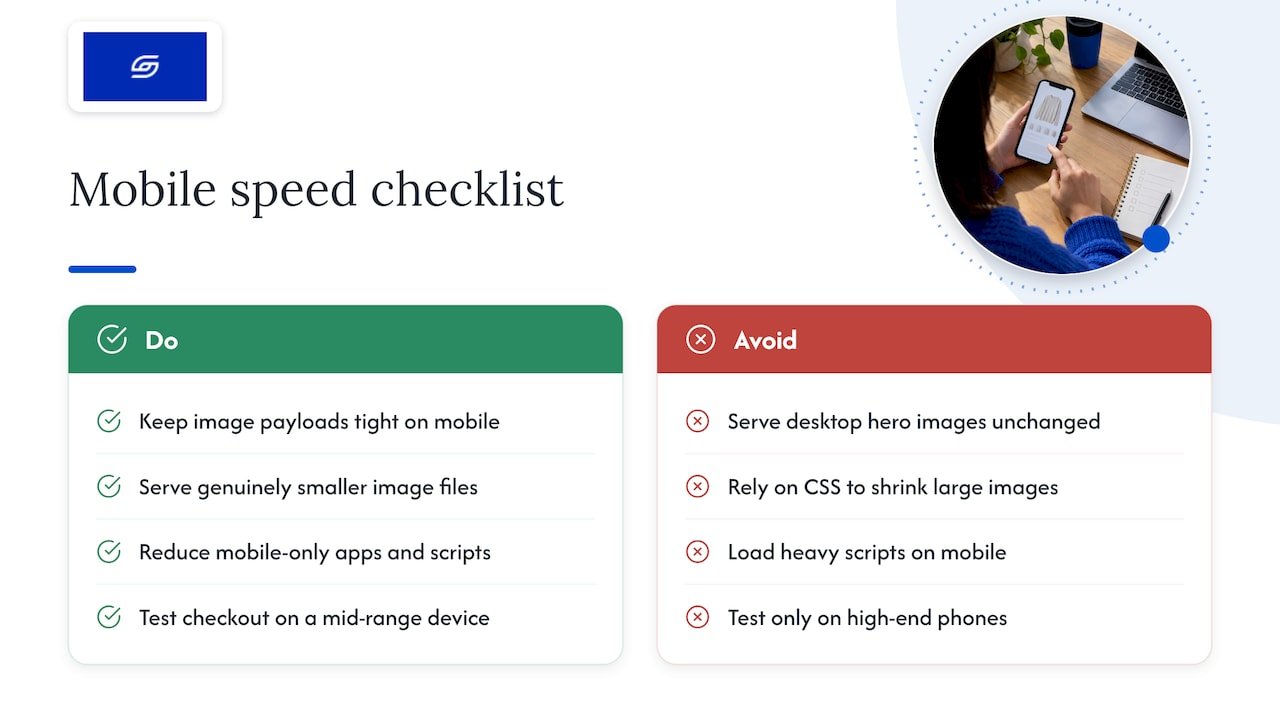
Keep image payloads especially tight on mobile breakpoints, since a hero image sized for desktop but served unchanged to a phone wastes bandwidth that mobile networks can’t always spare. Use srcset to serve a genuinely smaller file rather than relying on CSS to shrink a large image visually.
Reduce the number of apps and scripts that load on mobile specifically, since touch interactions depend heavily on INP, and a single heavy script firing on tap or scroll is more noticeable on a phone’s weaker processor than on a desktop machine. Test your checkout flow on an actual mid-range device rather than only a high-end phone, since that’s closer to what a meaningful share of your customers are using.
Finally, check that fonts and buttons are sized so nothing shifts when a customer taps “Add to cart”, since layout shifts on a small screen are more disruptive to the shopping experience and more likely to trigger CLS penalties than the same shift on desktop.
Practitioner notes: common trade-offs and mistakes to avoid
Chasing a perfect Lighthouse score can quietly work against you. Stripping out a product recommendation carousel might shave a few points off your performance score while removing a feature that was genuinely lifting average order value. Speed and conversion don’t always pull in the same direction, and the right call depends on what the feature earns you.
Some fixes are genuinely quick: removing an app, compressing an image. Others, like a Liquid-heavy theme built on nested loops, need a proper refactor or a rebuild. Knowing which one you’re facing before you start saves weeks of frustration.
— Soodo
If you need help: our optimisation and rebuild services
If the diagnostic work above points to a theme that needs more than patching, or you’d rather hand the whole process to people who do this daily, that’s exactly what our Shopify revamp service covers: an audit, a prioritised roadmap, and fixed-price execution with verification against your real user data afterwards.
- For stores needing incremental fixes: our Shopify revamp starts from SGD 3,000.
- For stores where the theme itself is holding you back: our New Shopify Website Development service starts from SGD 8,500.
- For stores migrating from another platform: our platform migration service starts from SGD 6,000.
Get in touch through our site to talk through which route fits your store, and we’ll walk you through what an audit would look like for your specific setup.
Lazy loading images
What does lazy loading actually do on a Shopify store?
It delays the download of an image until it enters, or gets close to, the visible part of the screen. The browser then fetches it just in time. Shopify Performance explains that this deprioritises images you do not need immediately, which cuts the bytes required for the first view.
Think of a collection page with 24 product cards. On a phone, the shopper sees perhaps two or three. Loading all 24 images at once competes for bandwidth with the ones that matter. Lazy loading lets the first few win.
The benefit is real, but it is narrow. It works on images below the fold. Applied to an image in the first screen, it does the opposite of what you want.
Why is lazy-loading the hero image a mistake?
Because the hero is usually your LCP element, and lazy loading delays it. Shopify identifies images as typical LCP elements and says the way you load them directly affects LCP.
The mechanism matters. When an image has a server-rendered src and no lazy attribute, the browser can find it early, before CSS, JavaScript or layout finish. A lazy image waits. As one Shopify Performance post describes, the page has to render first before the browser decides whether the image is in view.
This is why many speed audits find that removing lazy loading from the first image gives a bigger gain than adding it elsewhere. It is also one of the most common accidental mistakes on themes that have been customised over the years.
Which images should load eagerly?
- The hero or banner image on the homepage.
- The main product image on a product page.
- The first visible row of product cards on a collection page.
- Your logo, if it is an image and sits in the header.
- Any other image in the first screen on mobile.
Shopify recommends that you lazy-load only images that are genuinely below the fold, such as later product-card rows, collection content and lower sections.
Which images should be lazy-loaded?
- Product cards further down a collection page.
- Image-with-text sections lower on the homepage.
- Testimonial photos, Instagram-style grids and footer imagery.
- Secondary product gallery images that are not shown on first view.
- Blog article images below the opening screen.
Does your theme already lazy-load images?
Probably yes, if it is a current Shopify theme. Check before you change anything. Shopify’s image_tag filter applies loading="lazy" by default to images in sections further down the page when preload is not applied. If the default does not suit your layout, Shopify points you to custom logic using section.index and section.location.
That means you may not need to add lazy loading at all. You may only need to fix places where a developer hard-coded it or used a script that does it for you.
Here is a quick way to check:
- Open your live store on a phone-sized window in Chrome.
- Right-click the hero image and choose Inspect.
- Look for
loading="lazy"on that image. If it is there, you have found a problem. - Repeat for the main product image and the first row of collection cards.
- Search your theme code for older lazy-load libraries. Shopify’s Theme Check flags the lazysizes library as deprecated, and the same tool flags
imgtags without width and height as an error.
Why do JavaScript lazy loaders cause trouble?
They often swap the real image URL into a data attribute and only set src once a script runs. The browser’s preload scanner cannot see that URL early. Shopify lists this as a common mistake. Native loading="lazy" is simpler and works without extra scripts.
How do you lazy-load selectively in Liquid?
Use image_url with image_tag, and set the loading behaviour by section position. Shopify recommends these two filters over manually built CDN URLs. They also generate srcset, width and height for you, which helps prevent layout shift.
The key is section.index. Shopify documents it as a 1-based position of the section on the page. It is nil for static sections, in the theme editor and in Section Rendering API responses.
That last point catches people out. If you write a test such as section.index <= 3 for eager loading, a nil value can send the image down the wrong branch. Shopify’s advice is to test the lazy case positively and let nil fall through to eager loading.
A safe pattern looks like this:
{%- if section.index > 3 -%}
  {{ section.settings.image
    | image_url: width: 1200
    | image_tag: loading: 'lazy', sizes: 'auto', widths: '400, 800, 1200' }}
{%- else -%}
  {{ section.settings.image
    | image_url: width: 1600
    | image_tag: loading: 'eager', sizes: '100vw', widths: '800, 1200, 1600' }}
{%- endif -%}
This is a starting point. Adjust the widths and sizes to your layout. Shopify notes that sizes="auto" suits lazy images, but eager images, including the LCP image, still need an explicit sizes value because the browser picks the source before layout.
What is the rule of three sections?
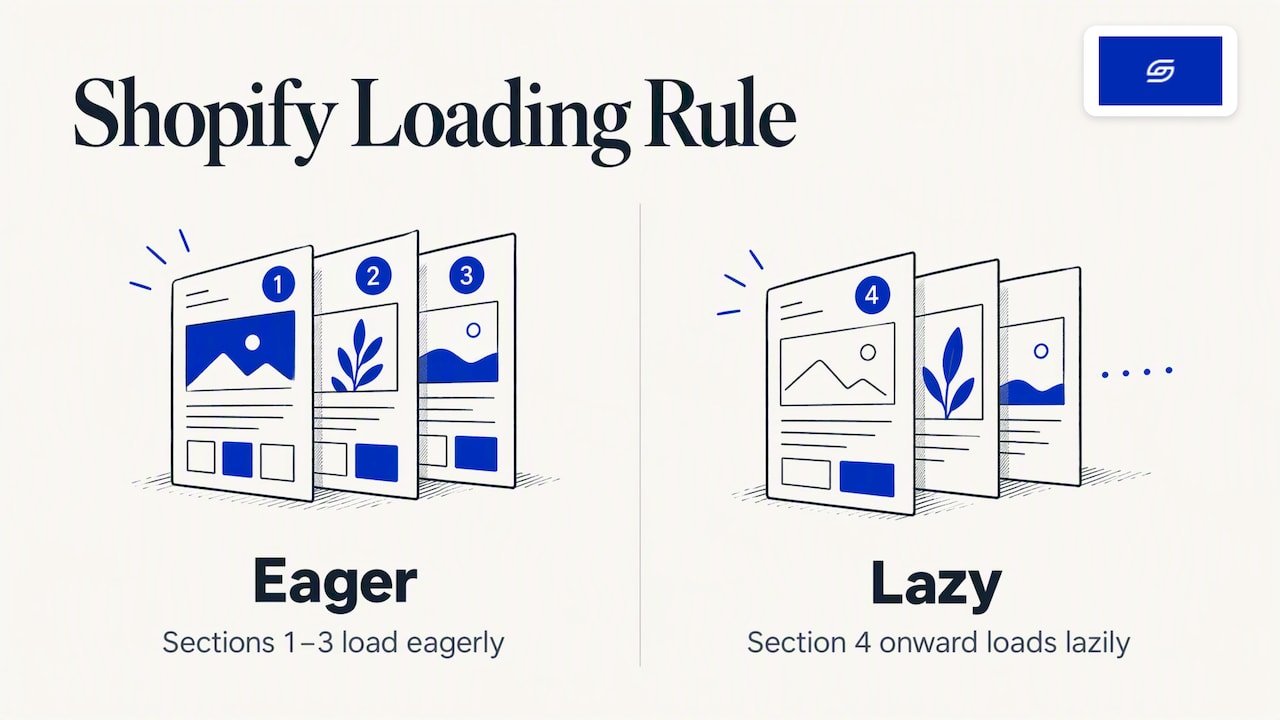
Shopify’s guidance is to load the first three sections eagerly and lazy-load section four onwards. The default image_tag behaviour already follows this when you do not pass a loading value. So the simplest option is often to remove your overrides and let the default work.
How do product cards fit in?
Inside a collection grid, use the loop position as well. Shopify’s responsive-design guide shows an example that loads only the first visible product row eagerly and lazy-loads the rest. On a phone with a two-column grid, that is often the first two to four cards. On desktop it may be the first row of four.
Speed for Singapore shoppers
- Test on a phone over mobile data, because that is how most Singapore shoppers browse.
- Audit your apps. Every app that loads on the storefront adds scripts. Remove the ones you no longer use.
- Do not lazy-load the hero image. Load it straight away and lazy-load images further down the page.
- Watch marketing tags. Delaying non-essential tags such as Google Tag Manager until after load can make a visible difference.
Soodo builds every new Shopify store on a lean theme and fixes speed problems in a Shopify revamp.
FAQ
Why is Shopify running so slow?
Slow Shopify stores are usually slowed by accumulated apps, unoptimised images and heavy theme code rather than the platform itself. Shopify provides CDN delivery and automatic image optimisation, so most slowdowns trace back to store-specific customisations, leftover app scripts or inefficient Liquid code.
Is Shopify still worth it in 2026?
Shopify remains a solid choice for merchants who want built-in infrastructure like CDN delivery and automatic image handling without managing servers themselves. Whether it’s worth it depends on your specific needs, but the platform-level performance foundation means speed problems are usually fixable rather than a reason to avoid the platform.
Can you make $10,000 a month on Shopify?
Revenue on Shopify depends on your product, marketing and conversion rate rather than the platform itself, so there’s no fixed answer here. Store speed is one lever that affects this outcome: faster load times correlate with higher conversion rates, which directly affects how much revenue a given amount of traffic generates.
How do I boost Shopify traffic?
Traffic growth sits outside pure speed optimisation, but the two areas connect closely since Google’s ranking signals include Core Web Vitals performance. Improving your LCP, INP and CLS scores can support your SEO alongside dedicated traffic strategies like content, paid acquisition and search optimisation.
What’s the fastest way to improve Shopify Core Web Vitals?
Start by checking your Core Web Vitals scores through real user data, then fix your LCP hero image and remove unused apps, since these two changes typically deliver the largest improvement for the least effort. Follow up with Liquid and script-level fixes once the quick wins are done.
Sources
Recommended

Jessica Bong
Jessica Bong is the founder of Soodo, a Singapore Shopify agency that builds, revamps and migrates Shopify stores, with every store set up to be found in AI search (GEO). She has spent over 10 years in ecommerce and runs her own Shopify brand, Patch&Bagel, where every Soodo technique is tested first. Jessica is also a WSQ-certified Shopify trainer at Equinet Academy.