

Shopify Product Filters for Singapore Stores: Help Shoppers Find Products
Short answer: Shopify's free Search & Discovery app adds filters to collection pages using product type, vendor, tags, variants and metafields. Filters only work if your product data is consistent, so clean up options and metafields first. Soodo restructures collections, filters and navigation as part of a Shopify revamp from SGD 3,000.
Use Shopify’s storefront filtering through the Search & Discovery app for most stores, and reach for metafields or a third-party app only when you need custom attributes, variant-level search, or large-catalogue performance. Before you touch any settings, confirm your theme supports filters and check your collection size: these two checks decide which path you take next.
TL;DR:
- Shopify’s native Search & Discovery filters work well for most stores if the collection size is under 5,000 products and themes support filter rendering.
- Custom metafield filters are essential for attributes not tracked natively, but require consistent data entry and correct scope selection.
- Tag filters are simple but become unreliable as catalog size and variation counts grow, necessitating value grouping to stay within Shopify limits.
- For catalogs exceeding 5,000 products or needing variant-specific display, third-party apps with features like instant filtering and analytics may justify their cost.
- Prioritizing data hygiene and standardization improves filter performance significantly more than switching to costly apps or complex setups.
Table of Contents
- What filter types Shopify supports and when to choose each
- Preflight checks: theme support, collection size and filter limits
- Step-by-step: create, configure and test filters in the Search & Discovery app
- Custom filters with metafields and metaobjects: setup and maintenance
- Developer checklist: Liquid objects, filter URL parameters and SEO notes
- When to choose a third-party filter/search app: feature and cost trade-offs
- Soodo’s practical checks and how we approach filter implementations
- Our take on filter advice that skips the implementation detail
- If you want hands-on help: Soodo’s services for filters and optimisation
- FAQ
- Sources
- Primary Shopify documentation and useful app pages
What filter types Shopify supports and when to choose each
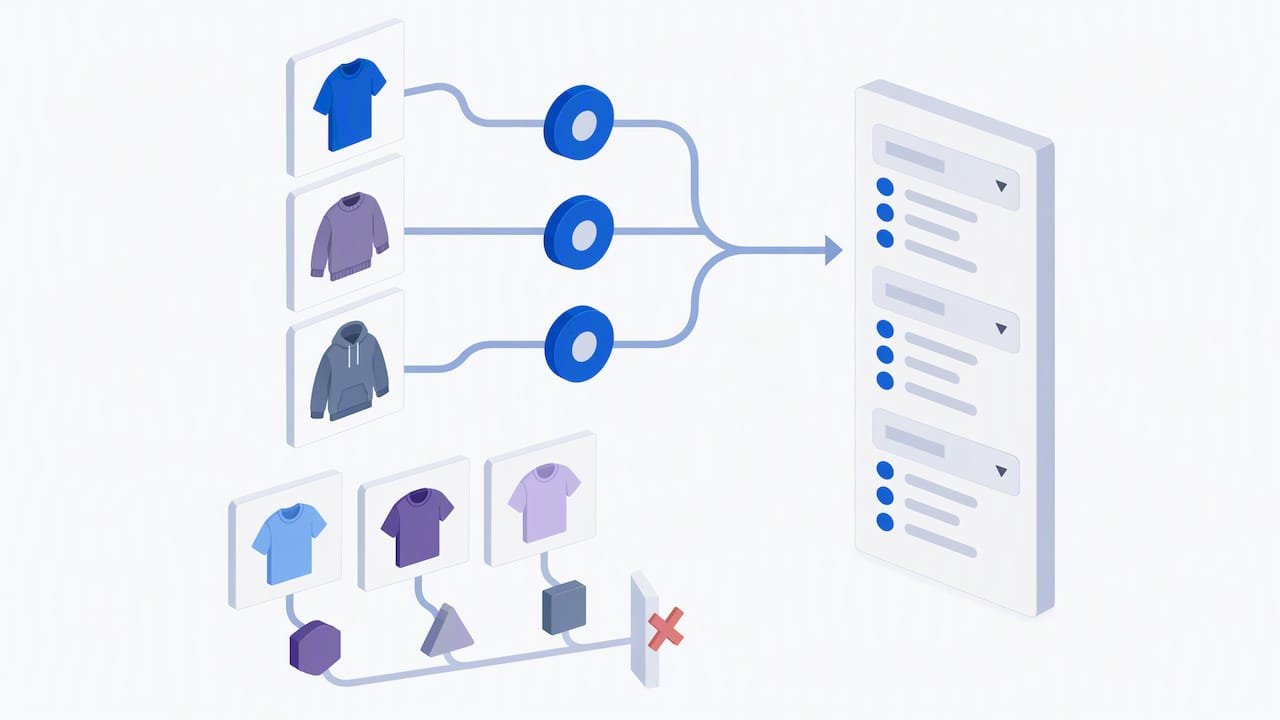
Shopify gives you two broad options: standard filters built from product data, and custom filters built from metafields. Standard filters cover availability, category, price, product type, tags, vendor and variant options, and they work the moment you turn them on because they read data you already have.
Custom filters need more setup but unlock far more precision:
- Product metafields suit attributes like material, fit or certification that apply to the whole product.
- Variant metafields suit attributes tied to a specific size or colour combination rather than the product as a whole.
- Metaobject references suit structured, reusable data such as brand profiles or collections of linked specifications.
Tag filtering is the simplest fallback. It costs nothing to set up because you likely already tag products, but it scales badly: tags are free text, so typos and inconsistent naming (Red vs RED) quietly break your filter lists as your catalogue grows.
Preflight checks: theme support, collection size and filter limits
Run these checks before you open the Search & Discovery app, not after.
- Confirm theme support by visiting a collection page; if filters don’t render, your theme may need an update or a manual block added to the collection template.
- Check collection size. Collections above 5,000 products lose storefront filters entirely, a hard limit set by Shopify that no app setting overrides.
- Check value counts. Shopify caps visible values per filter and total filter groups per store, so a collection with hundreds of colour variants may need grouping before filters display cleanly.
If a collection exceeds the limit, split it into smaller sub-collections or restructure by product type. If a single filter has too many values, group similar entries (Onyx, Ebony and Midnight collapsing into Black) to stay under the cap.
Step-by-step: create, configure and test filters in the Search & Discovery app
Setting up filters takes a handful of admin clicks once your preflight checks pass.
- Go to Apps > Search & Discovery > Filters.
- Click Add filter and choose a type: standard, product option, or metafield.
- Pick a presentation style: checkbox list, image swatch, or a price-range slider for numeric filters.
- Set the sort order for the filter group and review which values Shopify has pulled in automatically.
- Group or exclude values that are duplicates or irrelevant to this collection.
- Save, then open the storefront and apply the filter on a live collection and on a search results page to confirm it behaves as expected.
- Check the resulting URL. Shopify appends structured parameters when a filter is active, and you’ll use these later for Liquid-level customisation.
- Preview on mobile to confirm the filter list doesn’t overwhelm a small screen.
Limit the number of visible values per filter to keep the list scannable, and group near-duplicate values rather than letting every minor variation clutter the panel.
Pro Tip: Test filters on your largest collection first. Problems with value caps and layout only show up once you’re past a few dozen products.
Custom filters with metafields and metaobjects: setup and maintenance
Metafield filters give you control over attributes Shopify doesn’t track natively, such as fabric, origin, or warranty length. To make a metafield filterable, open its definition in Settings > Custom data and switch on Use as filter, provided the field type is supported.
Choose the right scope for the data:
- Use a product metafield when the attribute applies to the item as a whole, such as “made in” or “care instructions”.
- Use a variant metafield when the attribute changes between SKUs, such as fit or finish.
- Use a metaobject reference when the data is structured and reused across many products, such as a certifying body or a designer profile.
Populating metafields consistently is the real challenge, not the setup. A bulk CSV import works well for an initial catalogue load, while a standard product template with required fields keeps new entries consistent going forward. For stores adding products continuously, a simple automation that flags missing metafield values before publishing saves far more time than retroactive clean-up.
Pro Tip: Standardise your value list (a fixed set of material names, for instance) before you populate metafields at scale. Free text invites the same inconsistency that breaks tag filtering.
Developer checklist: Liquid objects, filter URL parameters and SEO notes
Theme developers work with collection.filters and search.filters to render filter groups, and each filter object exposes active_values and a ready-made url_to_remove for clearing a selection, both documented in Shopify’s filtering reference.
A few patterns to know:
- Applied filters appear as structured URL parameters, such as
filter.v.option.color=redfor an option-level filter orfilter.v.price.lte=50for a price ceiling. - Option and variant filters differ in scope: an option filter narrows by product-level data, while a variant filter can change which variant is selected by default.
- When a variant-specific filter is applied, the product’s URL and featured media update to reflect the first matching variant, which matters for deep-linking from ads or email.
On SEO, parameterised filter URLs multiply fast: a collection with five colours and four sizes can generate dozens of unique URLs for the same underlying products. Set canonical tags pointing back to the clean collection URL to avoid duplicate indexing, and apply the same discipline when a third-party app injects its own parameter structure or overlay. For mobile and desktop presentation, Shopify’s own guidance favours drawers or modals on mobile with progressive enhancement, so filtering still works if JavaScript fails to load.
When to choose a third-party filter/search app: feature and cost trade-offs
Native filtering covers most catalogues well, but a few scenarios push store owners towards a paid app: catalogues approaching the 5,000-product ceiling, a need for variant-as-product display, or a want for AI-assisted semantic search that goes beyond keyword matching.
Common features worth comparing across apps:
- Instant filtering with no page reload.
- Variant-as-product listings, so each colour or size shows as its own tile.
- Built-in analytics on which filters shoppers actually use.
- Merchandising tools like pinned products or manual sort overrides.
Pricing typically runs from a free or low-cost tier up to enterprise plans priced near $69.99 a month for the most advanced feature sets. Before paying for one, weigh catalogue size, how much conversion lift you realistically expect, how important visual merchandising is to your brand, and your monthly budget against what native filtering already gives you for free. Our guide to evaluating Shopify app ROI walks through that trade-off in more depth, and our notes on AI search optimisation cover when semantic search earns its subscription cost.
Soodo’s practical checks and how we approach filter implementations
Across the Shopify stores we’ve worked on, the same issues recur: inconsistent option names that split one filter value into three, missing canonical handling on parameterised pages, and mobile filter panels that bury the apply button below the fold. We fix these by standardising naming before launch, setting canonical tags on filtered URLs, and prioritising the mobile drawer experience first rather than as an afterthought.
We validate changes with filter interaction analytics, small conversion tests on the affected collections, and a speed check before and after.
Our take on filter advice that skips the implementation detail
Most filter advice online stops at “turn on Search & Discovery and you’re done.” That’s fine for a 200-product store with a default theme, but it underestimates how quickly metafield clutter, tag inconsistency and mobile layout problems creep in once a catalogue grows past a few hundred SKUs.
The conventional wisdom also overrates third-party apps as a fix for poor data. An app with AI-powered search still returns bad results if your product titles and metafields are inconsistent; it layers a smarter engine on top of the same mess. The unglamorous work, standardising option names, grouping metafield values, and keeping templates consistent, does more for filter performance than switching apps ever will.
If you prioritise one thing first, make it data hygiene: clean, consistent attribute values across your catalogue. Everything else, from native filters to the most expensive enterprise app, performs better once that foundation is in place.
— Soodo
If you want hands-on help: Soodo’s services for filters and optimisation
Clean filters depend on clean product data and a theme built to show it off. Whether you’re building fresh or fixing what’s already live, support is available for metafield structure, theme work, and testing.

Depending on where your store stands, a few paths fit:
- A new Shopify build if your filters, theme and catalogue structure all need rework together.
- Store optimisation if your filters mostly work but conversion and speed need attention.
- A platform migration if you’re moving off another platform and want filtering built in from the start.
Get in touch for a short discovery call and we’ll point out the lowest-effort, highest-impact fixes for your store first.
Filters and navigation for Singapore stores
- Start with how your customers search. For a Singapore gift shop that may be occasion and price; for apparel, size and colour.
- Use SGD price ranges that match your catalogue, not default bands.
- Fix the data first. One product with “Navy” and another with “navy blue” creates two filter values.
- Keep filters usable on phones. Most Singapore shoppers browse on mobile, so test the filter drawer there.
If your collections have grown messy, a Shopify revamp rebuilds the catalogue structure and navigation so shoppers find products faster.
FAQ
How to set filters on Shopify?
Go to Apps > Search & Discovery > Filters in your admin, click Add filter, and choose a standard, option, or metafield filter. Set its presentation style and values, save, then check the live collection and search pages to confirm it displays correctly.
Is there a Shopify filter app available?
Shopify’s own Search & Discovery app handles filtering for most stores at no extra cost. Third-party apps add features like instant filtering and AI search, with pricing running from free tiers up to around $69.99 a month for advanced plans.
How do I create custom filters?
Open a metafield’s definition under Settings > Custom data and enable Use as filter, provided the field type supports it. Choose a product metafield, variant metafield, or metaobject reference depending on whether the attribute applies to the whole product, a specific variant, or reusable structured data.
How can I customize my product page in Shopify?
Product page customisation sits in your theme editor, where you can adjust layout, add metafield data as visible attributes, and connect filterable fields to the front end. For structural changes beyond the theme editor, work falls to custom Liquid templates, which is the kind of project our new Shopify build service covers.
Sources
- Shopify Help Center | Adding filters with Shopify Search & Discovery
- Shopify developer docs — Filtering
- Shopify App Store — Ultimate Search & Filter (example app listing)
Primary Shopify documentation and useful app pages
For the original references behind this guide, see Shopify’s own documentation on filters, storefront filtering, and the app store listing used for pricing context below.
Recommended

Jessica Bong
Jessica Bong is the founder of Soodo, a Singapore Shopify agency that builds, revamps and migrates Shopify stores, with every store set up to be found in AI search (GEO). She has spent over 10 years in ecommerce and runs her own Shopify brand, Patch&Bagel. Jessica is also a WSQ-certified Shopify trainer at Equinet Academy.