

Shopify staff permissions: who should access what
Shopify staff permissions are set through roles in Settings > Users. You give each person a role, and the role decides what they can see and change in your admin. Give people only what their job needs, and review it often.
We are Soodo, a founder-led Shopify agency in Singapore. We see permission mistakes on stores of every size. This guide shows how to set staff access up properly, step by step.
Key takeaways
- Permissions are grouped into roles. Build a role per job (for example fulfilment, marketing, finance) instead of editing each person one by one.
- To add someone, go to Settings > Users, click Add users, enter their email and assign a role. The invitation expires after 7 days.
- Keep finance, app and theme permissions tight. These are the areas where a wrong click costs the most.
- Turn on two-step authentication for everyone. It is tied to each person’s own Shopify ID.
- Suspend or remove people the day they leave, and check collaborator access (agencies and freelancers) every quarter.
Table of Contents
- What do Shopify staff permissions actually control?
- What is the difference between a staff user, a store owner and a collaborator?
- How do you add a staff member and assign permissions?
- How do you choose which permissions each person gets?
- How do you control app installs and POS access?
- How do you protect staff logins with two-step authentication?
- How do you review, change or remove staff access?
- What mistakes do we see most often?
- Our view: permissions are a sales protection, not just security
- Want us to set this up for your store?
- Frequently asked questions
- Where to go next
- Sources
What do Shopify staff permissions actually control?
They control which parts of your Shopify admin a person can open, view and change. Shopify lets you create roles with the permissions each staff member needs for specific tasks. You then assign those roles to users.
The benefit of roles is consistency. Shopify notes that roles let you change permissions accurately and uniformly, which reduces the chance of someone getting access that is not part of their job.
Think of it in three layers:
- The user. A person with their own login and Shopify ID.
- The role. A named bundle of permissions, such as “Customer support”.
- The permission. A single ability, such as viewing orders, editing products or managing apps.
One login per person matters. Shared logins make it impossible to know who changed a price or refunded an order. They also mean you cannot remove one person without disrupting everyone else.
What is the difference between a staff user, a store owner and a collaborator?
A store owner holds the account that controls the store. A staff user is someone on your team who has a login and a role. A collaborator is an outside person, usually a developer, designer or agency, who gets access to your store without being a member of your team.
The practical differences:
| Account type | Who it is for | How access is controlled |
|---|---|---|
| Store owner | The person accountable for the business | Full control of the store |
| Staff user | Your own employees and long-term helpers | You invite them and assign a role |
| Collaborator | Agencies, freelancers, developers | Access is requested and then approved by you, and it can lapse |
Collaborator access has a built-in safety net. If a collaborator has not logged into the store within 90 days, their access expires automatically. You can reinstate it in the Users section if the work continues.
When you hire an outside team, such as a developer for a migration, collaborator access is usually the cleaner route. You keep your staff list for your own people, and the outside access ends by itself when the project stops.
How do you add a staff member and assign permissions?
Go to Settings > Users, click Add users, enter the person’s email, choose a role and set the security options. Then click Save. Shopify’s own steps are on its page about inviting users.
Here is the process in order:
- Open your Shopify admin and go to Settings > Users.
- Click Add users.
- Enter the person’s email address.
- Assign a role. Use a custom role if none of the defaults fit.
- Choose your security settings, including whether two-step authentication is required.
- Click Save. Shopify sends an invitation email.
The person must accept the invitation within 7 days. If they do not, remove the user and add them again to send a new invitation.
Two small habits save trouble. First, invite people with their work email, not a personal one. Second, tell them the invitation is coming, because it often lands in spam.
How do you choose which permissions each person gets?
Start from the job, not the person. Write down the tasks the role must do every week, grant those, and leave everything else off. Shopify’s advice is to create custom roles with the permissions each staff member needs and adjust them to fit how your business works.
Here are example roles for a typical small to mid-sized Singapore store. These are starting points we use as thinking aids, not Shopify defaults.
| Role | Usually needs | Usually does not need |
|---|---|---|
| Fulfilment / warehouse | Orders, inventory, shipping labels | Finance, themes, apps, customer exports |
| Customer support | Orders, customers, refunds if you allow them | Themes, apps, payouts |
| Marketing / content | Products, collections, blog, discounts, reports | Payments, finance, store settings |
| Bookkeeper / finance | Finance permissions, order and tax reports | Product editing, themes, apps |
| Operations manager | Most store areas except billing and ownership | Ownership-level changes |
The finance area deserves special care. Shopify’s store permissions include Finance permissions to view payouts and tax documents. Give those only to the person who reconciles your books. If you sync Shopify to accounting software, our guide on fixing Shopify payout mismatches in Xero shows why clean finance access matters.
A simple test for every permission
Ask three questions before you tick a box:
- Does this person need it at least once a month?
- If they made a mistake here, could we undo it in minutes?
- Would a customer be harmed if this account were hacked?
If the answer to the first is no, leave it off. If the answer to the third is yes, think twice and require two-step authentication.
A structured approach to checking roles regularly is useful in any system. This piece on permission checks admins can verify covers the same habit of reviewing who can do what.
How do you control app installs and POS access?
Use the App permissions section of a role to allow access to all apps, selected apps, or none. Shopify’s store permissions let you grant access to all or selected apps and sales channels. For POS, you assign POS-specific roles at the organisation level.
Apps deserve a tight rule because they can read customer and order data, add code to your storefront and slow your pages. Shopify also confirms that a staff member can install apps only if their store permissions match what the app requires. So limiting a role limits what that person can install.
Our suggested policy:
- Only the owner or one trusted operations lead can install apps.
- Everyone else asks first. A short request note (what the app does, what data it needs, what it costs) is enough.
- Review installed apps every quarter and remove the ones nobody uses.
Slow stores are often app-heavy stores. If you suspect that is you, read our guide to Shopify speed optimisation.
Staff on the shop floor with Shopify POS
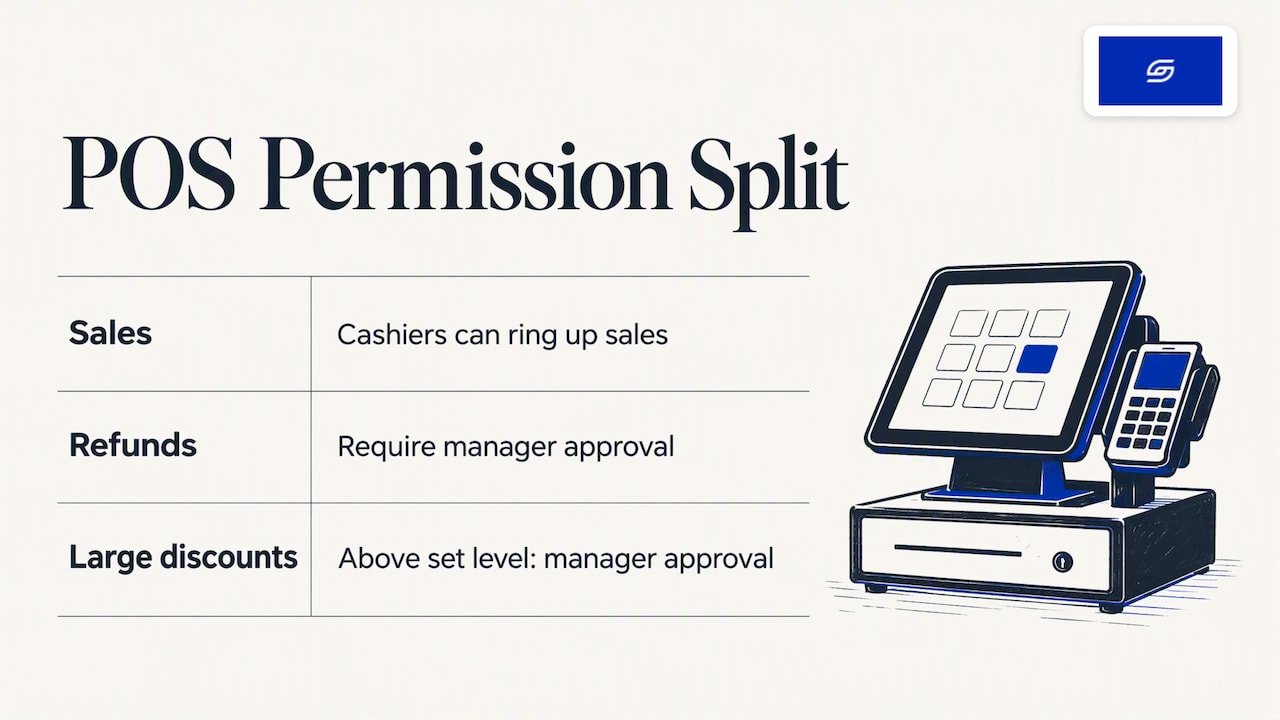
If you sell in person, POS staff need different controls from back-office staff. Shopify POS lets you create PIN profiles, assign roles and customise permissions. Manager approvals can safeguard refunds, exchanges and discount codes.
For a retail counter, a sensible setup is simple. Cashiers can ring up sales. Refunds and discounts above a set level need a manager’s approval. That protects margin without slowing the queue.
How do you protect staff logins with two-step authentication?
Require it. Shopify says that requiring two-step authentication can protect your store from unauthorised access, even if passwords are compromised.
There is one detail owners often miss. Two-step authentication is tied to a staff member’s individual Shopify ID, not to a store. You can require it or not, but you cannot view or change the person’s phone number, authentication app or recovery codes.
What this means for you:
- Ask each person to set it up on their own device.
- Do not collect or store their recovery codes. You cannot and should not.
- If someone loses their phone, they recover through Shopify’s own process, not through you.
Two-step authentication does not replace limited permissions. It protects the login. Permissions limit the damage if a login is misused by a person you trust. You need both.
How do you review, change or remove staff access?
Go to Settings > Users and select the person. You can assign or remove a role, suspend the user, or permanently remove them.
Know the difference between the options:
- Change the role when someone moves to a new job.
- Suspend when someone is on long leave or you are not sure yet. You can reactivate them later.
- Remove when they have left. Shopify’s help pages note that permanent removal cannot be undone.
Shopify also lets you revoke device access, so the person has to log in again on that device or application. Use this if a laptop is lost.
A quarterly access review in 15 minutes
- Open Settings > Users and export or list everyone with access.
- Remove anyone who has left or no longer needs access.
- Check each role against current duties. Roles creep over time.
- Check collaborator access. Remove outside teams whose work has finished.
- Confirm two-step authentication is required.
- Check which apps are installed and who can install more.
Write the date and the changes in a shared note. If something goes wrong, you can trace it.
What mistakes do we see most often?
From our work on Singapore and Southeast Asian stores, these come up again and again:
- Everyone is a full admin. It is quick on day one and risky for years.
- A shared login for the team. You lose the trail of who did what.
- Old freelancers still have access. Designers and developers from past projects are rarely removed.
- A single person holds everything. If the only admin leaves badly or becomes unavailable, you can be locked out. Keep ownership clear and documented.
- Finance access given for convenience. Payouts and tax documents should stay with a small group.
These are patterns we have noticed, not statistics. Your store may be different, so audit it rather than assume.
Our view: permissions are a sales protection, not just security
We build every store sales-first. That means we think about what happens at the moment a customer buys. A staff member who edits a discount code by mistake, installs a heavy app or changes a shipping rate can hurt conversion before anyone notices.
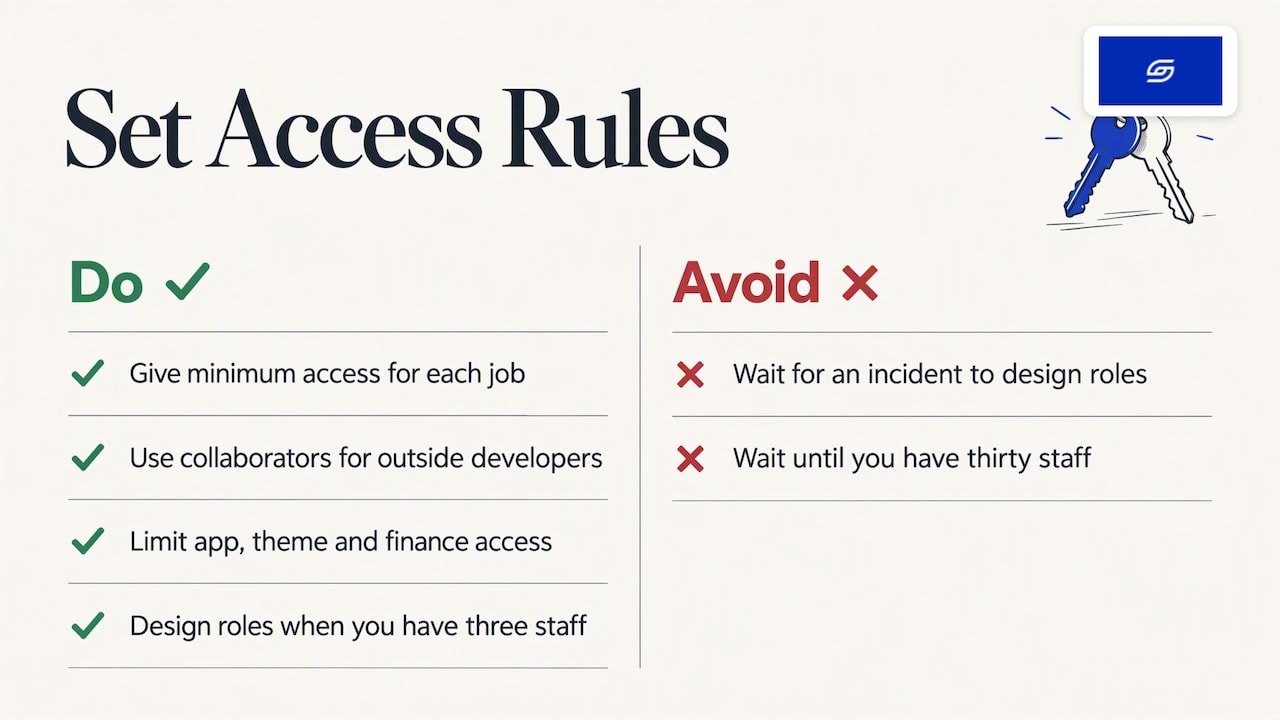
We run our own ecommerce brand, Patch&Bagel, and we test our recommendations there first. Our own rule is simple. People get the minimum access for their job. Outside developers come in as collaborators, and their access ends when the project ends. Only a few people can touch apps, themes or finance.
Jessica Bong, our founder, has 10+ years in ecommerce and teaches Shopify as a WSQ trainer at Equinet Academy. Permissions are one of the first things she covers with new store owners, because it is a cheap fix that prevents expensive errors.
The lesson we repeat to clients: do not wait for an incident to design your roles. Do it when you have three staff, not thirty.
— Soodo
Want us to set this up for your store?
We are a Shopify Partner with 30+ live stores. Every project includes handover training and 6 months of post-launch fixes, so your team learns how roles, apps and settings work from day one.
- A new Shopify store starts from SGD 8,500.
- Shopify Revamp starts from SGD 3,000.
- Migration to Shopify starts from SGD 6,000.
- Every store we build is also set up for AI search (GEO).
After the 6-month fixes period, new changes are quoted separately, subject to availability. We do not offer a monthly GEO or SEO service. For long-term GEO growth, we work with specialist partners.
If you are planning a build, our store creation checklist also covers the setup tasks that come before launch, including who gets access.
Frequently asked questions
Can a staff member see my payouts and tax documents?
Only if their role includes Finance permissions. Shopify’s store permissions include viewing payouts and tax documents under Finance. Leave that off for everyone except the person who handles your accounts.
How long does a staff invitation last?
Seven days. If the person does not accept in time, remove them from Settings > Users and add them again. Shopify then sends a fresh invitation to their email.
Should I give my developer a staff account or collaborator access?
For a project with an end date, collaborator access is usually better. It does not take up a place on your team list, and it expires automatically after 90 days without a login. Check the current rules on Shopify’s help pages before you start.
What is the difference between suspending and removing a user?
Suspending blocks access but keeps the user, so you can reactivate them. Removing is permanent and cannot be undone. Suspend first if you are unsure, and remove once you are certain.
Can I stop staff from installing apps?
Yes. Use App permissions in the role to allow all, selected or no apps. A staff member can install an app only if their store permissions match what the app requires, so a tightly limited role keeps installs under control.
Where to go next
Get the roles right, then look at the rest of your store. Our free Shopify optimisation checklist shows what to fix first. If you are ready to talk about a project, apply for a project slot.
Sources
- Shopify Help Center: Managing roles
- Shopify Help Center: Store permissions
- Shopify Help Center: Inviting users
- Shopify Help Center: Two-step authentication for users
- Shopify Help Center: Managing users from your Shopify admin
- Shopify Help Center: Managing users (permanent removal and device access)
- Shopify Help Center: Collaborator accounts
- Shopify Singapore: POS staff management
- Workspace Roles: permission checks admins can verify
Recommended

Jessica Bong
Jessica Bong is the founder of Soodo, a Singapore Shopify agency that builds, revamps and migrates Shopify stores, with every store set up to be found in AI search (GEO). She has spent over 10 years in ecommerce and runs her own Shopify brand, Patch&Bagel, where every Soodo technique is tested first. Jessica is also a WSQ-certified Shopify trainer at Equinet Academy.