


Shopify robots.txt and SEO: What to Edit and What to Leave
Most Shopify stores do not need to change robots.txt at all. Shopify creates a sensible default file for you. You only edit it when you have a clear crawling problem, such as filter URLs or a second domain, and you edit it through a theme template called robots.txt.liquid.
This guide explains what the file does, how to check yours, how to customise it without breaking anything, and where store owners go wrong. It is written for founders and brand owners in Singapore and Southeast Asia who want to make good decisions, or brief a developer properly.
Key Takeaways
- Shopify manages a default robots.txt for you. It blocks admin paths and parameter URLs that create duplicate content, and it allows public pages.
- You customise it by adding a robots.txt.liquid template, which keeps Shopify’s default rules in place while you add your own.
- Robots.txt controls crawling, not indexing. To keep a page out of Google, use noindex, not a robots.txt block.
- Save a copy of your current /robots.txt before any change, then compare the output afterwards.
- Stores with several domains in Shopify Markets can set different rules per domain.
Table of Contents
- What does robots.txt do on a Shopify store?
- What does Shopify block by default?
- How do you check your robots.txt file?
- Should you edit robots.txt on Shopify?
- How do you customise robots.txt.liquid safely?
- What can go wrong for SEO?
- How does robots.txt relate to your XML sitemap?
- How do you set robots.txt rules for multiple domains?
- How do you test your changes?
- What does robots.txt have to do with AI search?
- Our view: get the build right, then leave the file alone
- Do you need help with your store’s structure?
- FAQ
- Sources
What does robots.txt do on a Shopify store?
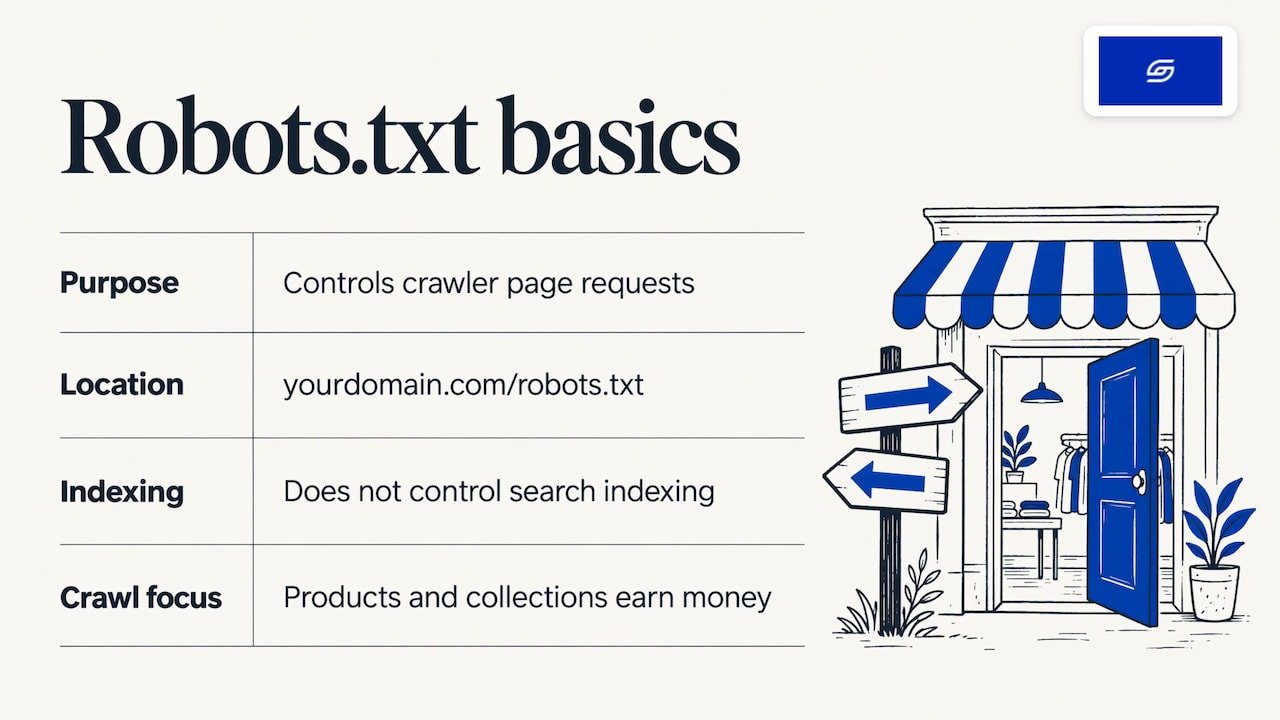
It tells search engine crawlers which pages they may request. The file lives at yourdomain.com/robots.txt. It is a crawl management tool, not an indexing control.
Think of it as a set of signposts at the door. Well-behaved crawlers read it before they explore your store. It does not hide anything from people, and it does not guarantee a page stays out of search results.
Why does that matter for SEO? Crawlers spend limited time on each site. If they spend it on cart pages, internal search results and endless filter combinations, they spend less on your products and collections. A clean robots.txt points them at the pages that earn money.
If you are still building your wider SEO foundations, a roundup of SEO tools for startups can help you decide what to track alongside this file.
What does Shopify block by default?
Shopify ships a pre-configured file. According to the Shopify Help Center, it blocks administrative paths and parameter patterns that generate duplicate content, while allowing all public content. It is designed to support SEO without any work from you.
In practice, that means paths such as your admin area, checkout and cart are kept away from crawlers. Your product pages, collection pages, blog posts and standard pages stay open. You do not need to write any of this yourself, and you cannot switch the whole system off by accident.
The default also includes your sitemap reference, so crawlers can find your XML sitemap from the same file.
How do you check your robots.txt file?
Open a browser and go to yourstore.com/robots.txt. That shows the live file, exactly as a crawler sees it. If you have a custom domain, use that domain rather than the myshopify.com address.
You can also look inside your theme. In the Shopify admin, open the theme’s Edit code area. If a robots.txt.liquid file exists under Templates, someone has already customised the output. If it does not exist, you are running the default.
A quick routine:
- Visit yourstore.com/robots.txt and read the Disallow lines.
- Copy the whole output into a document and date it.
- Check Edit code for robots.txt.liquid.
- If the template exists, ask who added it and why.
That last step matters. We often see stores where an old rule was added for a reason nobody remembers.
Should you edit robots.txt on Shopify?
Only if you can name the problem you are solving. Good reasons include:
- Filter or sort URLs that create thousands of near-identical pages.
- A crawler you want to block from a specific path.
- An extra sitemap URL to declare.
- Different rules for different domains in Shopify Markets.
Bad reasons include copying a rule list from a forum, or blocking pages because you think it will “clean up” Google. The default file already handles the common cases. Every extra rule is another place to make a mistake.
If your filters are the issue, it helps to understand how they build URLs first. Our guide to Shopify product filters shows the Liquid URL patterns involved, which makes it easier to write a precise rule.
How do you customise robots.txt.liquid safely?
Create a robots.txt.liquid template and add your rules on top of Shopify’s defaults. The Shopify developer documentation describes this approach. It keeps Shopify’s default rule groups intact, so Shopify can still update them over time.
The steps:
- Duplicate your theme first, so you have a restore point.
- In the duplicate, open Edit code, then add a new template under Templates and choose robots.txt.
- Keep the loop that outputs Shopify’s default groups.
- Add your own rules in the right place, using Liquid.
- Save, then load yourstore.com/robots.txt and compare it to your saved copy.
- Publish the theme only when the output is what you expect.
The documentation also recommends saving a copy of your current robots.txt output before you apply changes, so you can compare the rendered result with the original.
What does a basic template look like?
The standard pattern loops through the default groups and prints each one. Your custom rule goes inside the loop for the group you want to extend. The example below is an illustration of the shape. The Disallow path is a placeholder, so replace it with a path that fits your own store.
{% for group in robots.default_groups %}
  {{- group.user_agent }}
  {%- for rule in group.rules -%}
    {{ rule }}
  {%- endfor -%}
  {%- if group.user_agent.value == '*' -%}
    {{ 'Disallow: /your-example-path*' }}
  {%- endif -%}
  {%- if group.sitemap != blank -%}
    {{ group.sitemap }}
  {%- endif -%}
{% endfor %}
The point is that you add to the defaults rather than replace them. If you delete the loop and write a file from scratch, you lose Shopify’s built-in protections and its ability to keep them current.
What can you add or change?
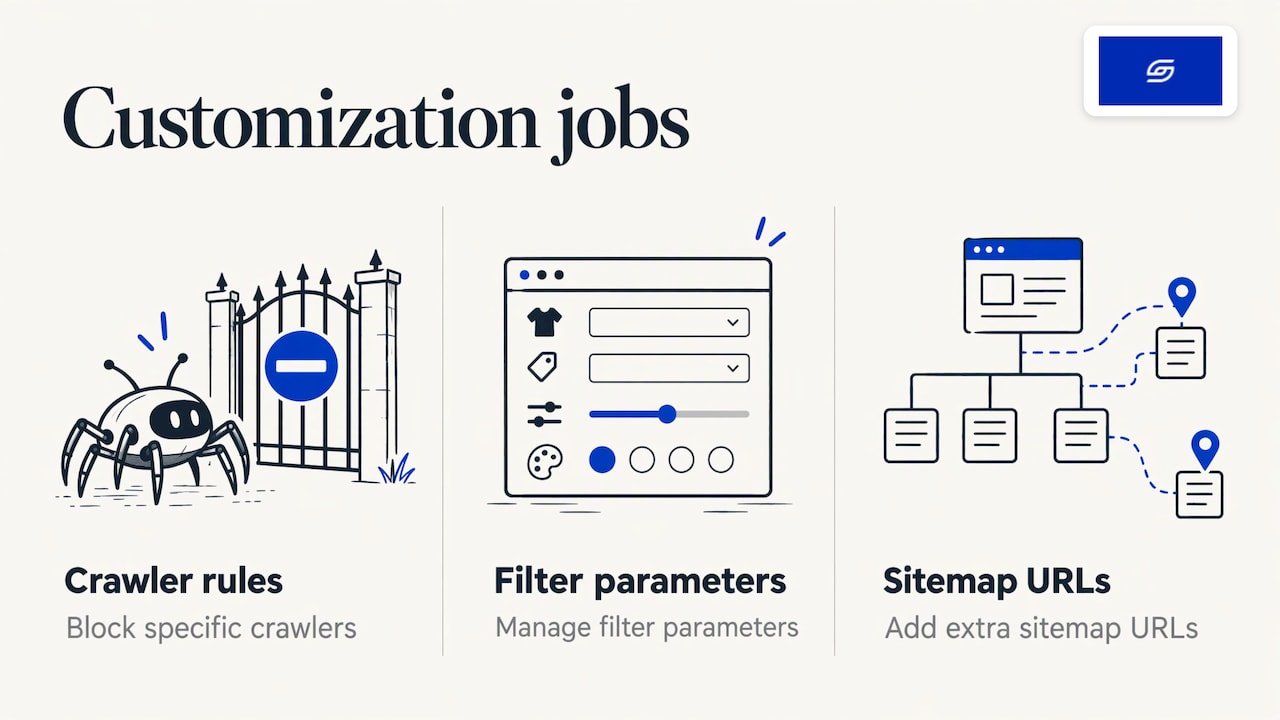
According to the Shopify documentation, you can add rules to block specific crawlers, manage filter parameters, and add extra sitemap URLs. Those are the three jobs most stores actually have.
What can go wrong for SEO?
The biggest mistake is treating robots.txt as a way to remove pages from Google. It is not. Google explains that a page blocked in robots.txt can still be indexed if other pages link to it. The URL may then appear in results, often without a useful description.
To keep a page out of the index, Google advises other methods: a noindex meta tag, a noindex HTTP header, or password protection. There is a catch. If you block a page in robots.txt, Google cannot fetch it, so it cannot see a noindex tag on that page either. Choose one approach per page, and make it noindex when your goal is removal.
Other common mistakes:
| Mistake | What happens | Safer approach |
|---|---|---|
| Blocking a page to remove it from Google | The URL can stay in results without a snippet | Use noindex, then leave the page crawlable |
| Deleting the default groups | You lose Shopify’s built-in rules | Keep the default loop and add to it |
| Over-broad Disallow rules | Whole collections stop being crawled | Test every rule against real URLs |
| Editing the live theme directly | A typo goes live at once | Edit a duplicate theme, compare, then publish |
| Copying rules from another platform | Paths do not match Shopify’s structure | Write rules from your own store’s URLs |
One more point is worth stating plainly. Robots.txt is public. Anyone can read it. Never list a path there that you want to keep secret.
How does robots.txt relate to your XML sitemap?
They do opposite jobs. Robots.txt tells crawlers where not to go. Your XML sitemap lists the URLs you want search engines to know about. Shopify generates the sitemap for you and references it in the robots.txt file.
If you add an extra sitemap, such as one produced by a tool or app, you can declare it in robots.txt.liquid. Keep your sitemap clean too. A page that is blocked in robots.txt but listed in a sitemap sends mixed signals.
This also applies when you move platforms. After a migration, old URLs need proper redirects, and robots.txt should not block the new ones by mistake. Our guide on protecting SEO after a Magento to Shopify migration covers what to check, and our page on Shopify 301 redirects explains how to handle old URLs at scale.
How do you set robots.txt rules for multiple domains?
Use the request.host Liquid object inside robots.txt.liquid. The Shopify documentation explains that this lets you apply host-specific rules, so each market domain can get its own crawling directives while the required defaults stay in place.
This suits brands selling into more than one country. A Singapore brand with separate domains for Singapore, Malaysia and Indonesia may want different rules per domain. Wrap each custom rule in a check on the host, so it only prints for the domain it belongs to.
Keep the logic simple. If you need more than a few conditions, that is a sign to pause and map out your market structure before touching the file.
How do you test your changes?
After saving, test the file with Google’s robots.txt tester, as the Shopify Help Center suggests. Crawlers might not react at once, so do not expect results the same day.
A simple test plan:
- Load yourstore.com/robots.txt and compare it with the copy you saved before the change.
- Confirm that only your intended lines were added.
- Test five or six important URLs: a product, a collection, the home page, a blog post, a filtered URL and a cart URL.
- Check that the products and collections you earn money from are still allowed.
- Revisit the file after your next theme update, in case anything was overwritten.
What does robots.txt have to do with AI search?
Crawlers from AI search tools also read robots.txt, so your rules affect who can see your content. Blocking a crawler you do not recognise can be sensible. Blocking everything by habit can make your store harder to find in new places.
Robots.txt is only one part of being found. Clear product data, structured markup and well-written pages matter just as much. Every store we build is set up for AI search (GEO), and you can read what that means on our page about what GEO is. For the practical side, see our guide to Shopify AI search optimisation in Singapore and our walkthrough of structured data on Shopify product pages.
We do not run a monthly GEO or SEO service. Brands that want long-term GEO growth work with specialist partners, and you can see them on our trusted partners page.
Our view: get the build right, then leave the file alone
We are a founder-led Shopify agency in Singapore. Jessica Bong founded Soodo in 2022. She has 10+ years in ecommerce and is a WSQ Shopify trainer at Equinet Academy.
Our view on robots.txt is simple. A well-built Shopify store rarely needs a heavily edited file. Shopify’s defaults are good. The real gains come from the structure underneath: clean collection and filter URLs, proper redirects, and pages built around how customers actually buy. That is what we mean by a sales-first approach.
When we do customise robots.txt.liquid, we work on a duplicate theme, keep Shopify’s default rules, save the before and after output, and test key URLs. We also test our recommendations on Patch&Bagel, our own ecommerce brand, before we suggest them to clients.
We are a Shopify Partner with 30+ live stores. A small team does the work on purpose: the founder leads strategy and a dedicated developer builds. Every project ends with handover training, so you know what was set up and why, plus 6 months of post-launch fixes. If something we built breaks, we fix it.
Soodo
Do you need help with your store’s structure?
If crawling issues come from the way your store was built, a rules file will not fix them. Structure does. That is where we help.
- A new Shopify store starts from SGD 8,500. See our Shopify website development service.
- A Shopify Revamp starts from SGD 3,000. See how a revamp works.
- A migration to Shopify starts from SGD 6,000. See our migration service, or our guide for WooCommerce to Shopify migration in Singapore.
We are not GST-registered, so no GST is added to these prices. Each project has a fixed quote. The timeline and start date are agreed before we begin. Projects begin on set monthly start dates, and a 50% non-refundable deposit secures your start date. The balance is due on completion. Unlimited revisions apply within the agreed scope.
Not sure which option fits? Our comparison of revamp, rebuild and migration explains the difference. We take on a small number of projects each month, by application.
FAQ
Where is the robots.txt file on Shopify?
It is at yourstore.com/robots.txt, and anyone can open it in a browser. In the admin, you will only see a robots.txt.liquid file under Edit code if a customised template has been created. If you see none, your store is using Shopify’s default file.
Can I block a page from Google using robots.txt on Shopify?
You can stop crawlers requesting it, but that does not reliably remove it from search. Google may still index a blocked URL if other pages link to it. To keep a page out of results, Google recommends noindex or password protection instead.
Is it safe to edit robots.txt.liquid myself?
It is safe if you keep Shopify’s default rule groups, work on a duplicate theme and compare the output with a saved copy. It is risky if you replace the defaults or paste in rules from another platform. If you are unsure, ask a developer to make the change and explain it.
How long before Google notices my robots.txt changes?
Not immediately. Crawlers might not react at once, so check back after a few days. Use Google’s robots.txt tester after saving to confirm your rules read the way you intended.
Sources
- Shopify Help Center: Editing robots.txt.liquid
- Shopify developer docs: Customize robots.txt
- Google Search Central: Robots.txt introduction and guide
- Essential SEO tools for startups
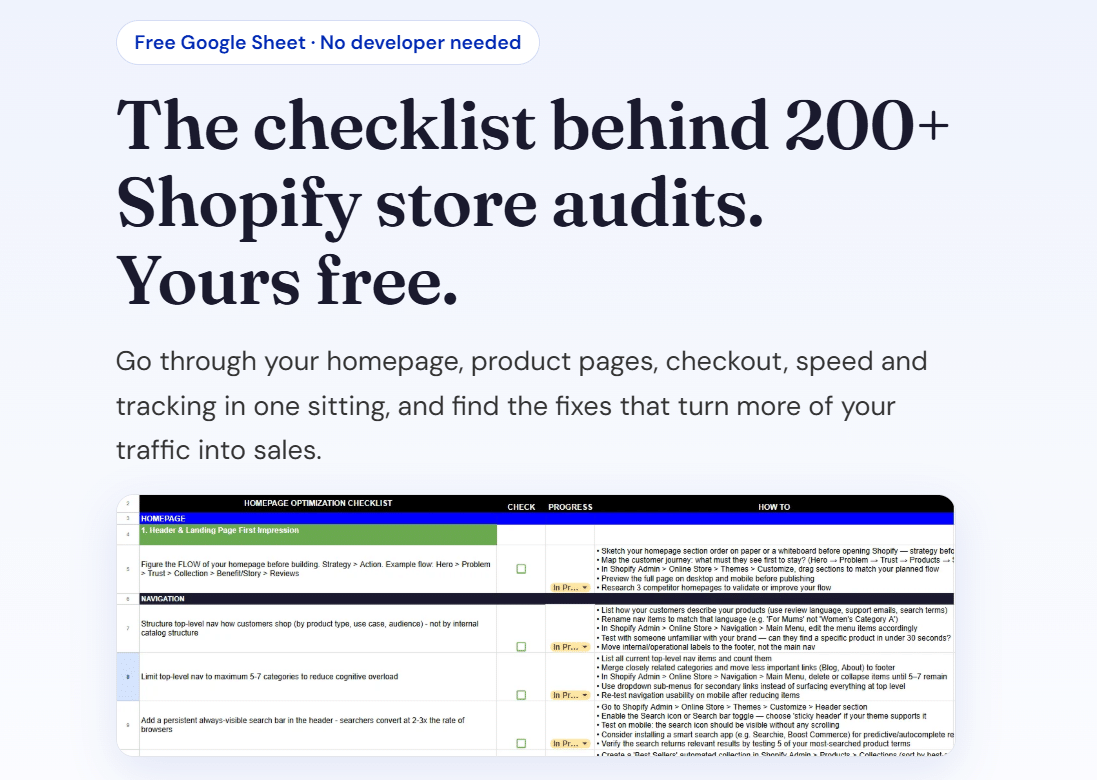
Ready to plan your store? Download our free Shopify optimisation checklist or apply for a project slot.
Recommended

Jessica Bong
Jessica Bong is the founder of Soodo, a Singapore Shopify agency that builds, revamps and migrates Shopify stores, with every store set up to be found in AI search (GEO). She has spent over 10 years in ecommerce and runs her own Shopify brand, Patch&Bagel. Jessica is also a WSQ-certified Shopify trainer at Equinet Academy.