
Shopify Product Image Size: The Right Dimensions and Formats
The best Shopify product image size is 2048 x 2048 pixels, in a square 1:1 shape. Shopify says square product images usually display best at that size. Keep each file well under the upload limit, save product photos as JPEG, and use one aspect ratio across the whole catalogue.
That is the short answer. The rest of this guide covers the limits, the formats, how to compress without hurting quality, and how to fix images that look cropped or soft. It is written for Singapore and Southeast Asia brand owners who want product pages that load fast and sell.
Key takeaways
- Use 2048 x 2048 px square images as your default for product photos.
- Shopify accepts files up to 5000 x 5000 px or 25 megapixels, and each file must be smaller than 20 MB.
- Pick one aspect ratio for all main product images so collection pages look tidy.
- Use JPEG for photos and PNG for graphics or transparency. Shopify serves a format the shopper’s browser supports.
- Compress before you upload, then check the result in PageSpeed Insights.
Table of Contents
- What is the best image size for Shopify product photos?
- What limits does Shopify set on image files?
- Which aspect ratio should you use?
- Which file format is best for Shopify product images?
- How do you compress Shopify images without losing quality?
- How do responsive images work on Shopify?
- Why do my Shopify images look cropped or blurry?
- What is a good image workflow for a new product launch?
- How do images affect sales on a product page?
- Our view: fix images as part of the whole store
- Need help with your Shopify store images?
- FAQ
- Sources
What is the best image size for Shopify product photos?
Aim for 2048 x 2048 px. This is large enough for zoom on desktop and sharp on high-density phone screens. It is also within every limit Shopify sets.
You do not need to go bigger. Shopify allows product and collection images up to 5000 x 5000 px or 25 megapixels, and under 20 MB. A file near those limits slows your pages and adds nothing a shopper can see.
Some guides online suggest 1000 x 1000 px. That works for a small store with simple photos. But if your product has texture, stitching, jewellery detail or fine print, 1000 px will look soft when shoppers zoom in. We would rather start at 2048 px and compress well.
Here is a quick reference table.
| Image type | Suggested size | Shape | Notes |
|---|---|---|---|
| Main product image | 2048 x 2048 px | Square, 1:1 | Default for most stores |
| Extra product angles | 2048 x 2048 px | Same as main | Keep the ratio identical |
| Portrait product image | 2048 x 2560 px | 4:5 | Good for fashion, if your theme supports it |
| Collection image | Match your theme’s image area | Often square or 4:3 | Check the theme settings first |
| Hero or banner | Wide, around 2000 px across | Depends on theme | Test on phone and desktop |
The portrait and banner rows are our working suggestions, not Shopify rules. Themes differ. Always check what your own theme’s image area looks like before you batch-export a hundred photos.
What limits does Shopify set on image files?
There are four limits worth knowing.
- Dimensions: up to 5000 x 5000 px or 25 megapixels for product and collection images.
- File size: each file must be smaller than 20 MB, per Shopify’s product media rules.
- Aspect ratio: files uploaded to Shopify must sit between 100:1 and 1:100. That is very wide. You will never hit it with normal product photos.
- Count per product: you can add up to 250 images, 3D models or videos to one product.
If an upload fails, the usual fix is to reduce the resolution. Shopify’s own guidance on uploading images says the same.
Which aspect ratio should you use?
Pick one and stick to it. Square (1:1) is the safest choice because it works in almost every theme, on phones, and in marketplaces and social feeds your team may also use.
Shopify advises using a consistent aspect ratio for featured images, so they display at the same size on collection pages. If one product is square and the next is tall, your grid looks uneven. Shoppers notice, even if they cannot say why.
A few practical rules:
- Decide the ratio before the photoshoot, not after.
- Leave breathing room around the product so a theme crop does not cut an edge.
- If you must mix ratios, make sure your theme crops them to one shape in collection grids.
- Use the media editor to crop. Resizing to force a new ratio can distort the image, while cropping does not.
A tripod also helps. Shopify’s own photography guide notes that a steady tripod keeps shots consistent across products and reduces blur. Same distance, same angle, same framing: your catalogue looks like one brand.
Which file format is best for Shopify product images?
Use JPEG for product photography and PNG for graphics and transparency. That is Shopify’s own recommendation. Shopify supports JPEG, progressive JPEG, PNG, GIF, HEIC and WebP.
You do not need to convert everything to WebP by hand. Shopify’s help page says it picks a format your customer’s browser supports, and can serve WebP or AVIF where the browser allows it. So upload a clean, well-compressed JPEG and let the platform handle delivery.
| Format | Best for | Watch out for |
|---|---|---|
| JPEG | Product photos, lifestyle shots | Over-compression causes blocky edges |
| PNG | Logos, icons, graphics with transparency | Large files if used for photos |
| WebP | Modern delivery to supporting browsers | Shopify usually handles this for you |
| GIF | Simple animation | Heavy and low quality; use sparingly |
| HEIC | Direct phone uploads | Convert to JPEG if you edit elsewhere |
One more detail. Shopify removes embedded ICC colour profiles, and a browser then assumes sRGB. Export your product photos in sRGB so the colours match what you saw in your editing software. This matters for fashion and beauty brands where colour accuracy drives returns.
How do you compress Shopify images without losing quality?
Compress before you upload. Aim for the smallest file that still looks clean at full size.
Google’s PageSpeed documentation lists standard steps for web images: lower JPEG quality to around 85, use progressive JPEGs for large files, and strip unneeded metadata. The same page notes that images often make up most of a page’s bytes, so this is where you gain the most speed.
A simple routine:
- Export at 2048 px on the longest side.
- Save as JPEG at quality 80 to 85.
- Run it through a compressor such as TinyPNG, or export with “Save for Web” in Photoshop. Shopify’s guide suggests TinyPNG or Photoshop before publishing.
- Check the file size. A typical product photo at 2048 px should land far below 1 MB. If one is several megabytes, compress it harder.
- Zoom in on a fine detail, like fabric or a label. If it looks clean, you are done.
For a deeper walk-through of the topic, this guide shows how to optimise images for website performance across a whole site.
A word on bulk work. If you have 500 products to process, use a batch tool or an app rather than doing it by hand. But test on ten images first. Check them on a real phone, not just your laptop.
How do responsive images work on Shopify?
Shopify’s content delivery network (CDN) can serve the same image at different sizes, so a phone does not download a desktop-sized file. Modern Shopify themes do this for you. You upload one good source file, and the theme asks for the size it needs.
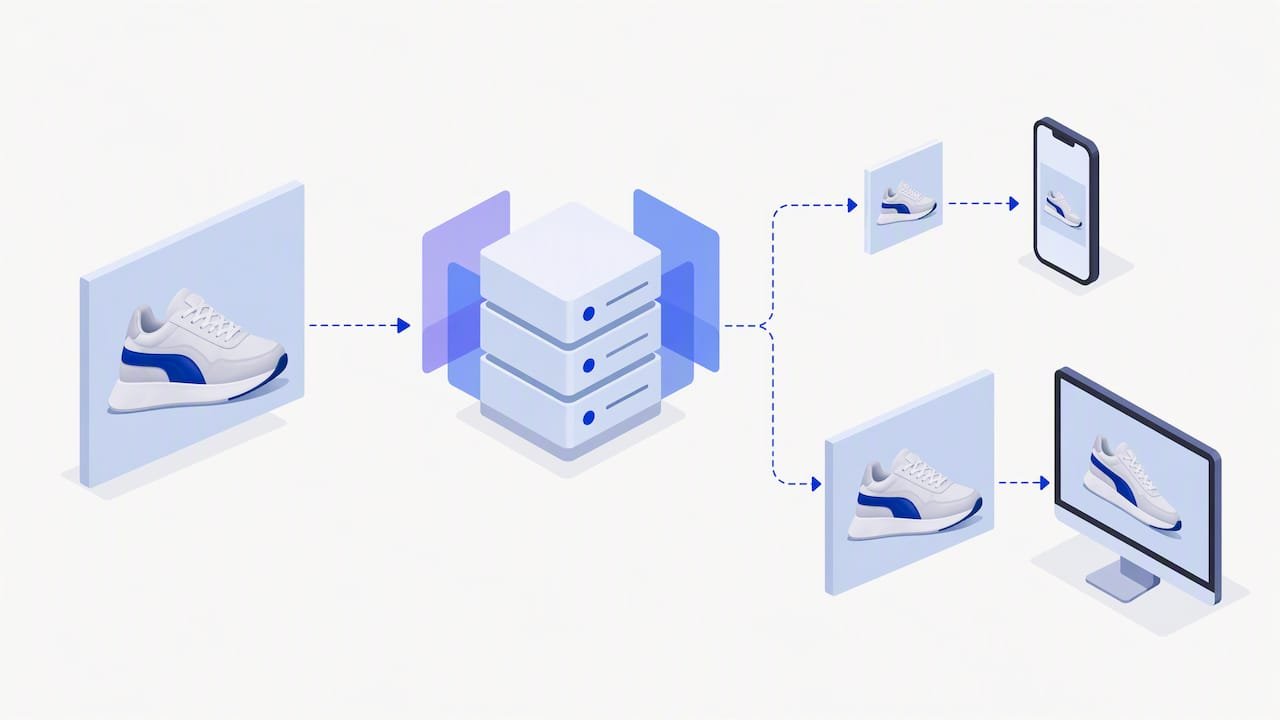
The Shopify help page on images explains that basic responsive sizing runs through URL parameters and auto-generated variants. Using them in a custom theme needs Liquid code or theme-level settings. That is a developer task.
What can you check yourself?
- Theme age. Older themes sometimes load one large file for every screen. A current Shopify theme is usually better.
- Phone view. Open your top five product pages on a mid-range phone over mobile data. Do the images appear quickly?
- Focal points. Shopify lets you set a focal point on an image so the key part of a product stays visible when a theme crops it for different screens. Use it for banners and for products with off-centre subjects.
- Lazy loading. Images below the fold should load as the shopper scrolls. Your main product image should not be lazy loaded, because it is the first thing the shopper sees.
Mobile matters a lot here. Most of our Singapore clients see the bulk of their traffic on phones. Our Shopify mobile optimisation guide covers the wider mobile checks, and our Shopify speed optimisation guide explains how to measure load times with real visitor data.
Why do my Shopify images look cropped or blurry?
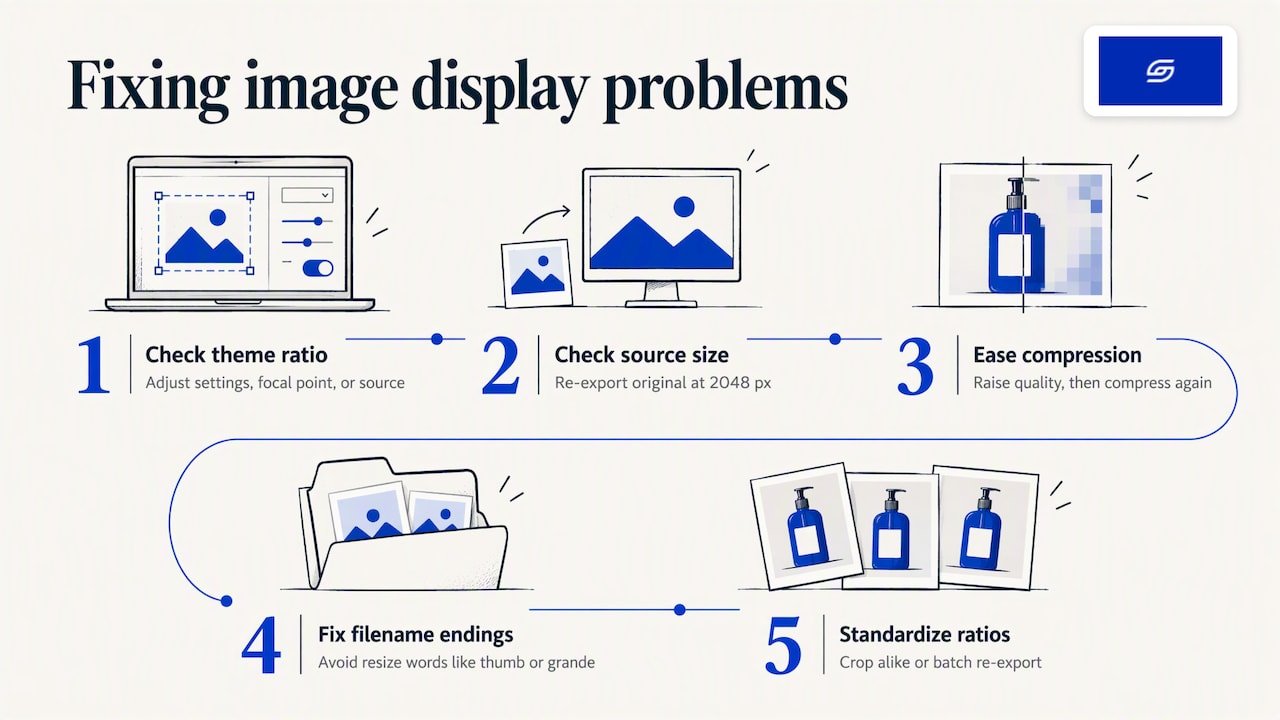
Most problems come from one of five causes. Work through them in order.
1. The theme crops to a different ratio. Shopify’s advice is to adjust the section settings, set a focal point, or use a source image that fits the image area. Check the image ratio setting in your theme editor first.
2. The source file is too small. A 600 px image stretched into a 1200 px space will look soft. Re-export from the original at 2048 px.
3. Compression is too heavy. If edges look blocky or colours band, raise the quality setting a little and compress again.
4. The filename is confusing the CDN. Shopify warns that filenames should not end in words like pico, icon, thumb, small, medium, large or grande, because the CDN may read them as resize requests. Rename red-dress-large.jpg to red-dress-front.jpg. It is an easy mistake to miss.
5. Mixed ratios in one collection. Crop all images to the same shape in the media editor, or re-export them as a batch.
A clean, descriptive filename and alt text also help shoppers who use screen readers. They give search engines and AI tools a clearer idea of what is in the image. We do not promise rankings from this, but it costs nothing and it is good practice. Our page on what GEO is explains how AI search reads your store.
What is a good image workflow for a new product launch?
Here is a repeatable process for your team or your photographer.
- Brief the shoot. Agree on square framing, a plain background and 3 to 6 angles per product.
- Edit in sRGB. Keep one master file at full quality.
- Export to 2048 x 2048 px JPEG. Quality 80 to 85.
- Compress. Use TinyPNG or a similar tool, then check the file size.
- Name files clearly. Use the product name and angle, such as
linen-shirt-white-front.jpg. No size words at the end. - Upload and review. Check the product page and the collection grid on desktop and phone.
- Add alt text. Describe the product plainly, in one short line.
- Test speed. Run the page through PageSpeed Insights, which Shopify’s guide recommends for spotting image opportunities.
Once the process is written down, new staff can follow it without guesswork. It also saves you from reshooting later.
How do images affect sales on a product page?
Images are the nearest thing an online shopper has to picking up the product. Sharp, consistent photos build trust. Slow, heavy ones make shoppers leave before they see anything.
We look at images as one part of the whole product page: the gallery, the price, the delivery information, the reviews and the add-to-cart button. If you want the full list, read our guide to Shopify product page optimisation. It shows four common issues that hold sales back. Our case study on Pierzel’s product page work shows what a focused product page project looks like in practice.
For the bigger picture on turning visitors into buyers, see our guide to raising your Shopify conversion rate in Singapore.
Our view: fix images as part of the whole store
We are a founder-led Shopify agency in Singapore. Jessica Bong founded Soodo in 2022. She has 10+ years in ecommerce and is a WSQ Shopify trainer at Equinet Academy. We are a Shopify Partner with 30+ live stores.
Here is what we see again and again. Brands spend on photography, then lose the benefit at the upload step. The files are too large, the ratios are mixed, or the theme crops the product’s best angle. A good image size is a small fix. But it only pays off when the theme, the gallery layout and the mobile view work together.
We also run our own ecommerce brand, Patch&Bagel. We test image sizes, gallery layouts and load times there first, before we recommend anything to a client. That keeps our advice practical.
Our advice is simple. Pick 2048 x 2048 px square. Keep files light. Name them well. Then check every product page on a phone, because that is where most of your shoppers are. Every store we build is also set up for AI search (GEO), which includes clear structure, descriptive image names and alt text. For long-term GEO growth after launch, we work with specialist partners rather than offering a monthly service ourselves.
— Soodo
Need help with your Shopify store images?
If your images look off and the cause is the theme, not the files, you may need more than a quick fix. That is where we come in.
Our Shopify Revamp starts from SGD 3,000. Your timeline and start date are agreed before we begin. We rework the product page, gallery and mobile layout around how your customers buy. See the Shopify revamp service for details.

Other ways we help:
- New Shopify store: from SGD 8,500. Built with your image sizes, ratios and mobile layout planned from day one. See new Shopify store development.
- Migration to Shopify: from SGD 6,000. We move your products and images from WooCommerce or another platform and set them up properly. See our Shopify migration service.
Every project includes handover training and 6 months of post-launch fixes. So your team knows how to upload images the right way after we finish.
FAQ
What size should Shopify product images be?
Use 2048 x 2048 px in a square 1:1 shape. This is Shopify’s recommended size for display. It is sharp on zoom and well within the platform limits.
What is the maximum image size on Shopify?
Product and collection images can be up to 5000 x 5000 px or 25 megapixels. Each file must be smaller than 20 MB. In practice, you should stay much lower to keep pages fast.
Should I upload WebP images to Shopify?
You can, but you do not have to. Shopify supports WebP and picks a format your shopper’s browser can show. A well-compressed JPEG is a safe upload for photos, and Shopify handles delivery.
Do all my product images need the same aspect ratio?
Yes, at least your main images. A consistent ratio keeps collection grids tidy. If your gallery needs a different shape for one product, check how your theme crops it before you publish.
How can I check if my images are slowing my store?
Run your product and collection pages through PageSpeed Insights. It flags image opportunities, such as oversized files. Then test the same pages on a real phone over mobile data.
Sources
- Shopify Help Center: Product media types
- Shopify Help Center: Adding product media
- Shopify Help Center: Uploading and managing files
- Shopify Help Center: Uploading images
- Shopify Help Center: Using the media editor
- Shopify: The Complete Guide to Ecommerce Photography
- Google for Developers: Optimize Images
- How to Optimize Images for Better Website Performance
Next step: grab our free Shopify optimisation checklist or apply for a project slot.
Recommended

Jessica Bong
Jessica Bong is the founder of Soodo, a Singapore Shopify agency that builds, revamps and migrates Shopify stores, with every store set up to be found in AI search (GEO). She has spent over 10 years in ecommerce and runs her own Shopify brand, Patch&Bagel, where every Soodo technique is tested first. Jessica is also a WSQ-certified Shopify trainer at Equinet Academy.