

Shopify Mobile Optimisation: A Practical Guide for Singapore Stores
Mobile optimisation on Shopify comes down to five things: a fast first screen, images sized for phones, a layout that fits the viewport, navigation and product pages built for thumbs, and a checkout with as little typing as possible. Most stores are responsive on paper. Far fewer are fast and easy to buy from on a mid-range phone on a patchy MRT connection. This guide shows what to check, in what order, and what is worth paying someone to fix.
TL;DR
- Singapore shoppers are overwhelmingly on phones, so mobile is your main store, not a smaller version of it.
- The biggest wins are usually boring: remove hero fade-in animations, size images correctly, and render essential content server-side.
- Measure with real-customer data first, then test on throttled mobile conditions, rather than chasing a single lab score.
- Add accelerated checkout such as Shop Pay and trim your checkout fields.
- Fix in order of revenue impact: first screen, product page, cart and checkout.
Table of Contents
- Why mobile comes first in Singapore
- Responsive is not the same as optimised
- Step 1: Measure before you change anything
- Step 2: Fix the first screen
- Step 3: Serve images that fit the screen
- Step 4: Render content the browser can see immediately
- Step 5: Make sure nothing is wider than the screen
- Step 6: Design product pages for thumbs
- Step 7: Simplify navigation and search
- Step 8: Cut checkout friction
- Our perspective: speed and clarity beat features
- What to fix first
- When to do it yourself and when to bring in help
- How Soodo can help
- FAQ
- Sources
Why mobile comes first in Singapore
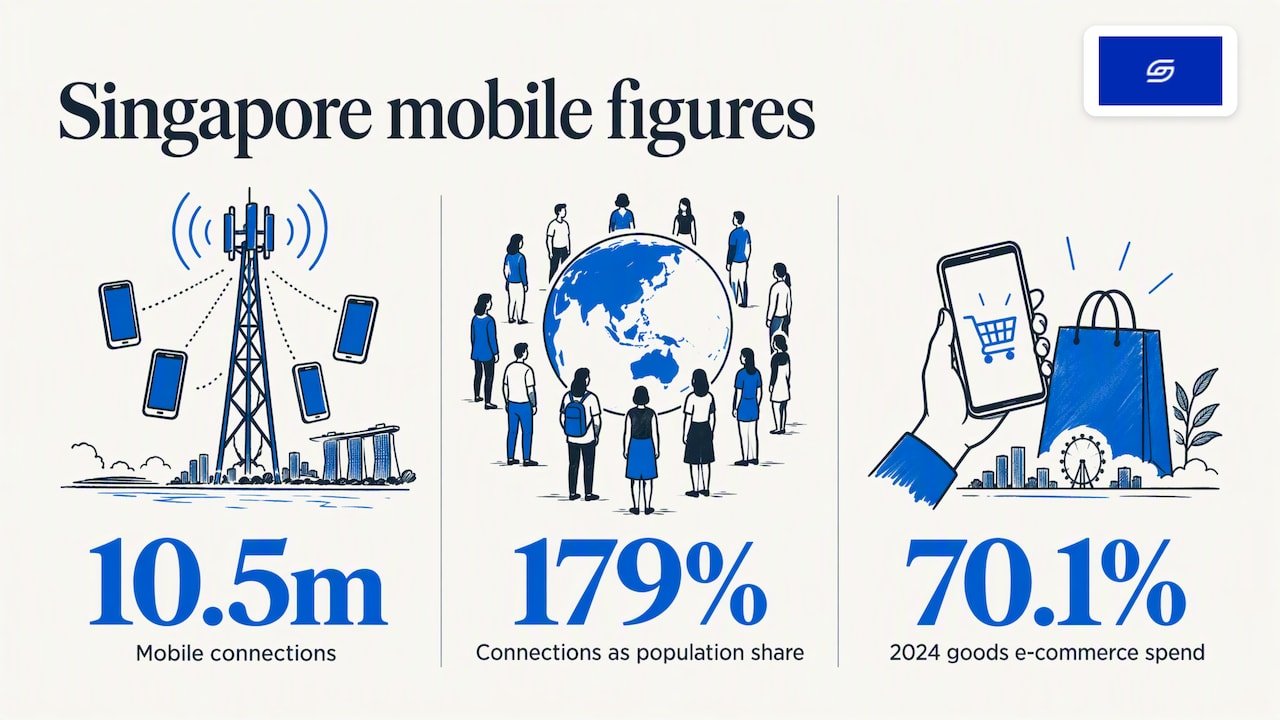
Singapore has 10.5 million mobile connections, equal to 179% of the population, and the same source reports that mobile accounted for 70.1% of consumer goods e-commerce spending in 2024. If seven in ten dollars are spent on a phone, a mobile problem is a revenue problem.
A Singlife report on Singapore e-commerce makes a related point: the marketplace apps your customers already use set the bar, and success increasingly needs fast load times, intuitive navigation and smooth digital wallet payments. Your Shopify store is compared with those apps every time someone taps an Instagram link.
Responsive is not the same as optimised
The second query people type is usually “is my theme responsive?” Almost every modern Shopify theme is. Responsive means the layout rearranges itself to the screen width. Optimised means the page also loads quickly, shows the right thing first, and lets a customer buy with one hand.
A responsive store can still:
- load desktop-sized images onto a phone
- hide desktop sections with CSS but still download them
- delay its main image behind an animation
- bury the add-to-cart button below three screens of copy
- ask for 15 form fields at checkout
None of these breaks the layout. All of them cost sales.
Step 1: Measure before you change anything
Shopify no longer leans on a single Speed Score. Its guidance now stresses real-world performance data from actual customers rather than simulated lab runs, which you can see in the Web Performance dashboard in your admin. Use it to find which page types and device segments are actually slow.
Then reproduce the problem. Phones have weaker CPUs, less memory and higher-latency connections, and these constraints amplify every performance issue. Test with CPU and network throttling in your browser’s developer tools, and on a real mid-range Android phone if you can. Your own flagship phone on office Wi-Fi will flatter the store.
Write down a baseline for your home page, a top collection, your best-selling product page and the cart. You will compare against it after each fix. If you want a deeper walk-through of this approach, we cover it in our guide to Shopify speed optimisation based on real user data.
Step 2: Fix the first screen
The first screen decides whether a visitor stays. On mobile, the most common culprit behind a poor Largest Contentful Paint (LCP) is the hero fade-in animation. Shopify’s own documentation says to remove transitions and animations from the LCP element, because reveal effects delay the moment the browser can show your largest content. Removing them can improve LCP by several seconds on slower devices.
A quick checklist for the first screen:
- Switch off fade-in, slide-in and reveal effects on the hero image or heading.
- Make sure the hero is one image, not a slideshow that loads four.
- Keep the headline, one line of benefit copy and one button visible without scrolling.
- Check that the announcement bar and any popup do not push the hero below the fold.
Popups deserve special mention. A full-screen discount popup that appears two seconds after landing is a common source of mobile bounce and layout shift. Delay it, shrink it, or remove it on mobile. For layout ideas, our homepage design audit has copyable patterns.
Step 3: Serve images that fit the screen
Images are usually the heaviest part of a Shopify page. The most powerful responsive lever is the sizes attribute, and it is rarely set by hand. If it does not match your theme’s layout breakpoints, the browser assumes the image is the full viewport width and downloads a desktop-sized file on a phone. That wastes bandwidth and slows the page.
What to do:
- Audit your theme’s image sizes against its real grid columns and padding. Shopify points to a Responsive Image Linter for this.
- Do not lazy-load the first-screen image. Lazy-load everything below it.
- Upload sensibly sized source files. A 6000 px photo straight from a camera helps nobody.
- Check for resources that are hidden on mobile but still downloaded.
Step 4: Render content the browser can see immediately
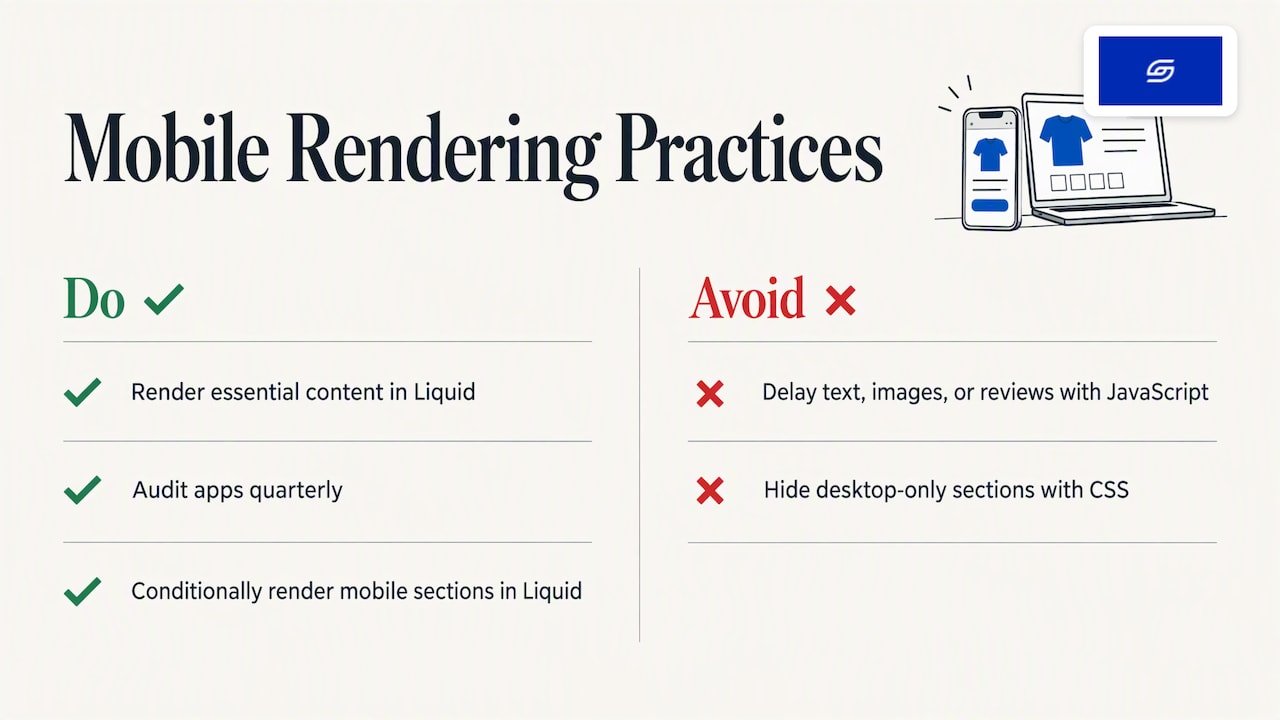
As an agency we often meet stores where product text, images or reviews are injected by JavaScript after the page loads. Shopify’s developer guidance calls this out: when content waits on a framework bundle to download and run, the browser cannot fetch images and text until it has finished. The result is poor FCP, LCP and INP scores. Essential content should be rendered server-side in Liquid and HTML.
This ties in with apps. Every review widget, pop-up builder, upsell tool and chat bubble adds scripts. On a desktop they are invisible. On a phone they compete for a small CPU. Audit your app list once a quarter and remove anything you cannot tie to revenue.
A related SEO point: Shopify notes that Google evaluates content on the mobile version of your page. If you hide desktop-only sections with CSS, that content can still signal lower priority to search. Where a section should not appear on mobile, render it conditionally in Liquid instead of hiding it.
Step 5: Make sure nothing is wider than the screen
Sideways scrolling on a product page is a small bug with a big trust cost. Shopify documents how to fix content wider than the viewport. The usual suspects:
- fixed-width tables in product descriptions, often pasted from a supplier
- embedded videos or maps with set pixel widths
- custom sections with negative margins
- size charts built as wide images
Check each page type on a 360 px wide screen, which is common on Android, not just on the latest iPhone.
Step 6: Design product pages for thumbs
The product page is where mobile traffic turns into money or leaves. A reasonable mobile product page looks like this:
| Element | What good looks like on a phone |
|---|---|
| Gallery | Swipeable, first image loads instantly, pinch-to-zoom works |
| Title and price | Visible with the first image, no scrolling needed |
| Variant selectors | Large tap targets, clear sold-out states |
| Add to cart | Prominent, and sticky if the page is long |
| Delivery and returns | One short line near the button, with details in an accordion |
| Reviews | Summary near the top, full reviews lower down |
| Description | Short benefit-led lead, then collapsible detail |
Tap targets matter more than most owners expect. Buttons and links that sit close together lead to mis-taps and frustration, especially on filter menus and variant swatches. Give controls room.
We go further on this in our piece on fixing product page issues that lift sales.
Step 7: Simplify navigation and search
Mobile menus fail when they copy the desktop mega-menu. Keep top-level items to what shoppers actually use, put search where a thumb can reach it, and make sure the cart icon always shows an item count. If you have more than a few hundred products, test predictive search on mobile: a visitor who finds a product by typing two words is more likely to buy than one who browses six collection pages.
Collection pages need the same care. Show two products per row, keep filters in a drawer, and avoid loading 60 products at once.
Step 8: Cut checkout friction
Checkout is where mobile typing hurts most. Shopify describes its checkout as a fully responsive, mobile-first experience, so your job is mostly to reduce what the customer has to enter and to offer faster ways to pay.
Accelerated checkout is the clearest lever. Shopify’s enterprise team reports that Shop Pay can lift conversion by up to 50% compared with guest checkout, and that simply having it on the store can lift lower-funnel conversion by 5%. Treat these as Shopify’s own figures for its own product, not a promise for your store. Whether Shop Pay and your other wallet options suit your market and payment setup is worth confirming in your admin and with your payment provider.
Practical checkout steps:
- Enable the accelerated checkout buttons on product and cart pages.
- Offer the payment methods your customers use, including the digital wallets they already have on their phones.
- Remove optional fields, and avoid forcing account creation.
- Make sure shipping costs and delivery times are visible before the final step.
We lay out the field-by-field logic in our guide to one page checkout and trimming to eight fields.
One caution if you drive traffic with paid campaigns: better mobile conversion makes ads look better, but it does not tell you which sales were truly incremental. A marketing agency’s note on proving incremental sales is a useful read on that measurement question.
Our perspective: speed and clarity beat features
We have spent over ten years in e-commerce and have worked on 30+ live Shopify stores. The pattern we see most often is not a missing feature. It is a store that tries to do too much on a small screen.
Owners add another app, another popup, another homepage banner, and each looks harmless in isolation. On a phone, the sum is a slow page with a crowded first screen. When we optimise a store, we start by removing things: animations, scripts, sections, fields. Then we check the numbers against real customer data, not a single lab score.
We also test on the devices your customers use. Singapore is a high-end phone market, but your traffic from Instagram, TikTok and regional SEA visitors will not all be on the latest model, and it is the slowest devices that show you where your store is fragile.
The founder-led part matters here. The person who looks at your analytics is the person who changes your theme, so a finding about a slow product page becomes a fix, not a ticket that waits in a queue.
— Soodo
What to fix first
If you can only do a few things this month, use this order:
| Priority | Fix | Why it comes first |
|---|---|---|
| 1 | Remove hero animations and heavy sliders | Directly affects what loads first |
| 2 | Correct image sizing and lazy loading | Cuts the biggest share of page weight |
| 3 | Audit apps and scripts | Reduces CPU load on phones |
| 4 | Rebuild the mobile product page layout | Where purchase decisions happen |
| 5 | Enable accelerated checkout, trim fields | Fewer taps to pay |
| 6 | Re-test on real devices | Confirms the gain is real |
For a longer list that goes beyond mobile, our free Shopify optimisation checklist and our 15 Shopify CRO fixes for Singapore are good next steps. If you want the broader conversion picture, see how to increase your Shopify conversion rate in Singapore.
When to do it yourself and when to bring in help
Some of this is genuinely DIY: removing an animation setting, deleting unused apps, compressing images, switching on Shop Pay. Do those first.
Other items need theme code: correcting sizes attributes, moving content to server-side rendering, conditionally rendering sections in Liquid, and rebuilding a product page template. If your theme is heavily customised or has been patched by several freelancers, patching it further can cost more than rebuilding it. Our guide on how to tell when your store needs a revamp helps you judge that.
How Soodo can help
If your store is already live, our Existing Shopify Store Optimization service starts from SGD 1,000 as a one-off project. It covers conversion-focused fixes on the pages that matter, including mobile. If the theme itself is the problem, a new Shopify website build starts from SGD 4,500 one-off, designed mobile-first and built with search in AI tools like ChatGPT and Google AI Mode in mind. Pricing is fixed, and you get direct WhatsApp support from the team that does the work.
Not sure which you need? Send us your store link through the form on soodo.co and we will tell you honestly whether it needs a tune-up or a rebuild.
FAQ
Is my Shopify theme mobile responsive by default?
Most current Shopify themes are responsive, meaning the layout adapts to screen width. That does not guarantee speed or good usability. Images, apps, animations and custom code can still make the mobile experience slow or awkward.
How do I check how my store performs on mobile?
Start with the Web Performance dashboard in your Shopify admin, which uses data from real customers. Then test your key pages with CPU and network throttling, and on a real mid-range phone. Compare before and after each change.
What is the single biggest mobile speed fix?
For many stores it is removing the fade-in or reveal animation on the hero image, since that can delay the largest element from loading. Oversized images from a misconfigured sizes attribute come a close second. Both are worth checking before anything else.
Does mobile optimisation affect SEO?
Yes. Google evaluates the mobile version of your pages, and Shopify advises against hiding content with CSS that you still want counted. Fast, complete mobile pages support your search visibility, though results vary by store and competition.
How much does mobile optimisation cost in Singapore?
It depends on whether you need fixes or a rebuild. Our store optimisation projects start from SGD 1,000 and new builds from SGD 4,500, both one-off. A quick review of your store will show which route fits.
Sources
- Social Media Statistics in Singapore, Meltwater
- From Click to Cart: E-commerce in Singapore, Singlife
- Test for performance, Shopify developer docs
- Test with real mobile CPU and network throttling, Shopify developer docs
- Don’t hide the LCP image behind animations, Shopify developer docs
- Build responsive layouts that perform well on mobile, Shopify developer docs
- Render essential content server-side, Shopify developer docs
- Fix content wider than the viewport, Shopify developer docs
- Shopify Checkout
- Introduction to Shopify’s Payments Stack
Recommended

Jessica Bong
Jessica Bong is the founder of Soodo, a Singapore Shopify agency that builds, revamps and migrates Shopify stores, with every store set up to be found in AI search (GEO). She has spent over 10 years in ecommerce and runs her own Shopify brand, Patch&Bagel, where every Soodo technique is tested first. Jessica is also a WSQ-certified Shopify trainer at Equinet Academy.