

Shopify 2.0 Upgrade: How to Move Your Store to Online Store 2.0
A Shopify 2.0 upgrade means moving your store from an older “vintage” theme to an Online Store 2.0 theme. Your products, customers and orders stay where they are. What changes is the theme layer, so you can edit every page with sections instead of only the homepage. The safest way is to build the new theme unpublished, test it and then publish. At Soodo we handle this for Singapore brands, and a Shopify Revamp starts from SGD 3,000.
Key Takeaways
- Online Store 2.0 is Shopify’s theme architecture that puts sections and blocks on every page, not just the homepage.
- Your catalogue, customers and orders do not live in the theme, so a theme upgrade does not move them.
- Customisations made by apps or by hand do not convert automatically. That is where most of the work and most of the risk sits.
- Build and test on an unpublished copy, keep the old theme as a rollback, then publish in a quiet period.
- A Shopify Revamp at Soodo starts from SGD 3,000 and includes handover training and 6 months of post-launch fixes.
Table of Contents
- What is Shopify 2.0, and how is it different from 1.0?
- What does “sections everywhere” let you change?
- Do you actually need to upgrade?
- What are the three ways to upgrade?
- How do you upgrade step by step?
- What can go wrong during a Shopify 2.0 upgrade?
- How is a theme upgrade different from moving from WooCommerce?
- What does it cost in Singapore?
- Our view: treat the upgrade as a sales project
- Ready to move your store?
- FAQ
- Sources
What is Shopify 2.0, and how is it different from 1.0?
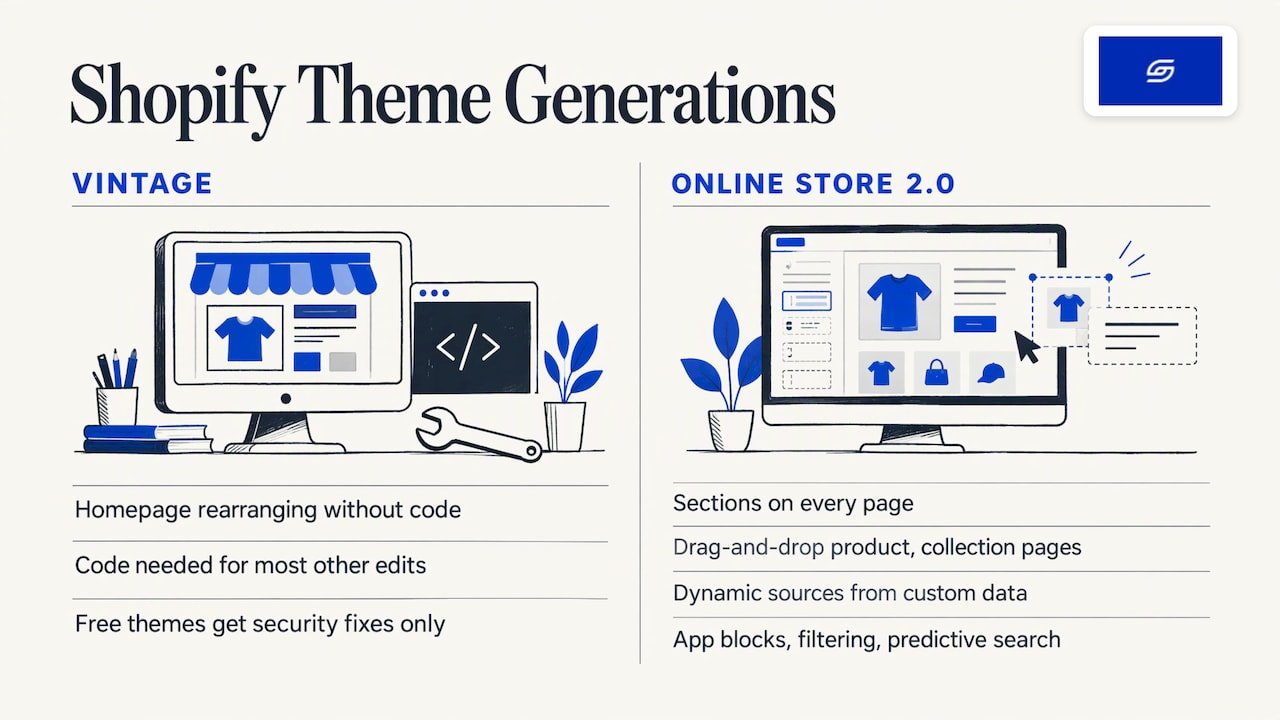
Shopify 2.0 is the common name for Online Store 2.0, the theme architecture Shopify introduced in 2021. Older themes are now called vintage themes. Shopify’s Help Center explains that Online Store 2.0 themes support sections on all pages and dynamic sources. Themes with sections on every page are built with JSON templates. The same page lists app blocks, collection filtering and predictive search for these themes. It also says free vintage themes receive no updates beyond security fixes.
In its 2021 announcement for developers, Shopify described the change as sections on every page, blocks that can be moved and powered by apps, better metafields and new developer tools. Metafields are extra product or page fields you define yourself, such as fabric, size guide or ingredients. Shopify also said its Dawn theme loads 35% faster than Debut, an older theme.
In plain terms: before, a non-developer could rearrange the homepage but needed code for almost anything else. Now the same drag-and-drop control reaches product pages, collection pages and more.
What does “sections everywhere” let you change?
Sections are the building blocks of a page, such as a banner, a product grid or a testimonial strip. Blocks are the smaller pieces inside a section. According to Shopify’s guide to sections and blocks, you can:
- rearrange sections in a template and blocks within a section;
- use section and block settings to change how they look;
- connect compatible sections and blocks to dynamic information from custom data, without editing code;
- reposition app content using app blocks.
There are limits. Shopify’s developer documentation states that JSON templates and section groups can render up to 25 sections per page, and each section can hold up to 50 blocks. For most brands that is more than enough.
For a Singapore brand, this matters in practical ways. You can build a campaign landing page for 11.11 or Chinese New Year without a developer. You can add a size guide block to one product type only. You can place a reviews app where it sells best, not where the app defaults to.
If you also publish content to bring in search traffic, a cleaner theme structure helps your team ship pages faster. Teams that want to automate that publishing can look at Shopify SEO automation tools once the theme is in good shape.
Do you actually need to upgrade?
You need to upgrade if your team is stuck waiting on a developer for small page changes, or if you cannot use features that depend on the newer architecture. Those include app blocks, collection filtering and predictive search, all listed on Shopify’s theme versions page.
Check your theme first. In your Shopify admin, open Online Store, then Themes. Check the theme name and version. Then open the theme editor and go to a product page. If you can click “Add section” there, you are likely already on Online Store 2.0. If you can only edit the homepage that way, you are on a vintage theme.
If you are unsure whether the job is an upgrade, a redesign or a full rebuild, our guide to revamp versus rebuild versus migration lays out the difference. There is also a short store quiz that points you to the right project type.
What are the three ways to upgrade?
Shopify’s migration assessment lists three paths. Here is how they compare for a business owner.
| Route | What it means | Best for | Main risk |
|---|---|---|---|
| New Online Store 2.0 theme | Install a theme from the Theme Store and rebuild your layout in it | Stores with light customisation | Content and settings must be re-entered and checked |
| Updated version of your current theme | Download a newer release of your theme that supports Online Store 2.0 | Stores on a theme whose maker has released an update | Your own edits may not carry over |
| Manual conversion | Convert Liquid templates to JSON templates and move code into sections | Heavily customised stores | Needs a developer and careful testing |
Most brands we speak to fall between the first and third routes. The right choice depends on how much custom code sits in your theme and which apps your checkout and product pages rely on. If you are picking a new theme, our practical guide to choosing a Shopify theme covers what to look for.
How do you upgrade step by step?
Step 1: Audit what your store does today
List every page type: home, product, collection, cart, search, blog, standard pages and 404. Note each custom feature, such as a bundle builder, a size chart, a pre-order badge or a delivery message. List every app that adds something to the storefront.
This is where upgrades go wrong. Shopify’s assessment guidance says that customisations made by apps or manually to a theme cannot be migrated automatically. Heavily customised or app-dependent themes are harder to move. A clear audit tells you the real size of the job before you commit to a budget.
Step 2: Confirm your key apps work with Online Store 2.0
Check each important app before you change themes. Shopify’s guidance says key apps must be confirmed as compatible. Reviews, subscriptions, bundles, size guides and upsell apps are the usual ones to check. Ask the app’s support team how it installs in an Online Store 2.0 theme, and whether it uses app blocks.
Step 3: Duplicate the theme and work unpublished
Never edit your live theme. Duplicate it, or add the new theme without publishing it. Your customers keep seeing the live store while you build. If you use Shopify CLI, the CLI command reference states that shopify theme push --unpublished uploads local files to an unpublished theme and gives you a shareable preview link. The shopify theme publish command then publishes it from the theme library.
Step 4: Convert or rebuild the templates
For a manual conversion, Shopify’s migration documentation describes the process. You need Shopify CLI and the right store access, including Themes permission. You remove section tags from the Liquid templates, move that code into section files and create a JSON template that references those sections. You then test it in the theme editor, where an “Add section” button should appear.
If you are moving to a new theme instead, rebuild each template in the theme editor and carry over your content, settings, navigation and metafield connections.
Step 5: Test every template and the full purchase path
Preview each page type on mobile and desktop. Add a product to the cart, go to checkout and complete a test order. Check that your metafield content shows on real products. Check that app blocks appear in the right places. Compare the new theme side by side with the live one.
Mobile deserves most of your attention. In Singapore, a large share of shoppers browse and buy on their phones, so a layout that looks fine on a laptop can still lose sales.
Step 6: Check the basics that affect search and sales
Before publishing, confirm that page titles and meta descriptions are in place. Confirm analytics and ad pixels fire, forms submit, and any URL that changed has a redirect. Make sure the old theme is saved, so you can go back if needed.
Step 7: Publish in a quiet window and watch
Pick a low-traffic time, not the middle of a sale. Publish, then place a real test order and check payments, order creation and inventory. Watch your analytics and error reports in the first hours. Keep the old theme in your library. If something is wrong, you can republish it in one click.
Where we take work off your hands
Every Soodo project includes handover training, so your team knows how to use the new sections and blocks on day one. It also includes 6 months of post-launch fixes: if something we built breaks, we fix it. The timeline and start date are agreed before we begin. Projects start on set monthly start dates, and a 50% non-refundable deposit secures your start date, with the balance due on completion.
What can go wrong during a Shopify 2.0 upgrade?
Most problems come from four places.
- App code left behind. Old apps often inject code straight into theme files. After the move, that code may no longer show, or may show twice.
- Custom features that vanish. A feature built by hand in a vintage template will not appear in a new theme unless someone rebuilds it.
- Metafields not connected. Product content stored in metafields needs to be linked to sections again as dynamic sources.
- Changed URLs. If page addresses change, you need redirects, or you risk losing the search traffic those pages earned.
None of these is a reason to delay. They are the reason to treat the upgrade as a planned project with a test list, not a quick switch of themes.
Speed is a related point. A new theme does not guarantee a fast store, because apps and images still add weight. Our article on speed optimisation for Shopify stores explains how to measure what real visitors experience.
If your checkout also uses old customisations, check that too. Our checkout extensibility migration guide walks through that separate change.
How is a theme upgrade different from moving from WooCommerce?
A theme upgrade stays inside Shopify. A WooCommerce move changes platform. That is a bigger job.
When you change a Shopify theme, your catalogue, customer data, orders and inventory stay in Shopify’s database, not in the theme. That is why a theme upgrade is lower risk.
A WooCommerce move is different. Shopify’s WooCommerce migration guide says you must decide what to transfer: products, customers, historical orders, reviews, blog posts and pages. It also says some data needs extra steps. Blog posts and pages are not in WooCommerce exports. Coupons cannot be imported by CSV. Customer passwords cannot be migrated. Historical orders need a third-party app.
If you are on WooCommerce, you are not looking for a Shopify 2.0 upgrade. You are looking for a migration, and the new store will be built on an Online Store 2.0 theme from the start. Our page on WooCommerce to Shopify migration in Singapore covers that route. If your blog carries traffic, read how to migrate a blog to Shopify without losing traffic.
What does it cost in Singapore?
Cost depends on how much custom work your current theme holds. At Soodo, a Shopify Revamp starts from SGD 3,000. A new Shopify store starts from SGD 8,500. Migration to Shopify starts from SGD 6,000. No GST is added, because Soodo is not GST-registered.
These are fixed-price projects. Unlimited revisions apply within the agreed scope.
Our view: treat the upgrade as a sales project
We see the Shopify 2.0 upgrade as a chance to rebuild your pages around how customers actually buy, not as a technical chore.
Soodo is a founder-led Shopify agency in Singapore. Jessica Bong founded it in 2022. She has 10+ years in ecommerce and is a WSQ Shopify trainer at Equinet Academy. We are a Shopify Partner with 30+ live stores. We keep the team small on purpose: the founder leads strategy and a dedicated developer builds.
We also run our own ecommerce brand, Patch&Bagel, and we test our recommendations there first. So when we say a section layout or a product page order works, we have used it on a live store.
Our approach is sales-first. Every page, menu and app is built around the buying path. Every store we build is also set up for AI search, known as GEO. You can read what that means on our GEO explainer. We do not offer a monthly GEO or SEO service. For long-term GEO growth, we work with specialist partners, listed on our trusted partners page.
The best upgrades leave you in control. That is why every project ends with handover training, so your team can change sections without calling us for every edit.
Soodo
Ready to move your store?
If your store is on a vintage theme and your team wants control over every page, a Shopify Revamp is the route. It starts from SGD 3,000. If you want a fresh build, a new Shopify store starts from SGD 8,500. If you are on WooCommerce, Migration to Shopify starts from SGD 6,000.
We take on a small number of projects each month, by application. Every project includes handover training and 6 months of post-launch fixes.
FAQ
Does a Shopify 2.0 upgrade delete my products or orders?
No. Your products, customers, orders and inventory are stored in Shopify, not in the theme. Changing the theme changes how your store looks and is edited. Always keep the old theme saved so you can go back if you need to.
Can I upgrade my vintage theme with one click?
Not in most cases. Shopify lists three routes: a new Online Store 2.0 theme, an updated version of your current theme, or a manual conversion. App and hand-built customisations do not convert automatically, so each one needs checking.
Will the upgrade affect my search rankings?
It can if page addresses, titles or meta descriptions change. Keep URLs the same where you can and set up redirects where you cannot. Check titles and meta descriptions before you publish.
Is Shopify 2.0 the same as Shopify Plus?
No. Shopify 2.0 refers to the Online Store 2.0 theme architecture, which any Shopify plan can use with a compatible theme. Shopify Plus is a separate plan for larger businesses.
Sources
- Shopify Help Center: Theme architecture versions
- Shopify: Introducing Online Store 2.0 for developers
- Shopify Help Center: Sections and blocks
- Shopify.dev: Sections
- Shopify.dev: Migration assessment
- Shopify.dev: Migrating templates to Online Store 2.0
- Shopify.dev: Shopify CLI theme commands
- Shopify Help Center: Migrate from WooCommerce
- Shopify SEO automation tools
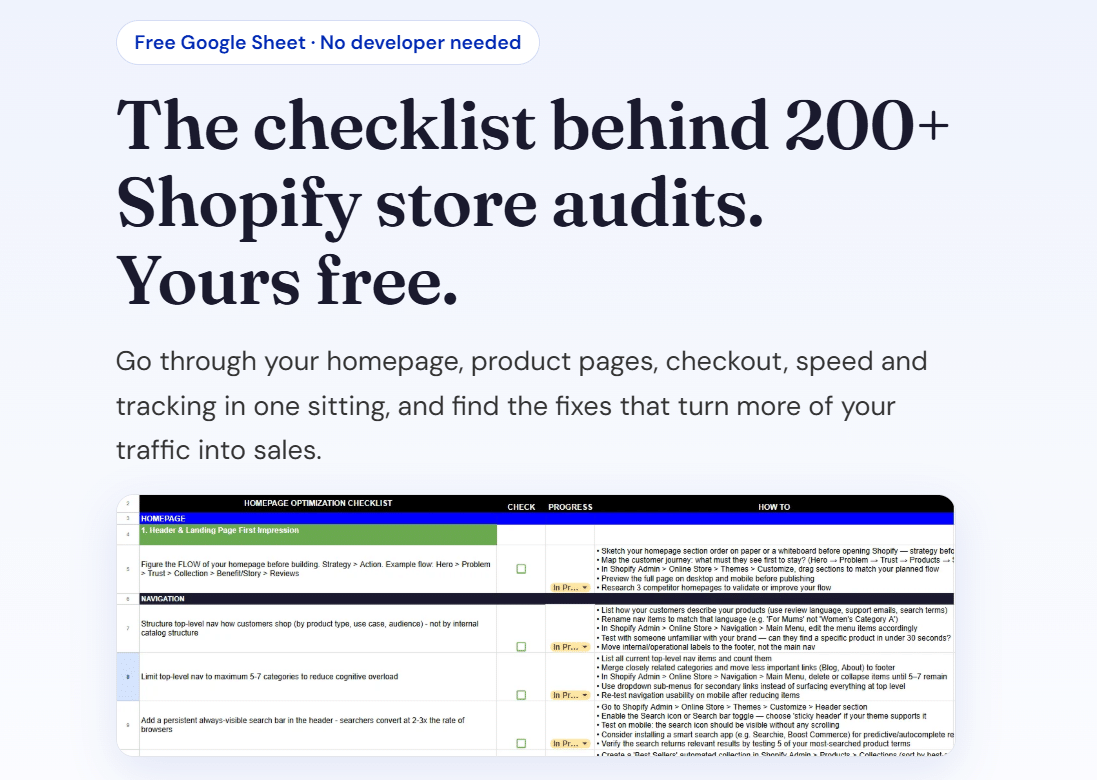
Next step: download our free Shopify optimisation checklist, or apply for a project slot.
Recommended

Jessica Bong
Jessica Bong is the founder of Soodo, a Singapore Shopify agency that builds, revamps and migrates Shopify stores, with every store set up to be found in AI search (GEO). She has spent over 10 years in ecommerce and runs her own Shopify brand, Patch&Bagel. Jessica is also a WSQ-certified Shopify trainer at Equinet Academy.