


Shopify Local Pickup Setup: A Singapore Store Guide
To set up Shopify local pickup, go to Settings > Shipping and delivery, open Pickup in store, switch it on for each location and set a realistic ready time. Then test the whole flow with a real order before launch. The settings take minutes. The work that decides whether pickup helps your sales is the stock, the staff routine and the checkout test behind them. This guide covers all three for Singapore brands.
We are Soodo, a founder-led Shopify agency in Singapore. We build, revamp and migrate Shopify stores for brands in Singapore and Southeast Asia, and a new Shopify store starts from SGD 8,500.
Key Takeaways
- Pickup is switched on per location, so each shop, studio or storeroom that hands over orders needs its own setup.
- Your ready time is a promise. Set it to what your team can really do, including packing and handoff.
- Pickup can be offered with the Shopify admin alone. Per-product rules, such as pickup-only items, need a workaround or a custom build.
- Place a test order and have someone who did not set it up run the fulfilment steps before you go live.
- Pickup belongs on your launch checklist next to shipping, tax and payments, not after them.
Table of Contents
- What does Shopify local pickup do, and what do you need first?
- How do you set up local pickup in Shopify, step by step?
- How long should your pickup ready time be?
- How do you offer curbside or collection point pickup?
- Can you make a product pickup only?
- How do you handle pickup orders day to day?
- How do you test pickup before you go live?
- Does pickup belong in a new build, a revamp or a migration?
- How Soodo builds stores with pickup
- Our view on pickup
- Frequently asked questions
- Sources
What does Shopify local pickup do, and what do you need first?
Local pickup lets customers buy online and collect the order at one or more of your locations. Shopify calls it pickup in store. It can also move stock between locations when the pickup location has run out.
Before you turn it on, check these points:
- At least one location is set to fulfil online orders.
- Your checkout is on the latest version. If it is not, Shopify shows an upgrade notice in Settings > Checkout.
- Each pickup location has its own stock. A product only shows as available for pickup if it is in stock at that location, or can be transferred in.
The same Shopify page says that on the Plus plan you can replace the default pickup feature with a custom app. Most Singapore brands will never need that.
If you have more than one shop, stock accuracy matters more than any setting. Our guide to multi-location inventory on Shopify covers how to set up locations so each one shows its own count.
How do you set up local pickup in Shopify, step by step?
The steps below follow Shopify’s own setup instructions. We add what to decide at each step.
- Open the setting. In your Shopify admin, go to Settings > Shipping and delivery. Under Additional delivery methods, click Pickup in store.
- Pick the location. Choose the location you want to set up. If you have a shop in Tampines and a storeroom in Ubi, you set up each one on its own.
- Activate pickup. Switch on the option that lets customers pick up orders directly at that location.
- Choose the expected pickup time. This is the processing time shown at checkout. Decide it with your team, not by guessing (see the next section).
- Choose source locations for transfers, if you need them. If the pickup location is out of stock, Shopify can offer pickup once stock is moved from another location. Give transfers a longer processing time than in-stock orders.
- Write the ready-for-pickup instructions. Say where to go, when you are open and what to bring. The customer sees this in the notification.
- Preview checkout and save. Check that the address and time look right.
- Repeat for every location.
One note on the address. Check that the location address in Settings > Locations is the one you want customers to walk to. Pickup uses it.
How long should your pickup ready time be?
Set the time your team can meet on a busy day, not on a quiet one. The most common local pickup mistake, according to one Shopify pickup guide published in April 2026, is an unrealistic ready time, such as promising 30 minutes when the team needs two hours.
Work it out by walking through one order:
- Order arrives and someone sees it.
- Items are picked, checked and packed.
- The order is set aside in the collection spot.
- Staff mark it ready, and the customer is notified.
A food or made-to-order brand must also count preparation, cooling and packing. A fashion or beauty brand with stock on the shelf can usually promise less. Add the time between when staff see the order and when they act on it. If your shop is not staffed all day, say so in your hours.
Shopify shows your chosen time at checkout, so it becomes the promise the customer pays against. A longer, honest time beats a short one you miss.
How do you offer curbside or collection point pickup?
Curbside pickup uses the same feature. There is no separate switch. Shopify’s Singapore guide to curbside pickup says to enable pickup per location, set expected times and give clear instructions, such as where to park, your hours and any ID to bring.
For Singapore, think about how your customers actually arrive:
- Mall or shophouse unit: name the level, unit number and the nearest entrance. Say which lift to use.
- Industrial or warehouse space: give the loading bay or the gate, the cut-off hour and whether visitors need to register.
- Event or pop-up: create a location for the venue and switch pickup on for the dates you need. Remove it afterwards.
Put these details in the pickup instructions field and not only on a page of your site. The instructions travel with the notification, so the customer has them at the moment they need them.
If you also deliver locally, keep the two options clear. Our two-week test guide to Shopify local delivery shows how to protect margin when you offer both.
Can you make a product pickup only?
Not with the built-in setting alone. Local pickup is enabled per location, not per product. According to a Shopify Community answer, if a location offers pickup, all products stocked there can be collected, and there is no built-in way to exclude one product.
There are three ways to handle a pickup-only item:
- Use a dedicated location. Create a location that holds only pickup items and switch pickup on there. Keep your shipping location separate.
- Use a third-party pickup app. These add product-level rules. Choose one only after you know which rules you need.
- Use a custom build. Rules such as pickup on certain days, pickup fees or pickup for selected customers need Shopify’s local pickup function API. It is limited to custom apps on Shopify Plus, and you must be in the Shopify Partners programme to deploy your own custom app.
Mixed baskets are another trap. Shopify’s native option to ship some items and pick up others in one order is, according to a community thread from September 2026, limited to Plus and Enterprise feature test drives. On other plans, brands separate pickup-only and shippable products or add an app. Decide this before you design your catalogue, because it changes how you group products.
If your shipping rules are also unclear, read our guides to Shopify shipping in Singapore and Shopify shipping zones first. Pickup and shipping share the same checkout, so they need to agree.
How do you handle pickup orders day to day?
Keep it as a simple routine with one owner. Shopify’s guide suggests assigning pickup to one or a few people and creating a dedicated space in the shop for pickup orders.
The flow is:
- The order comes in. Staff pick and pack it.
- Staff mark it Ready for pickup. Shopify sends the customer an email. This is the trigger, so do not mark an order ready before it can actually be collected.
- The customer arrives. Staff check the order and the customer.
- Staff mark it Picked up. Shopify can send a confirmation, and the order closes as fulfilled.
Staff can do this in Shopify POS by adding the Pickup in store tile. Shopify’s developer documentation also lists a mutation that marks items ready for pickup and sends the Ready for pickup notification, which matters if a developer connects your warehouse tools.
For stock, Shopify’s click and collect guide recommends multi-location inventory so each pickup point shows its own units. It also suggests a longer processing time for transfers, such as a few days, keeping bulky or restricted items out of transfers and holding safety stock on fast sellers. Review your days of inventory remaining report each week before busy periods.
Two habits save headaches. Check uncollected orders at the end of each day, and decide in advance how long you hold an order and who contacts the customer.
How do you test pickup before you go live?
Place a real test order and run it end to end. Shopify’s general checklist lists pickup and local delivery among the setup steps and recommends test orders to review checkout, including successful and failed payments.
Shopify’s click and collect guide adds what to check on the pickup side:
- The pickup address, hours and instructions show at checkout.
- Store transfers trigger for an item that is out of stock at the pickup location.
- The ready-for-pickup notification arrives and reads clearly.
- A staff member who was not involved in setup can run the fulfilment steps without help.
That last check is the useful one. The person who built the setup knows where everything is. A new colleague shows you where the instructions are unclear.
Test on a phone as well as a desktop. Most of your customers will check out on a phone, and the pickup choice has to be easy to see there.
Pickup is one line on a long launch list. Shopify’s 20-step launch checklist also covers business licences, tax and shipping settings, the fulfilment process and checkout testing, including discount codes, cart editing, payment methods, order tracking and automatic emails. It cites a 70% average global cart abandonment rate as a reason to fix checkout friction before launch. For a Singapore-specific version, use our Shopify store creation checklist.
Singapore payment points to confirm at the same time
If you use Shopify Payments in Singapore, you need to operate from Singapore with a supported business type, and your legal name and registered address must match government records. Payouts go to a local SGD bank account. A Singapore guide to Shopify Payments requirements from May 2026 suggests checking that your registered name, UEN and address match public records, publishing your terms, refund and shipping policies, and testing checkout with 3D Secure on desktop and mobile. It also suggests a soft launch with internal test orders before you scale marketing spend, and a launch log of settings and screenshots.
The same guide recommends a launch log for troubleshooting. A simple document that records your pickup times, instructions and location settings will save you time when something changes.
Changes to checkout can affect pickup. If you customise checkout, read our guides to checkout customisation routes that survive upgrades and the checkout extensibility migration.
Does pickup belong in a new build, a revamp or a migration?
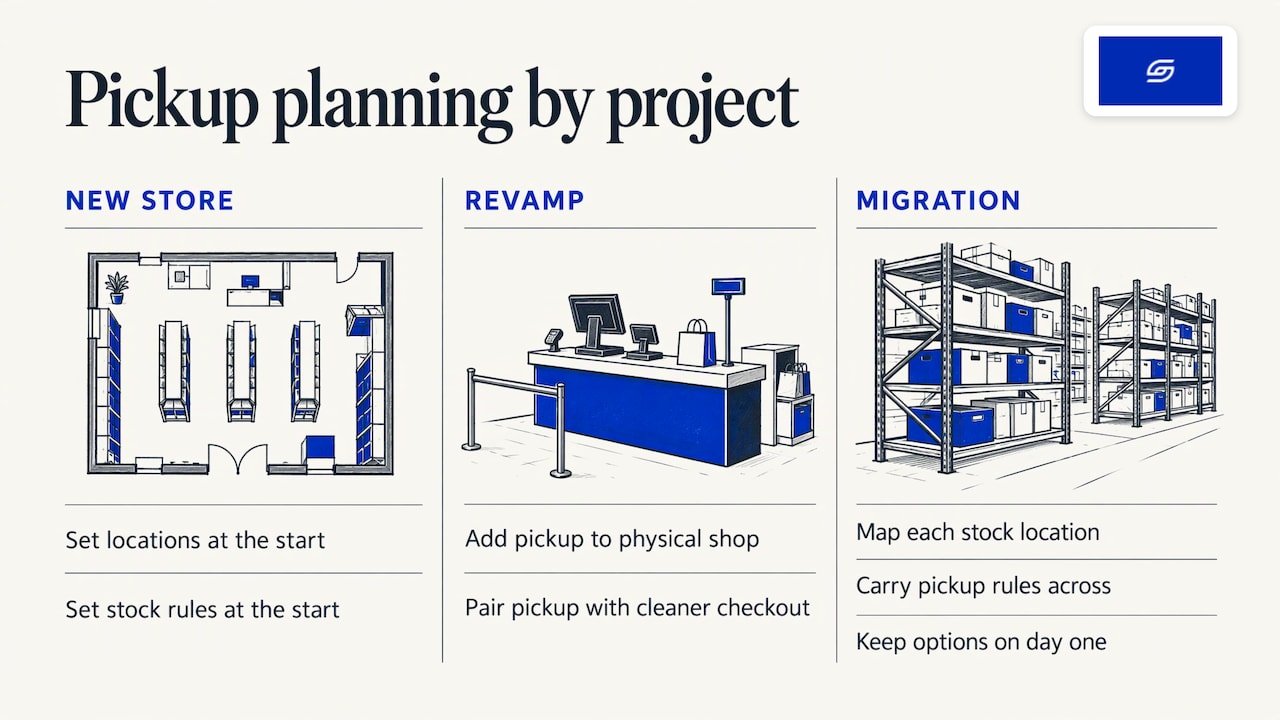
Yes, in all three. Pickup touches locations, stock, checkout, notifications and staff routines, so it is easier to plan it into the build than to bolt it on later.
For a new store, you decide your locations and stock rules at the start. For a revamp, pickup is often what a store with a physical shop has missed, and it can sit next to a cleaner checkout. For a migration, such as a move from WooCommerce, you need to map each stock location and your pickup rules across, so customers see the same options on day one.
We set up every store for AI search (GEO), so your pickup and delivery details are written clearly for people and for the systems that answer their questions. Long-term GEO growth is handled through specialist partners, not through a monthly service from us.
How Soodo builds stores with pickup
If you want a store launched with pickup working from day one, we can build it. A new Shopify store with us starts from SGD 8,500. A Shopify Revamp starts from SGD 3,000. A migration to Shopify starts from SGD 6,000.
Every project includes handover training and 6 months of post-launch fixes. If something we built breaks, we fix it. The timeline and start date are agreed before we begin. See the new Shopify store page for how a build works.
We take on a small number of projects each month, by application. You can see examples of our work in the portfolio.
Our view on pickup
We have set up and run Shopify stores since 2022, and we run our own ecommerce brand, Patch&Bagel, so we test recommendations on a real store first.
Our view is simple. Pickup is not a setting, it is a promise to the customer. The setting takes minutes. Keeping the promise takes accurate stock, a ready time your team can meet and one person who owns the routine.
That is why we treat pickup as part of the sales path. A sales-first store shows the customer the pickup option where they decide, tells them when and where to collect, and does not oversell the time. Jessica Bong, our founder, has more than 10 years in ecommerce and teaches Shopify as a WSQ trainer at Equinet Academy. She leads strategy on every project, and a dedicated developer builds.
We are a Shopify Partner with 30+ live stores. After launch, we train your team to run pickup themselves, and for 6 months we fix anything we built that breaks.
Soodo
Frequently asked questions
Is local pickup the same as click and collect on Shopify?
Yes. Shopify’s feature is called pickup in store. Brands and customers call the same thing click and collect, store pickup or curbside pickup. You set it up once per location in Settings > Shipping and delivery.
Can I offer pickup from more than one location?
Yes. Set up each location separately, and make sure each one has its own stock. You can also allow transfers from other locations, with a longer processing time, so a product still shows for pickup when the nearest shop is out.
Can customers collect part of an order and have the rest shipped?
Not natively on most plans. Shopify’s built-in option for this is limited to Plus and Enterprise. Other stores usually separate pickup-only and shippable products or use an app. Decide this when you plan your catalogue.
What should the pickup instructions say?
Give the address, the level or unit, your opening hours, where to park or which entrance to use and what the customer should show. Keep it short. Customers read it on their phone while they are on the way.
Do I need a developer to set up pickup?
No, for a standard setup. Shopify’s admin handles it. You need a developer when you want custom rules, such as pickup fees, pickup only on certain days or pickup for selected customers, because these need a custom app on Shopify Plus.
Sources
- Shopify Help Center: Setting up pickup in store for online orders
- Shopify Singapore: How to set up curbside pickup
- Shopify: Click and collect, how it works
- Shopify Help Center: General checklist for starting a new store
- Shopify Singapore: Ecommerce launch checklist in 20 steps
- Shopify developer docs: fulfillmentOrderLineItemsPreparedForPickup
- Shopify developer docs: Local pickup delivery option generator function API
- Shopify Community: Removing the pickup available section from a product page
- Shopify Community: Pickup-only product next to a shippable item
- Shopify local pickup setup guide, April 2026
- How to meet Shopify Payments Singapore requirements
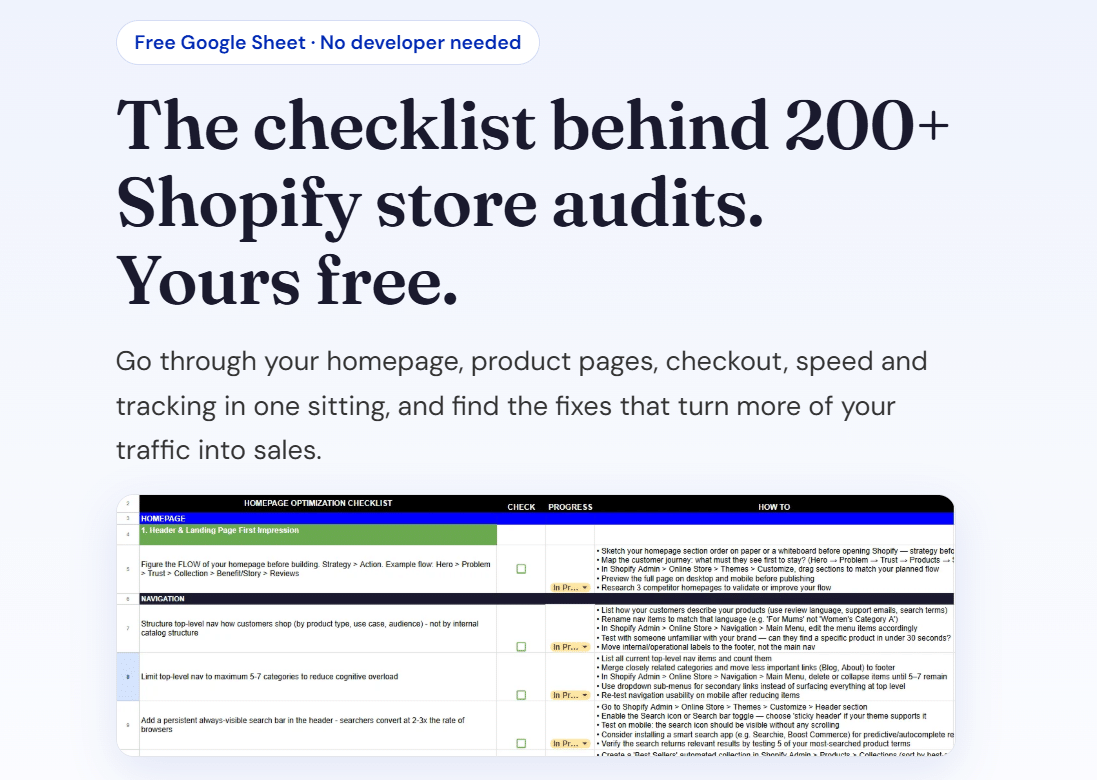
Ready to launch? Download the free Shopify optimisation checklist or apply for a project slot.
Recommended

Jessica Bong
Jessica Bong is the founder of Soodo, a Singapore Shopify agency that builds, revamps and migrates Shopify stores, with every store set up to be found in AI search (GEO). She has spent over 10 years in ecommerce and runs her own Shopify brand, Patch&Bagel. Jessica is also a WSQ-certified Shopify trainer at Equinet Academy.