
Multi-Location Inventory on Shopify: Setup Guide for Singapore
Shopify handles multi-location inventory natively. You add each shop, warehouse or fulfilment partner as a location, assign products to it, and Shopify tracks stock separately at each one. If you sell online and from a shop, or ship from more than one place, this is the setup you need.
This guide shows how it works, how to set it up step by step, and where Singapore brands usually get stuck. We are Soodo, a founder-led Shopify agency in Singapore. We build, revamp and migrate Shopify stores for brands in Singapore and Southeast Asia, so these are problems we see in real projects.
Key Takeaways
- A Shopify location is any place where you store or fulfil stock. Each location tracks its own quantity, and quantities cannot be pooled between locations.
- Location limits depend on your plan: Starter 2, Basic 10, Grow 10, Advanced 10 and Shopify Plus 200.
- New locations start at a quantity of 0, so you must load stock before the location can sell anything.
- Most “stock not showing” problems come from an inactive product at a location, a location not set to fulfil online orders, or an unverified address.
- A clean setup at build stage saves you from re-mapping stock later. Plan locations before you load products.
Table of Contents
- What is multi-location inventory on Shopify?
- Does your Singapore business need multiple locations?
- How do you add a location in Shopify?
- How do you assign products and set stock at each location?
- How does Shopify decide where an order ships from?
- How do you move stock between locations?
- Why is stock not showing or not selling?
- When are Shopify’s built-in tools enough?
- What should you plan before a build or migration?
- Our view: set up locations as part of the store design
- How can Soodo help with your multi-location setup?
- FAQ
- Sources
What is multi-location inventory on Shopify?
It is a way to track the same products across several places at once. Shopify’s Help Center says locations are where you store and fulfil inventory, and you need at least one location to track stock at all.
A location can be:
- A retail shop with Shopify POS
- Your own warehouse or storeroom
- A third-party logistics (3PL) partner
- A fulfilment app that physically holds your stock
- A pop-up or consignment point
Each location is its own pool. If you hold 40 units of a candle at your Tampines shop and 120 at your warehouse, Shopify records 40 and 120. It does not blend them into one number that can be moved around freely. To move stock, you create a transfer.
Does your Singapore business need multiple locations?
You need them when sellable stock sits in more than one place. If you have one storeroom and sell only online, the default location is enough. Shopify advises that a single warehouse or store needs only the default location, while multiple stores, warehouses or a mix of online and in-person selling call for extra locations from the start.
Shopify’s own blog lists signs that you have outgrown a single-location setup: frequent transfers between storefronts, inconsistent counts across channels, unfillable online orders, delayed deliveries, staff checking stock with each other, and manual spreadsheet updates.
In Singapore, the common cases are:
- Shop plus online store. Your retail outlet at a mall and your web store draw on stock that must stay in step.
- Several outlets. Two or three shops, each with its own shelves and a back-room count.
- Home storeroom plus 3PL. Bulky or fast-moving lines sit with a logistics partner while samples and slow lines stay with you.
- Singapore plus regional stock. A holding point in Malaysia or elsewhere in the region for cross-border orders.
If you are at the stage of picking a plan, our Shopify plan picker for Singapore helps you match plan to the number of locations and channels you run.
How do you add a location in Shopify?
Go to Settings > Locations, click Add location, then enter a name and address. That is the whole flow, but a few details matter.
- Name it clearly. Use names your team will recognise, such as “Jurong Warehouse” or “Orchard Shop”. The name also matters for CSV imports, covered below.
- Enter a full address. Google automatically verifies the address. Shopify notes that an unverified address can prevent local delivery or shipping labels bought in the admin.
- Decide whether it fulfils online orders. You can turn off the option that makes the location’s stock available for online orders. Do this for a shop that sells only over the counter.
- Check your plan limit. Deactivated locations, and apps that physically stock inventory, do not count toward the limit.
When you deactivate a location, Shopify prompts you to fulfil open orders and reassign inventory first. A location on POS Pro must be downgraded before it can be deactivated. Do not delete a location casually. Deactivate it and keep the history.
How do you assign products and set stock at each location?
This is where most setups go wrong, so go slowly. When you create a product, it is assigned to all locations with a starting quantity of 0. The same applies when you add a new location: new products are stocked there at 0 by default.
To set quantities for one product:
- Open Products and click the product.
- In the Inventory section, click Edit locations.
- Activate the locations that should stock it.
- Enter the quantity for each.
For many products, go to Products > Inventory, select a location and edit variants. For large updates, use the bulk editor or a CSV file.
How does the inventory CSV work?
Shopify’s CSV guide says you can export with all inventory states, which is recommended because it protects against accidental overwrites, or with available quantities only, which is simpler but gives no overwrite protection. The Location column is case-sensitive. It must match your Shopify location name exactly.
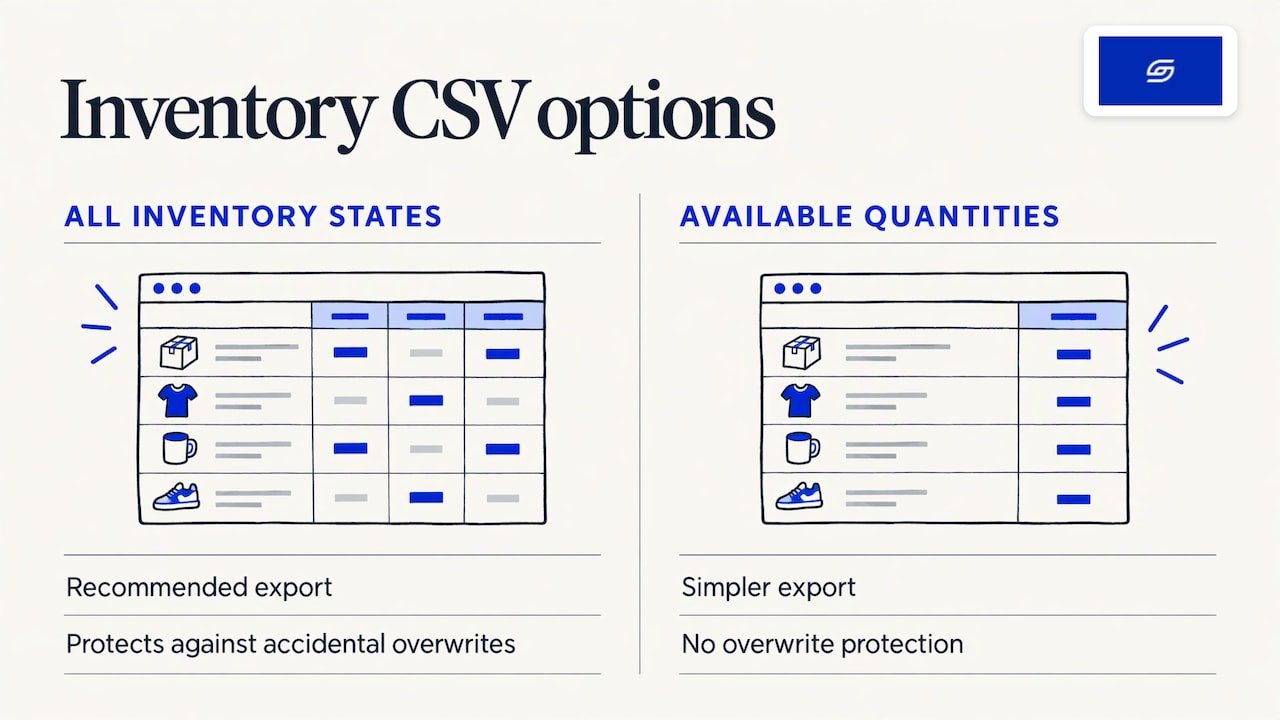
So “jurong warehouse” will not match “Jurong Warehouse”. One wrong letter and your import fails or lands in the wrong place.
What do the inventory states mean?
Shopify defines five inventory states:
| State | What it means |
|---|---|
| On hand | All units at a location: committed, unavailable and available combined |
| Available | Units you can sell |
| Committed | Units set aside for unfulfilled orders, draft orders or transfers marked ready to ship |
| Unavailable | Units held by apps or for reasons such as damage, quality control or safety stock |
| Incoming | Stock on its way from transfers, purchase orders or apps, not sellable until received |
Know these before you read your reports. A shop that looks “short” may simply have units committed to open orders.
How does Shopify decide where an order ships from?
Shopify can fulfil orders from the location closest to the customer, and order-routing rules can assign online orders automatically based on inventory availability and proximity. You set the rules and the order of priority.
Three settings shape the result:
- Fulfil online orders. Only locations with this switched on supply the web store.
- Stock at the location. A location with 0 units cannot win an order.
- Shipping profiles. When you create a new shipping profile, all locations that can fulfil online orders are added to the same location group. Locations that do not fulfil online orders do not appear there.
A location group lets you set different shipping zones and rates per group. That is useful when a Singapore warehouse serves local buyers and a regional hub serves Malaysia. Our guide to Shopify shipping zones in Singapore covers the rate logic, and our local delivery guide covers same-day style delivery from a shop. For carrier choices, see our comparison of shipping providers in Singapore.
Can customers collect from a shop?
Yes. Pickup works from locations you configure for it, and the stock shown depends on that location’s available quantity. If a shop has stock but is not set up for pickup, customers will not see the option. Test this from the customer side before launch.
How do you move stock between locations?
Use inventory transfers. Shopify lets you create transfers to move and track stock between your locations, or to and from external locations such as suppliers. When you process a transfer, shipments are created and managed for you.
A simple routine for a two-location brand:
- Create the transfer from the warehouse to the shop.
- Mark it ready to ship. The units become committed at the origin.
- When the stock arrives, receive it. The units move to Available at the destination.
- Check that the product is active at the destination.
Step 4 matters. It is the cause of many “missing stock” reports, covered next.
Why is stock not showing or not selling?
Start with these checks, in this order.
1. Look for a dash in the Available column. A dash means the product is inactive at that location. It is neither sellable nor fulfillable from there, even though an On hand quantity is recorded. This commonly happens after transferring inventory, receiving a transfer, adding a new location, or updating quantities with the bulk editor or a CSV file. Fix it with Edit locations on the product page.
2. Check the location fulfils online orders. If customers see Inventory Unavailable errors, make sure the location is set to fulfil online orders and has enough stock.
3. Check the address. An address not verified by Google can block local delivery and Shopify-admin shipping labels.
4. Check the CSV. A mismatched location name or the wrong export type can overwrite or misplace quantities.
5. Run a test order. Shopify recommends you place a test order to confirm inventory decreases correctly, then cancel it to confirm the quantity returns.
How do you reduce overselling?
Overselling usually comes from stock counts that do not match the shelf. Keep these habits:
- Count each location on a fixed schedule and adjust in Shopify the same day.
- Use Unavailable for damaged or reserved units so they cannot be sold.
- Receive transfers promptly, so Incoming stock becomes Available.
- Keep one person responsible for adjustments at each location.
- If an app or 3PL also holds stock, make sure the sync is one source of truth, not two.
Split shipments happen when one order has items at different locations. Shopify’s routing can send items from different places. Decide upfront if you accept this, or if you would rather stock fast sellers at the main fulfilment location so most baskets ship from one place.
When are Shopify’s built-in tools enough?
For most small and mid-sized Singapore brands, the native tools cover the core job. Shopify lets you stock products in several store locations and fulfilment apps at the same time, track each location separately, and make products active only where you want them. Some fulfilment apps even let you manage the same product at your locations and in the app together.
Shopify’s Singapore blog says perpetual inventory becomes essential once you have multiple locations, moderate to high SKU counts, omnichannel sales or higher transaction volume. If you are at that point, the questions to ask are:
- Do I need stock shown per shop on product pages?
- Do I need forecasting or purchase orders beyond the basics?
- Does my accounting or CRM tool need stock or order data synced?
- Does my 3PL have a Shopify connection?
If yes to any, you are choosing an app or an integration. Our guides to Shopify apps for ecommerce in Singapore and Shopify integrations that work in Singapore help you pick. If your books run on Xero, read about Xero and Shopify payout mapping. If you sell many sizes and colours, check the Shopify variant limit first, because every variant carries its own stock at every location.
What should you plan before a build or migration?
Get the location model right before you load a single product. It is far easier to design than to repair.
- List every place stock sits, including the storeroom at home and any 3PL.
- Name locations once, and keep the names stable. Your CSVs depend on it.
- Decide which locations fulfil online orders.
- Map your product data so SKUs match across your POS, spreadsheets and Shopify.
- Choose your plan with the location limit in mind.
If you are moving from WooCommerce, stock data is where migrations quietly break. Per-location quantities often live in plugins or spreadsheets, and they need cleaning before import. Our WooCommerce to Shopify migration guide for Singapore explains what to prepare.
Our view: set up locations as part of the store design
We see multi-location inventory as a design decision, not a settings screen. It touches your product pages, your shipping rates, your pickup offer and your team’s daily routine. If it is bolted on later, you end up fixing stock counts by hand.
Jessica Bong founded Soodo in 2022. She has 10+ years in ecommerce and is a WSQ Shopify trainer at Equinet Academy. Our approach is sales-first: every page, menu and app is built around how customers actually buy. For a brand with a shop and an online store, that means the customer sees the right stock, the right delivery option and the right pickup choice without friction.
We run our own ecommerce brand, Patch&Bagel, and test our recommendations there first. We are a Shopify Partner with 30+ live stores. Every store we build is also set up for AI search (GEO), so your product and location information is clear to the systems that now answer shoppers’ questions.
Every project includes handover training and 6 months of post-launch fixes. If something we built breaks, we fix it. Your team learns how to adjust stock, process transfers and read inventory states before we step back.
Soodo does not run a monthly GEO or SEO service. For long-term GEO growth, we work through specialist partners.
Soodo
How can Soodo help with your multi-location setup?
If you are building from scratch, a new Shopify store with the location model designed in from day one costs from SGD 8,500. If your current store needs its stock, pickup and shipping flows reworked, a Shopify Revamp costs from SGD 3,000. If you are moving platforms, Migration to Shopify costs from SGD 6,000. No GST is added, as Soodo is not GST-registered.
The timeline and start date are agreed before we begin. Projects start on set monthly start dates, and a 50% non-refundable deposit secures your slot, with the balance due on completion. We take on a small number of projects each month, by application. Unlimited revisions apply within the agreed scope.
FAQ
How many locations can I have on Shopify?
It depends on your plan. Active-location limits are Starter 2, Basic 10, Grow 10, Advanced 10 and Shopify Plus 200, per Shopify’s Help Center. Deactivated locations and apps that physically stock inventory do not count toward the limit.
Can I share one stock pool across locations?
No. Shopify tracks inventory separately at each location, and quantities cannot be pooled. You decide which locations stock each product and how much each holds. To rebalance, create an inventory transfer between locations.
Why does my product show a dash instead of a quantity?
The product is inactive at that location. It cannot be sold or fulfilled from there even if an On hand number exists. Open the product, click Edit locations and activate the location, then set the quantity.
Do I need an app for multi-location inventory?
Not for the core job. Shopify lets you add locations, assign stock, transfer units and route orders natively. An app becomes useful when you need extras such as store-level stock displays on product pages or a link to a 3PL or accounting tool.
Should I set up locations before or after loading products?
Before. New products are assigned to all locations at a quantity of 0, and the CSV Location column must match your location names exactly. Setting names and fulfilment rules first avoids rework.
Sources
- Shopify Help Center: Inventory and locations
- Shopify Help Center: Setting up and managing locations
- Shopify Help Center: Understanding inventory management for multiple locations and apps
- Shopify Help Center: Setting up inventory for the first time
- Shopify Help Center: Exporting and importing inventory with a CSV file
- Shopify Help Center: Understanding inventory states
- Shopify Help Center: Managing fulfillment locations in shipping profiles
- Shopify Help Center: Creating and processing inventory transfers
- Shopify blog: How to set up multi-location inventory management
- Shopify blog: Inventory tracking, a 5-step guide
Ready to plan your stock setup? Download the free Shopify optimisation checklist or apply for a project slot.
Recommended

Jessica Bong
Jessica Bong is the founder of Soodo, a Singapore Shopify agency that builds, revamps and migrates Shopify stores, with every store set up to be found in AI search (GEO). She has spent over 10 years in ecommerce and runs her own Shopify brand, Patch&Bagel. Jessica is also a WSQ-certified Shopify trainer at Equinet Academy.