

Shopify Accessibility Checklist for Singapore Stores
A Shopify store is accessible when someone can find, understand and buy a product using a keyboard, a screen reader, zoom or low vision settings. This checklist covers your theme, navigation, content, product pages, cart and checkout, plus how to test and keep it that way. Work through it in order and fix anything on the path to payment first.
Key Takeaways
- Singapore has no law that forces private online shops to be accessible, according to a 2024 review by the Disabled People’s Association. Good practice still protects sales and brand trust.
- Start with the basics: keyboard use, visible focus, colour contrast, alt text, headings and form labels.
- Fix problems by how badly they block a purchase. Product page, cart and checkout come first.
- Apps and theme swaps can break accessibility. Test on a staging store before you publish.
- Combine automated scans with manual checks using a keyboard and a screen reader.
Table of Contents
- Do Singapore stores have to be accessible?
- What does Shopify handle, and what is up to you?
- Theme checklist: what to check first
- Navigation and menus
- Content: images, headings, links and video
- Product pages: where sales are won or lost
- Forms, cart and checkout
- How do apps affect accessibility?
- How do you test your Shopify store?
- In what order should you fix issues?
- How do you keep your store accessible?
- Our view: build accessibility in from the start
- Build or fix with Soodo
- FAQ
- Sources
Do Singapore stores have to be accessible?
No law requires it today for private businesses. The Disabled People’s Association notes that there are no legislative or regulatory requirements in Singapore for private sector entities to make digital platforms accessible to persons with disabilities. Government sites follow a different track, and the Enabling Masterplan 2030 sets a goal for high-traffic government websites. Details are summarised in this overview of Singapore’s accessibility rules.
So why bother? Three practical reasons.
- More people can buy. Older shoppers, people with temporary injuries and anyone on a phone in bright sun all benefit from clear contrast and large tap targets.
- Many fixes also help search. Clean headings, alt text and valid markup are things search engines read too.
- If you sell into other markets, rules may apply there. Check the rules of each country you ship to.
We treat accessibility as part of building a store that sells. If a shopper cannot reach the pay button, nothing else on the page matters.
What does Shopify handle, and what is up to you?
Shopify gives you a base. You decide the rest. Shopify says merchants have complete control over their theme code and offers developer resources on building accessible components. That freedom is useful, but it means your theme choices, content and apps decide the final result.
Shopify’s own theme guidance also warns that following its practices does not guarantee a fully accessible theme. Treat a theme labelled accessible as a good start, then test your live store with your real products, images and apps.

Theme checklist: what to check first
Your theme sets the foundation for every page. Before you add content, check these points. Shopify’s theme accessibility guidance is the reference we work from.
- Skip link. Press Tab on page load. A “skip to content” link should appear and work.
- Page language. The page language attribute should match your content, for example English.
- Visible focus. Every link, button and form field should show a clear outline when you tab to it.
- Keyboard use. You should reach menus, search, sliders, drawers and pop-ups without a mouse, and close them with Escape.
- Colour contrast. Body text needs a ratio of at least 4.5:1 against its background. Large text needs at least 3:1.
- Valid structure. Headings and forms should use proper HTML, not styled text that only looks like a heading.
- Zoom. The page should still work at 200% zoom with no hidden or overlapping content.
If you are still picking a theme, our guide on how to choose a Shopify theme for Singapore brands covers speed, layout and flexibility. Add the checks above to your shortlist. Open each demo store, tab through it, and see what happens.
Navigation and menus
Shoppers use your menu to find products. If it fails, they leave.
- Tab through the main menu. Dropdowns should open with the keyboard, not only on mouse hover.
- Check the order. Focus should move left to right, top to bottom, the way the page reads.
- Keep labels short and plain. “Skincare” beats a clever brand name nobody knows.
- Make the search box clearly labelled, and make sure results can be reached by keyboard.
- Check mobile menus. Tap targets should be large enough to hit without zooming.
Watch for mega menus that trap focus. If you tab in and cannot tab out, that is a blocker.
Content: images, headings, links and video
Content is the part you control every week, so it is where accessibility slips most often.
Images and alt text
Every meaningful image needs descriptive alt text. Describe what the image shows and why it matters. “Navy linen shirt, front view, worn untucked” helps. “IMG_4821” does not. Decorative images, such as a divider, should have empty alt text so screen readers skip them.
Do not put key information only inside an image. If a banner says “Free delivery over a set amount”, the same text should exist as real text on the page.
Headings
Use one H1 per page. Then use H2 and H3 in a logical order without skipping levels. Shopify’s guidance says headings should follow a sequential order. Screen reader users often jump from heading to heading, so they work like a table of contents.
Your homepage is a common problem. Banners and promo blocks often use heading tags for size, not meaning. Our 15 minute homepage audit is a good place to review structure and layout together.
Links and buttons
- Write link text that makes sense alone. “Shop men’s shoes” works. “Click here” does not.
- Use real buttons for actions and real links for navigation.
- Do not rely on colour alone. An underline or icon should also mark a link or an error.
Video
Add captions to every video. Many people watch with sound off on a commute, so captions help everyone. If a product video shows steps, offer the same steps as text.
Product pages: where sales are won or lost
Product pages carry the most weight, so check them product by product.
- Product title and price sit in clear text, not in an image.
- Variant pickers (size, colour) can be reached and changed by keyboard. Each option has a text label, not only a colour swatch.
- Size charts open and close by keyboard, and the table has proper header cells. Inaccessible size charts are a common complaint on Shopify stores.
- Dynamic updates should be announced. When a shopper picks a variant and the price changes, screen readers should hear it. Shopify’s guidance points to ARIA live regions for dynamic updates.
- Gallery and zoom can be used without a mouse. Thumbnails need alt text.
- Reviews stars should have a text equivalent, such as “4 out of 5 stars”.
- Out of stock messages are written as text near the button, not only a greyed out button.
If your products have many options, the build matters. Our piece on product options that stay maintainable explains how to structure them so they stay usable. Clean product data also helps search and AI answers, which we cover in our structured data audit of product pages.
Forms, cart and checkout
This is the path to payment. Fix problems here before anything else.
Forms
Shopify says forms need explicit labels for all inputs. A placeholder is not a label, because it vanishes when a shopper starts typing. Check the newsletter box, contact form, login and search.
Error messages should say what went wrong and how to fix it. “Enter a 6 digit Singapore postal code” is clear. A red border alone is not.
Cart
- The cart drawer should trap focus while open, then return focus to the cart button when closed.
- Quantity fields and remove buttons need clear labels, such as “Remove Navy linen shirt”.
- When an item is added, a screen reader user should hear a confirmation.
Checkout
Shopify manages much of the core checkout. Your control is mainly in branding, colours, extensions and any custom elements. Keep contrast strong in any checkout branding you set. If you add custom checkout features, test each one. Our guide on checkout customisation routes that survive upgrades explains which options are safe, and the one page checkout guide shows how fewer fields help every shopper, including those using assistive tech.
Trust cues also need to be readable. Badges and payment icons should have text alternatives. See our notes on trust signals before checkout.
How do apps affect accessibility?
Apps can add pop-ups, sliders, chat widgets and review blocks. Each one can add problems. Shopify’s retail guide says third-party apps can introduce accessibility regressions, and advises testing on a staging store before publishing.
Before you install an app, ask:
- Can I reach and use it with a keyboard only?
- Does it show a clear focus outline?
- Does it add text to images and labels to buttons?
- Can I turn off auto-playing movement?
- Can I remove it cleanly if it fails?
After you install, repeat your keyboard and screen reader checks on the pages the app touches. Fewer apps usually means fewer problems. Many features can be built into the theme, which also helps speed. Our guide on speed optimisation for Shopify stores shows how to measure what each app costs you.
Accessibility overlay widgets that promise a one click fix deserve caution. They sit on top of your code and do not repair the underlying markup. Fix the source instead.
How do you test your Shopify store?
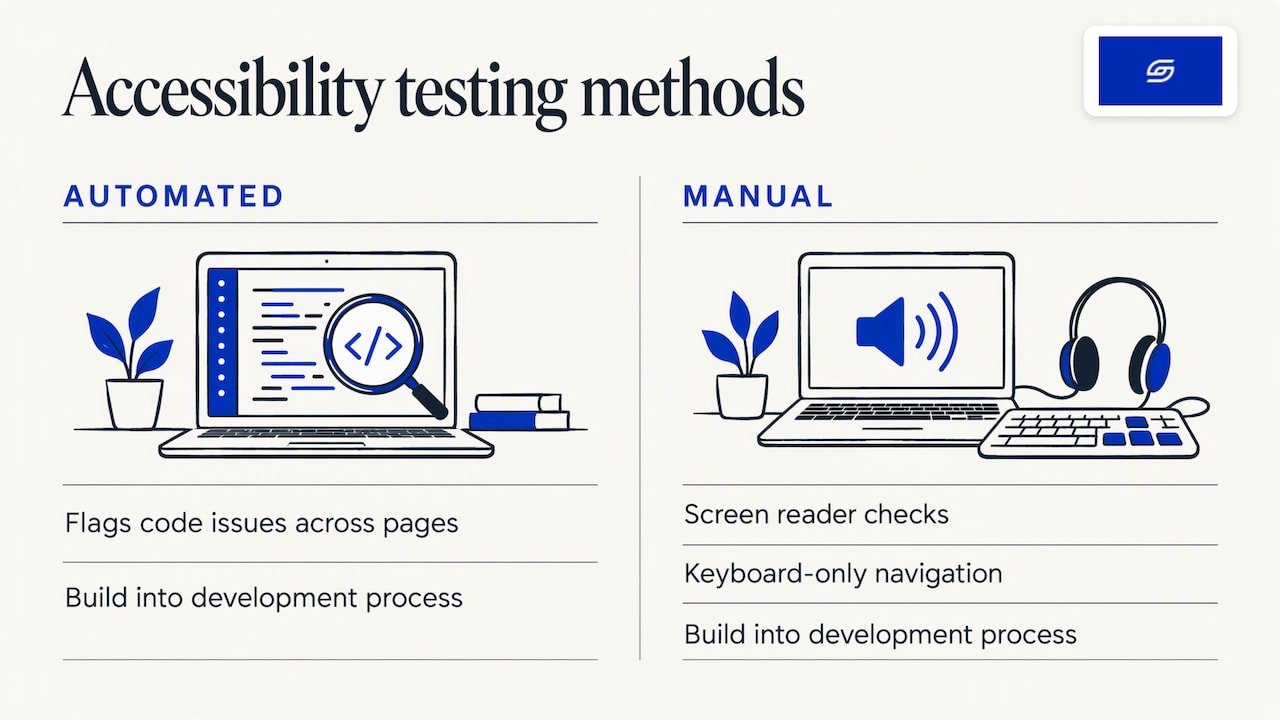
Use both automated and manual testing. GovTech Singapore advises combining automated scans with manual checks using screen readers and keyboard-only navigation. It also says testing should be built into the development process, not added at the end.
Automated scans
GovTech’s open-source tool Oobee crawls pages, flags code-level issues such as unlabelled images or buttons, and rates their impact. It is a good first pass across many pages. For more on how scans fit with SEO work, see this piece on web accessibility and SEO impact.
Automated tools find only part of the problems. They cannot tell you whether alt text is meaningful or whether a flow makes sense.
Manual checks (15 minutes)
- Unplug the mouse. Go from the homepage to a product, add it to the cart and reach checkout using only Tab, Shift+Tab, Enter, Space and Escape.
- Turn on a screen reader (VoiceOver on Mac and iPhone, TalkBack on Android, or NVDA on Windows). Listen to one product page.
- Zoom to 200%. Check nothing is cut off.
- View the page on a phone in bright light. Is the text still readable?
- Check contrast on buttons, sale badges and banner text.
In what order should you fix issues?
Sort findings by how badly they block a purchase. Shopify’s retail guide advises putting everything on the path to buying at the top. A simple order:
| Priority | What to fix | Examples |
|---|---|---|
| 1. Blocks a purchase | Checkout, cart, variant pickers, pay buttons | Keyboard trap in cart drawer, unlabelled fields |
| 2. Makes buying hard | Product pages, search, menus | Low contrast price, missing focus outline |
| 3. Hurts understanding | Headings, alt text, link text | Skipped heading levels, “click here” links |
| 4. Polish | Video captions, decorative images, minor layout | Missing captions on a blog video |
Retest after each fix. Write down what you changed, so you can check it again after the next update.
How do you keep your store accessible?
Accessibility drifts as your store changes. Shopify’s guidance is to audit regularly and test whenever you add an app, swap a theme or launch a campaign.
Build small habits:
- Add alt text and captions at upload, not later.
- Test every new campaign banner for contrast before it goes live.
- Run a keyboard check after each app install or theme update.
- Review the full path to checkout every quarter.
Our view: build accessibility in from the start
We build Shopify stores around how customers actually buy. That is what we mean by sales-first. A shopper who cannot use your menu, pick a size or reach the pay button is a lost sale.
Accessibility is cheapest when it is part of the build. A theme chosen with keyboard use in mind, a clean product page structure and a short list of well-chosen apps remove most problems before they exist. Retrofitting a crowded store takes longer.
At Soodo, Jessica Bong leads strategy and a dedicated developer builds. Jessica has 10+ years in ecommerce and is a WSQ Shopify trainer at Equinet Academy. We run our own ecommerce brand, Patch&Bagel, and test our recommendations there first.
Every store we build is also set up for AI search (GEO). Clear structure, good alt text and clean markup help people and machines read your store. Every project includes handover training, so your team knows how to keep content accessible after launch, and 6 months of post-launch fixes.
Soodo
Build or fix with Soodo
Soodo is a founder-led Shopify agency in Singapore, founded in 2022 by Jessica Bong. We build, revamp and migrate Shopify stores for brands in Singapore and Southeast Asia. We are a Shopify Partner with 30+ live stores.
The right option depends on where you are:
- Starting fresh: a new Shopify store starts from SGD 8,500.
- Fixing a live store: a Shopify Revamp starts from SGD 3,000.
- Moving from WooCommerce or another platform: migration to Shopify starts from SGD 6,000.
Every project includes handover training and 6 months of post-launch fixes. We do not offer a monthly GEO or SEO service. For long-term GEO growth, we work through specialist partners.
FAQ
Is Shopify accessible out of the box?
Shopify provides a base, but the final result depends on your theme, content and apps. Shopify notes that following its theme practices does not guarantee a fully accessible theme. Test your live store with real products.
What is an accessible Shopify theme?
It is a theme with skip links, a correct language setting and clear focus indicators for every interactive element. It should also work fully by keyboard and meet contrast ratios. Check these in the theme demo before you buy.
Do I need a screen reader to test my store?
Not to start. A keyboard-only run and an automated scan will catch many problems. A screen reader adds a check on labels, alt text and announcements. Free options are built into most phones and computers.
How often should I audit my store?
Audit on a regular schedule, and also before a new campaign, theme change or app install. Those are the moments when problems tend to appear. Keep a short log of what you tested and fixed.
Does accessibility work cost a lot?
It costs least when built into a new store or a planned revamp. For an existing store, scope depends on its theme and apps. You can apply for a project slot to get a fixed quote.
Sources
- Ensuring Digital Inclusion for Persons with Disabilities in Singapore
- Shopify Accessibility Statement, Singapore
- Accessibility best practices for Shopify themes
- Website Accessibility: A 2026 Guide for Retailers
- Accessibility testing: Tools and best practices, GovTech Singapore
- Accessibility, GovTech Singapore (Oobee)
- Web Accessibility: Boosting Inclusion and SEO Impact
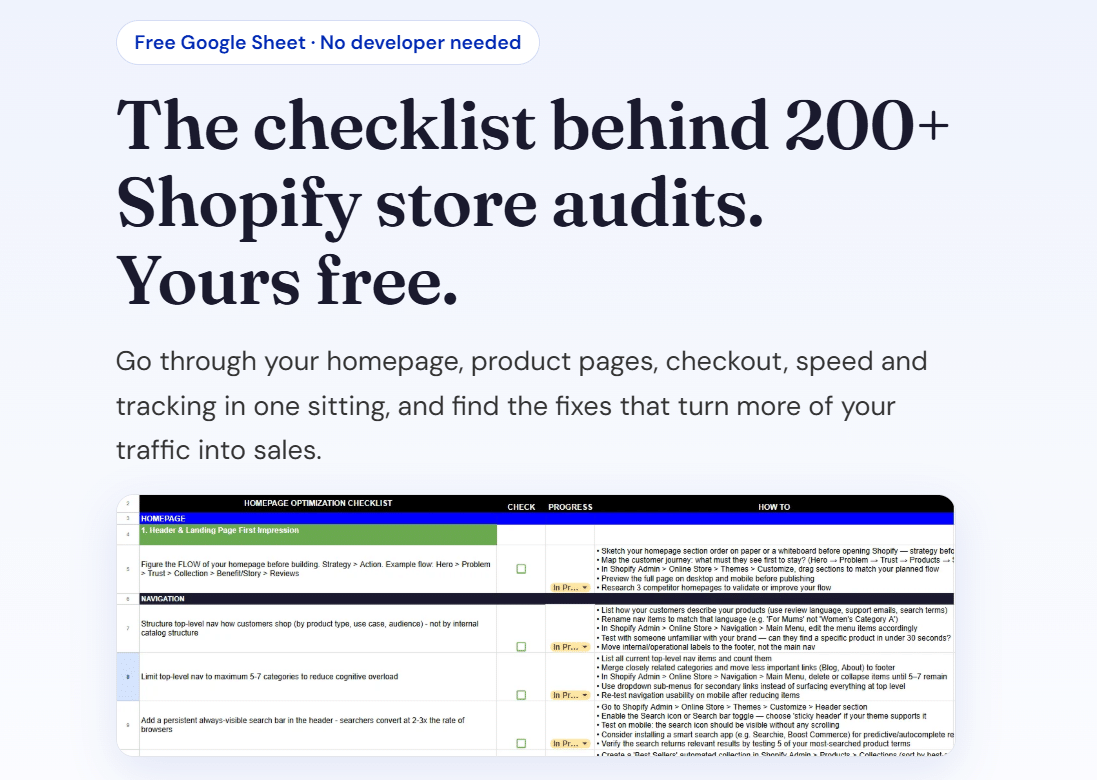
Next step: download our free Shopify optimisation checklist or apply for a project slot.
Recommended

Jessica Bong
Jessica Bong is the founder of Soodo, a Singapore Shopify agency that builds, revamps and migrates Shopify stores, with every store set up to be found in AI search (GEO). She has spent over 10 years in ecommerce and runs her own Shopify brand, Patch&Bagel, where every Soodo technique is tested first. Jessica is also a WSQ-certified Shopify trainer at Equinet Academy.