


Shopify Custom Fonts: How to Add Your Brand Font
You can add your own fonts to Shopify. Pick a font from Shopify’s built-in library if your brand font is there. If it is not, upload licensed WOFF and WOFF2 files and point your theme to them. Both routes work on any Shopify store, but the second needs a little code and some careful testing.
We are Soodo, a founder-led Shopify agency in Singapore. Fonts look like a small job, yet they touch speed, readability on mobile and how consistent your brand feels from the product page to the order email. This guide shows you the steps, where each one goes wrong, and when it makes sense to hand the work to a specialist.
Key Takeaways
- Start with Shopify’s font library. It includes system fonts and a selection of Google fonts, and it is the simplest and fastest route.
- For a brand font that is not in the library, upload WOFF and WOFF2 files and reference them in your theme’s CSS. TTF and OTF files are not web font formats.
- Check your font licence covers commercial web use before you upload anything.
- Define a regular and a bold file, or your headings may look thin.
- Notification emails are styled separately from your theme, so test them with a real test order.
Table of Contents
- What fonts can you use in a Shopify store?
- How do you change fonts in the theme editor?
- Can you upload your own font to Shopify?
- Why do my headings look too thin after adding a font?
- Will custom fonts slow down your Shopify store?
- How do you change fonts in Shopify notification emails?
- What should you do before you ship a font change?
- When is a font change really a redesign?
- What do we think about fonts on a store that sells?
- Want Soodo to handle your fonts and your store?
- FAQ
- Sources
What fonts can you use in a Shopify store?
You can use any font in Shopify’s font library, or your own font files. According to Shopify’s developer documentation, the library holds system fonts plus a selection of Google fonts. They are free to use on all online stores. Fonts that are not in the library can be added through a third-party service, or by uploading your own files to the theme.
Here is how the main routes compare.
| Route | Best for | Code needed | Speed impact |
|---|---|---|---|
| System fonts | Fastest pages, simple branding | No | Lowest, nothing to download |
| Shopify font library | Most stores | No | Low, served from Shopify’s own network |
| Uploaded font files | Exact brand typeface | Yes, a few lines of CSS | Depends on file size and number of weights |
| Third-party font service | Typefaces hosted elsewhere | Yes | Adds an outside connection |
Shopify’s own guidance is worth noting. Its Help Center says system fonts are already installed on the customer’s device, so nothing has to download. New fonts can slow store loading. That is a trade-off, not a ban. A brand font is often worth a small cost, as long as you keep the number of files low.
How do you change fonts in the theme editor?
If your font is in the library, you do not need code. This is the route we would try first.
- In your Shopify admin, go to Online Store, then Themes.
- Click Customize on your live theme.
- Open Theme settings, then Typography.
- Click Change under Headings or Body.
- Choose a font and click Save.
These steps come from the Shopify Help Center. Headings and body text are set separately, so you can pair a distinctive heading font with a plain, readable body font.
Where it goes wrong: stores often pick a decorative font for body text. It looks fine on a laptop and tires the eye on a phone. Keep body text plain and let the heading font carry the personality. Our mobile optimisation guide covers how type size and spacing affect small screens.
The theme you choose also matters. Some themes expose extra font controls, such as a separate font for buttons. If you are still picking a theme, see our guide on how to choose a Shopify theme.
Can you upload your own font to Shopify?
Yes. Uploading is the right route when your brand guidelines name a typeface that the library does not include. Shopify’s developer documentation explains that the library route is better when the font is in it, because the files are served from Shopify’s own network without an external connection. Self-hosting is for typefaces outside the library.
Step 1: Check the licence and the file format
First, confirm that your font licence allows use on a commercial website. Some licences limit page views or require a separate web licence. Switch Themes’ documentation warns you to check both the embedding rights and the traffic limits.
Then check the format. A theme support guide from We Are Underground says font files should include at least WOFF and WOFF2, and that TTF and OTF are not web font formats. Fluorescent’s theme documentation says the same and notes that converters exist for TTF and OTF files.
Where it goes wrong: designers often send OTF files from the brand pack. These may work in a test and then cause problems in some browsers. Ask for WOFF2 files, or convert them.
Step 2: Upload the files
In your Shopify admin, go to Content, then Files, and upload your font files. Truly Fine Pixels’ Athens documentation shows this workflow with a WOFF2 file. Use simple file names with no spaces. Once uploaded, copy each file’s URL. You will need it in the next step.
Step 3: Add the font to your theme code
You add an @font-face rule. This is a short block of CSS that tells the browser the font’s name and where its files are. Where it goes depends on your theme:
- In the Athens theme, the rule goes below the
{% style %}line inhead-css.liquid, using the file URL. - In Switch Themes’ themes, it goes in
snippets/css-variables.liquid. - For themes managed with Shopify CLI, a ZIP upload, GitHub or the Theme Store, Shopify’s documentation says to put the files in the theme’s assets folder and use the
asset_urlfilter. It adds that this is done in a local code editor, not the admin code editor. See the Fonts documentation.
Every theme is built differently, so the file name above is not universal. Check your theme’s own documentation before you edit.
Step 4: Apply the font to headings, body and buttons
Most modern themes use CSS variables for type. In Athens, you replace the body, heading and button font family variables with your new font name, then save and preview. You can change just one, for example headings only. Switch Themes works the same way, with its own title and body font stack variables.
Keep a fallback. A fallback is a safe font the browser uses while your font loads, or if it fails. A simple example is your brand font followed by a generic sans-serif.
Step 5: Test on a copy of your theme
Never edit your live theme first. Fluorescent advises duplicating the theme, making changes on the unpublished copy, and using the preview link to test on several browsers and devices before publishing. Follow that. A typo in a Liquid file can break a page, and customers will see it.
Why do my headings look too thin after adding a font?
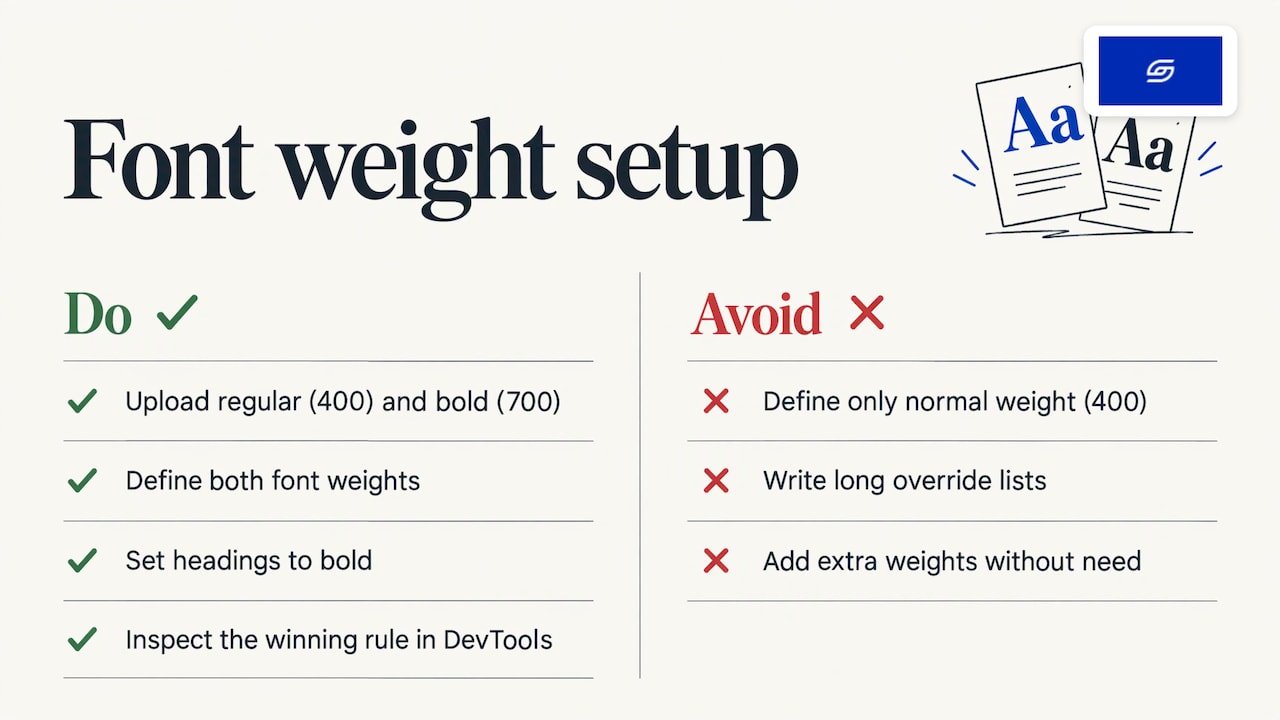
This usually means only one weight was defined. A Shopify community thread on the Sense theme explains that when @font-face defines only the normal weight (400), headings inherit that weight and look similar to body text. The fix is to upload separate files for regular (400) and bold (700), define each one, and set bold on your headings.
The same thread suggests redefining the theme’s font family variables rather than writing long lists of overrides. If a rule still does not apply, inspect the page in your browser’s developer tools to see which more specific rule is winning.
A good rule: every weight you add is another file the visitor downloads. Two files, regular and bold, are enough for most stores. Italics and extra weights should earn their place.
Will custom fonts slow down your Shopify store?
They can, so keep the files light. Fluorescent notes that custom fonts may contribute to longer load times. The cost is small if you follow a few habits:
- Use WOFF2 files where you can.
- Limit yourself to two weights.
- Use one font family for headings and one for body, or a single family for both.
- Do not load a custom font and a library font that do the same job.
Fonts are one part of the picture. Images, apps and theme code usually matter more. If you want a wider view, this article on how to boost website speed lists general tips for small business sites. For Shopify specifically, our guide to speed optimisation with real user data shows how we think about measuring what shoppers actually experience.
How do you change fonts in Shopify notification emails?
Order confirmations, shipping updates and other notification emails are edited in a different place from your storefront. Your theme font settings do not change them.
To add your logo to all templates, go to Settings, then Notifications, then Customer notifications, then Customize email template. Upload your logo with Choose file. To edit one email, go to Settings, then Notifications, pick the notification type and the notification, and click Edit code. You can then edit the subject and the HTML body, and click Save. These steps are from the Shopify Help Center. It also says you must confirm your sender email address before you can edit the body and subject.
Each template accepts custom HTML and CSS. A Shopify Singapore partners post from 2020 shows that you can even use Liquid conditions to show different content for different products in an email. Treat that as a 2020 example, and check the current Help Center for any changes.
Do custom fonts work in every email app?
Not reliably. Email apps handle web fonts differently, and some ignore them. So write your email CSS with a fallback font stack, for example your brand font followed by Arial and sans-serif. Then design the email so it still looks good in the fallback font. If your brand font shows up for some customers and not others, nobody should notice a broken layout.
How should you test notification emails?
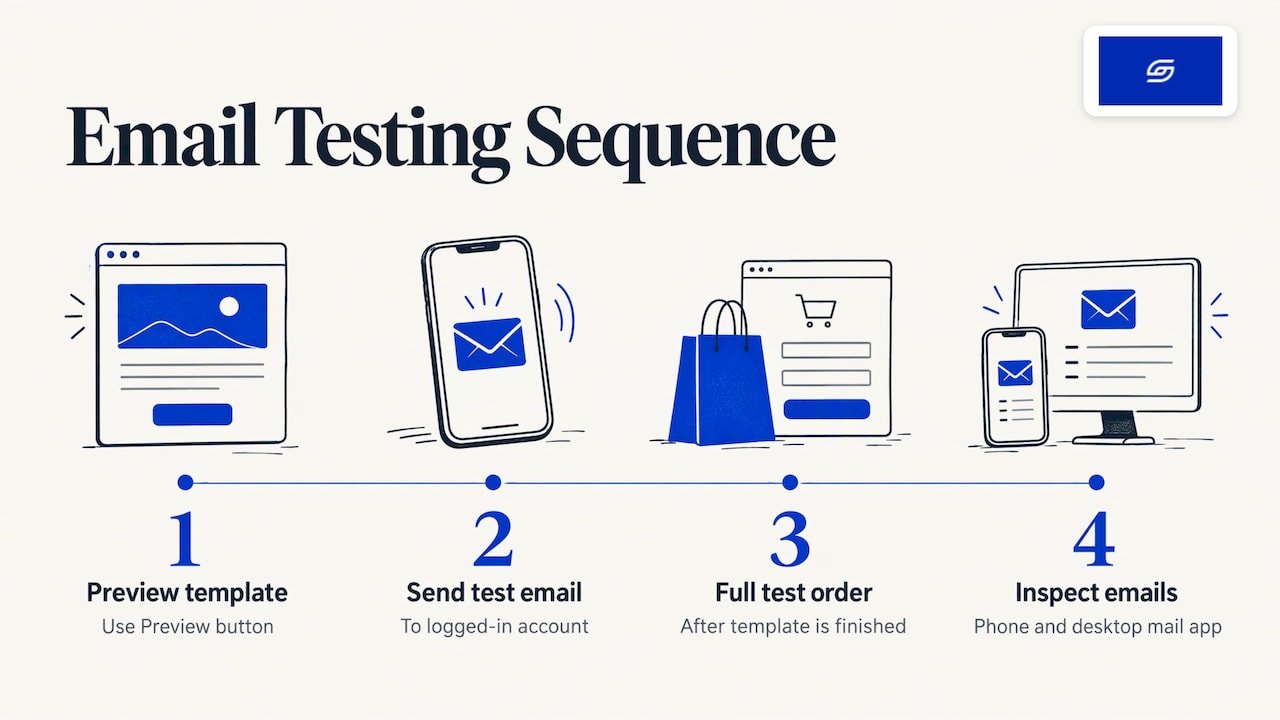
Use the Preview button for quick edits. Then click Send test email, which goes to the account you are logged in with. The Shopify Singapore post also advises running a full test order once a template is finished, so you catch problems in the whole process. Open the test emails on your phone and on a desktop mail app, because that is where fonts and spacing differ most.
What should you do before you ship a font change?
Use this short check before you publish.
- The licence covers commercial web use and your expected traffic.
- Files are WOFF and WOFF2, with simple names.
- Regular and bold weights are both defined.
- A fallback font is set for the storefront and for emails.
- You tested on a duplicate theme, on at least one iPhone, one Android phone and one desktop browser.
- Product pages, checkout pages and emails all look right.
- Body text is readable at mobile size.
If you are planning a bigger visual change, fonts are a good moment to look at the whole store. A heavy custom theme is a different decision from a font swap. We explain that decision in when a custom Shopify theme is worth the cost.
When is a font change really a redesign?
A font swap is a small job. But some font problems are signs of a bigger issue. If your brand font looks wrong across several templates, if your theme fights your overrides, or if every page feels inconsistent, the theme itself may be the limit. In that case, a revamp is the cleaner fix. We explain how to tell in Shopify Revamp vs Rebuild vs Migration.
The same goes if you are moving from WooCommerce. Your fonts, colours and spacing need to be rebuilt in a Shopify theme, not copied over file by file. A migration is a good time to set the typography properly once. See our page on WooCommerce to Shopify migration in Singapore.
What do we think about fonts on a store that sells?
We build every store around how customers actually buy. That is what we mean by a sales-first approach. Type is part of it.
A font should make the product name, the price and the buy button easy to read on a phone. It should not slow the page down. It should look the same in the order email as it does on the site. When a brand font passes those three tests, we keep it. When it does not, we say so and choose a better pairing.
Soodo was founded in 2022 by Jessica Bong, who has 10+ years in ecommerce and is a WSQ Shopify trainer at Equinet Academy. We run our own ecommerce brand, Patch&Bagel, and test our recommendations there first. We are a Shopify Partner with 30+ live stores.
Every store we build is also set up for AI search (GEO). If you want to learn what that means, read what is GEO. We do not offer a monthly GEO or SEO service. For long-term GEO growth, we work with specialist partners.
Soodo
Want Soodo to handle your fonts and your store?
If fonts are one item on a longer list, the cleanest route is to fix them as part of a build, revamp or migration. We build, revamp and migrate Shopify stores for brands in Singapore and Southeast Asia. A new Shopify store costs from SGD 8,500. A Shopify Revamp costs from SGD 3,000. A Migration to Shopify costs from SGD 6,000. No GST is added, because Soodo is not GST-registered.
Every project includes handover training and 6 months of post-launch fixes. If something we built breaks, we fix it. Revisions are unlimited within the agreed scope. The timeline and start date are agreed before we begin. A 50% non-refundable deposit secures your start date, and the balance is due on completion. We take on a small number of projects each month, by application.
FAQ
Can I add my own fonts to Shopify?
Yes. You can pick from Shopify’s font library in the theme editor, or upload your own WOFF and WOFF2 files and reference them in your theme code. Check that your licence allows commercial web use first.
What font file format should I use for Shopify?
Use WOFF2, and include WOFF as well. TTF and OTF are not web font formats and can cause problems. If your designer sends TTF or OTF files, convert them before you upload.
Why does my custom font not show on my store?
The usual causes are a wrong file URL, a font name that does not match in the CSS, or a more specific theme rule overriding yours. Check the file URL in Content, then Files. Then inspect the page in your browser to see which rule is applied.
Do Shopify theme fonts change my order emails?
No. Notification emails are edited separately under Settings, then Notifications. Add your styling there, use a fallback font, and send a test email to check it.
Can Soodo set up my brand fonts during a build?
Fonts fall within a store build, revamp or migration. Tell us about your brand and your store when you apply, and we will agree the scope, timeline and start date before we begin.
Sources
- Fonts, Shopify developer documentation
- Self-host web fonts on Shopify CDN, Shopify developer documentation
- Customizing Theme Settings, Shopify Help Center
- Customizing email notification templates, Shopify Help Center
- How to Customize Shopify Email Notifications, Shopify Singapore partners blog
- Use a custom font, Switch Docs
- Athens: Load custom fonts, Truly Fine Pixels
- How do I add my own fonts to a theme, We Are Underground
- Custom fonts, Stiletto theme documentation, Fluorescent
- Fix Heading Font Weight and Style in Shopify Sense Theme, Shopify Community
- How to Boost Website Speed in 2025
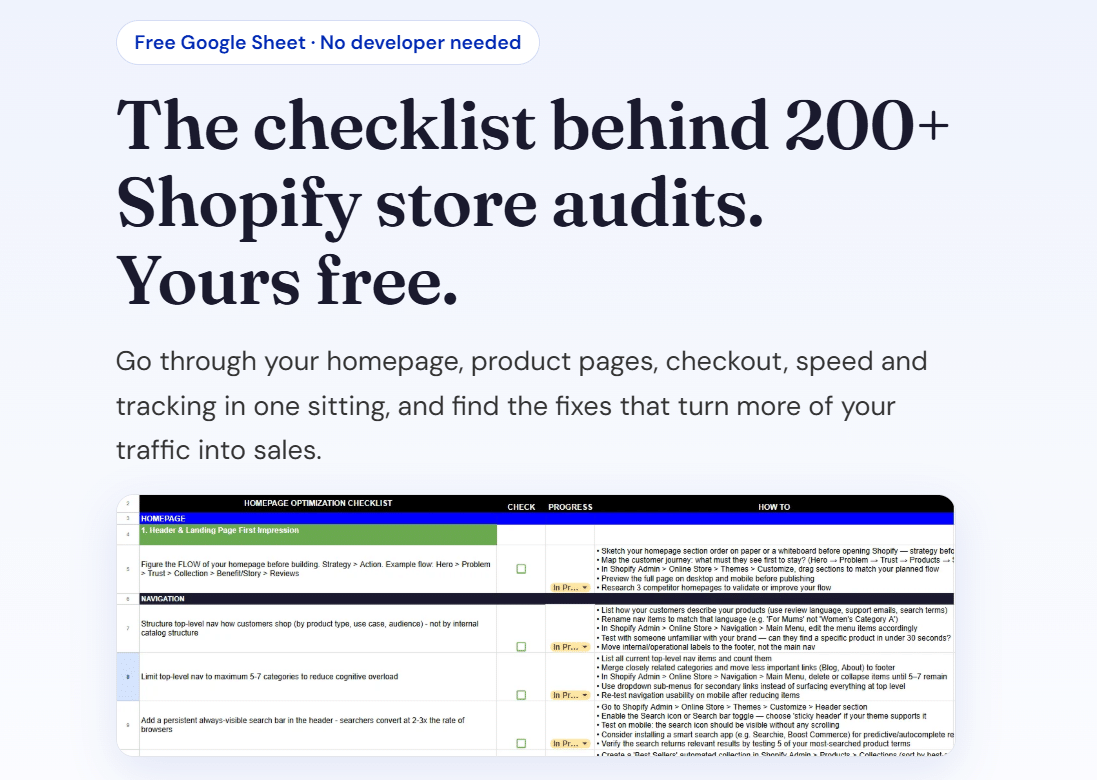
Next steps: download our free Shopify optimisation checklist, or apply for a project slot.
Recommended

Jessica Bong
Jessica Bong is the founder of Soodo, a Singapore Shopify agency that builds, revamps and migrates Shopify stores, with every store set up to be found in AI search (GEO). She has spent over 10 years in ecommerce and runs her own Shopify brand, Patch&Bagel. Jessica is also a WSQ-certified Shopify trainer at Equinet Academy.